
Enabling and Receiving Notifications
CSM uses Business Central’s notifications functionality to keep users informed of critical changes that are made to new versions of the application. Enabling this feature is not required, but it is recommended.
- Search for CSM Setup and select the related link
- On the main CSM Setup card, enable Edit Mode using the Pencil icon
 at the top of the card and under the Notifications FastTab, toggle on Enable CSM Notifications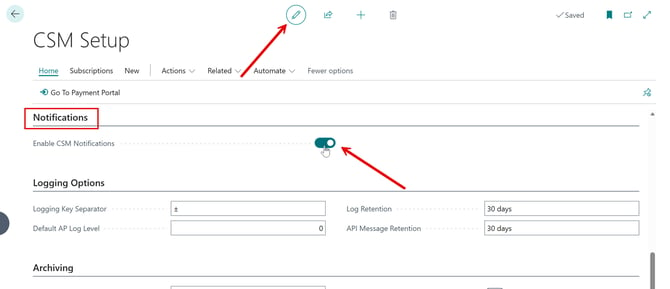
- On the main CSM Setup card, enable Edit Mode using the Pencil icon
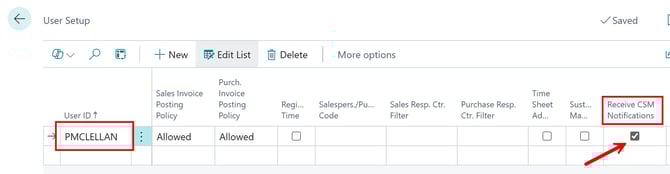
- Search for User Setup and select the related link
Configuring Data Deletion
API messages, their related data buffers, and other CSM records are created every time an API call is made from Business Central to an external Marketplace/eCommerce platform (or as we call them, Sales Channels). Left unchecked, the tables that house these records will grow in size, eventually requiring the purchase of additional storage space from Microsoft.
CSM leverages the standard retention policy functionality found in Business Central for the deletion of outdated data. To set up and schedule retention policies for these tables, please consult the standard Business Central documentation.
It is possible to define retention policies for the following custom Suite Engine tables:
| Table ID | Table Name |
| 70338207 | CSM API Message |
| 70338208 | CSM API Data Buffer |
| 70338209 | CSM Parameter |
| 70338216 | CSM Processing Log |
| 70338255 | CSM API Message Header |
| 70338268 | CSM Listing Synchronization History |
| 70338454 | API Message |
| 70338455 | Message Header |
| 70338456 | Parameter |
| 70338457 | API Data Buffer |
| 70338461 | API Log |
CSM Order Archiving
It is possible to archive completed and cancelled orders from your Sales Channels. When a channel order is archived, it is moved from the list of active orders to a separate list of archived orders.
- Search for CSM Setup and select the related link
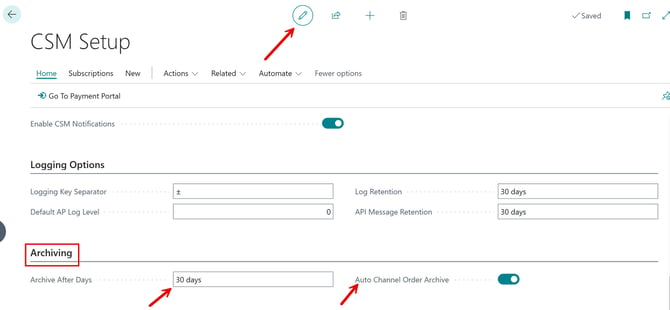
- On the main CSM Setup card, enable Edit Mode using the Pencil icon at the top of the card and under the Archiving FastTab, you will see two fields: Archive After Days and Auto Channel Order Archive
- Archive After Days: enter the number of days a CSM channel order should remain active prior to archiving. The value in this field is applied to a channel order’s last source update value in relation to Business Central’s work date to determine whether that order should be archived. By default, this value is set to 30 days, but you can enter a greater value if you want to archive your orders on a less frequent basis. It is not possible to define an archive period of less than 30 days.
- Auto Channel Order Archive: enable this option to instruct Business Central to automatically archive CSM channel orders that meet the appropriate criteria.
- On the main CSM Setup card, enable Edit Mode using the Pencil icon
More archiving options will be available for definition when creating sales channels
➡️Next Step: Subscriptions