
In This Article:
Overview | Document Categories | Document Types | Attaching a Document and Assigning Its Category | Example: Attaching to Multiple Locations | Builder Documents | Storage Options | Key Takeaways
Overview
This guide explains how to:
- Set up Categories and Types
- Attach and categorize
- Find documents centrally
- Configure storage (Business Central vs Azure Blob Storage)
Document Categories
Start here. Categories and Types are the two setup tables behind everything else in this article, and a document filed before they are set up will end up with no classification at all.
Find the page by searching for Document Categories, or by navigating in a Role Center: HomeBuilder → Setup → Document Management → Document Categories.
A Document Category is the umbrella term the broad heading a document sits under, the shelf rather than the book. It answers “what kind of thing is this, roughly?”, and it is deliberately coarse. A typical shipped set is:
| Code | Name | Covers |
| PURCHASER | Purchaser Documents | Anything belonging to the buyer of a Lot, purchase agreements and buyer correspondence. |
| DRAWINGS | Drawings | Site plans, block plans, working drawings, trusses, engineering drawings. |
| DETAILS | Details | Construction detail and specification, noise reports, hydro detail, kitchen layouts, Schedule A documents. |
| COLORS | Colors | Color charts, exterior charts, room areas. |
| PAYMENT | Payment | Cheques and payment records. |
| SAFETY | Safety | Training certificates, safety policies, hazard assessments, equipment inspections. |
| SCHEDULES | Schedules | Finishing and rough finishing schedules. |
| PERMITS | Permits | Construction, mechanical, electrical and plumbing permits. |
| PRICES | Prices | Vendor price lists. |
| SERVICE | Service | After-sales inspection paperwork: QCI, PDI, 30-day, 1-year and 2-year. |
Field Definitions
| Column | Description |
| Code | The category code, up to 30 characters. This is what is stamped on the attachment. |
| Name | The description shown alongside it. |
| Sorting Order | A number that controls where the category appears in the list. The page is sorted by Sorting Order, then by Code, so this is how you put the categories in the order your business thinks of them rather than alphabetically. Leave it at zero on every row and the list falls back to alphabetical by Code. |
Select a row and the Related Information FactBox on the right shows two counts, both of which drill through:
- Document Types — how many Types sit under this Category. Click it to open the Document Types list filtered to this Category.
- Documents — how many attachments in the system carry this Category. Click it to open Builder Documents filtered to this Category. This is the quickest way to answer “show me every colour chart we hold”.

Note
Document Categories are shared across all companies in the database. Adding, renaming or deleting one in a single company does it everywhere. That is intentional, (a document filed as a Permit should mean the same thing in every legal entity) but it does mean the list is not yours alone to reorganise if you run more than one company.
Tip
Keep the list short. Ten to fifteen categories is typical, and the shipped set above is a reasonable target size. Categories are for grouping and for filtering; the detail belongs in Document Types.
A Category cannot be deleted while any Document Type points at it, or while any attachment still carries it. Clear those out first, or leave the Category in place.
Document Types
Find the page by searching for Document Types, or by navigating: HomeBuilder → Setup → Document Management → Document Types.
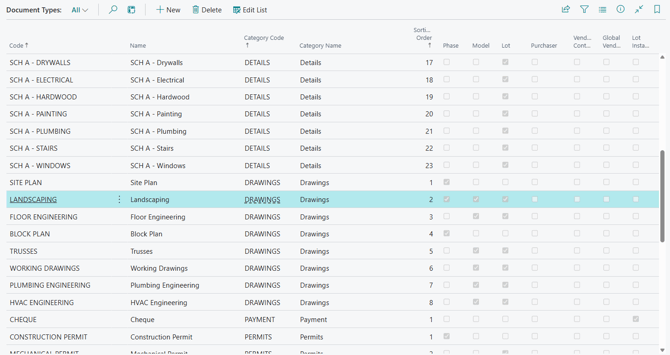
A Document Type is the specific kind of document. If “Insurance” is the Category, “Certificate of Insurance” is the Type. Every Type belongs to exactly one Category, named in its Category Code — a mandatory field. The list is sorted by Category Code, then Sorting Order, then Code, so the Types group under their Category and you can order them within it.
Like Categories, Document Types are shared across all companies.
The fields that matter most: where the document is allowed to live
Each Document Type carries seven yes/no columns. These are the point of the whole table. They say where in HomeBuilder a document of this Type is allowed to be attached — and, by extension, which Categories and Types a user will be offered when they go to classify a file.
| Field | Tick it when a document of this Type belongs to... |
| Phase | a Phase — the development as a whole. Site plans, block plans, construction permits, noise reports, finishing schedules. |
| Model | a Model — the house design. Working drawings, trusses, floor engineering, HVAC and plumbing engineering. |
| Lot | an individual Lot — one house. Colour charts, room areas, Schedule A documents, trade permits. |
| Purchaser | the purchaser of a Lot. Purchase agreements and anything else belonging to the buyer rather than to the house. |
| Vendor Contract | a Vendor Contract — the priced agreement with one trade on one Phase. Certificates of insurance, signed contract documents. |
| Global Vendor | a Vendor across all companies. Price lists, safety policies, training certificates, hazard assessments, insurance paperwork. |
| Lot Installment | a Lot Installment — a scheduled payment. Cheques and payment records. |
Note
A Document Type with none of these ticked can be created, but it can never be used. It will not appear in any lookup anywhere in the system, and there is no warning on the page to tell you so. If a user reports that a Type “is not there” when they try to classify a file, this is the first thing to check.
Tick more than one where a document genuinely belongs in more than one place. A certificate of insurance is usually both Vendor Contract and Global Vendor: the same kind of document is held once against the vendor as a company, and again against the specific contract it covers.
Note
Purchaser and Lot travel together. Ticking Purchaser ticks Lot automatically, and clearing Lot clears Purchaser. A purchaser document is a Lot document that also concerns the buyer, so it cannot exist without the Lot. This is enforced by the page. You will see the other checkbox change as you click.
The other fields
| Field | Description |
| Code | The Type code, up to 30 characters. Stamped on the attachment alongside the Category Code. |
| Name | The description. |
| Category Code | The Category this Type belongs to. Mandatory, and validated against the Document Categories list. |
| Category Name | Read-only, read live from the Category. |
| Sorting Order | Position within the Category. |
The Related Information FactBox shows a Documents count for the selected Type, drilling through to Builder Documents filtered to that Type.
Worked example: adding an Insurance category and type
- On Document Categories, create a new Category — Code INSURANCE, Name “Insurance” — and give it a Sorting Order that puts it where you want it in the list.
- On Document Types, create a new Type — Code CERT OF INSURANCE, Name “Certificate of Insurance” — and set its Category Code to INSURANCE.
- On that same row, tick Vendor Contract and Global Vendor. Now the same kind of document can be filed in both places: once against the vendor as a company, and again against each contract it covers.
- Leave the other five columns clear, so that nobody files a certificate of insurance against a Lot or a Model by accident. The checkboxes are as much about preventing the wrong filing as permitting the right one.
Attaching a Document and Assigning Its Category
Attachments are held on the record they belong to. Every HomeBuilder record that can hold documents (Phase, Model, Lot, Vendor Contract, Global Vendor, Lot Installment, etc.) has an Attachments tab in the FactBox pane down the right-hand side of the page.
Uploading the file is the easy half. Classifying it is the half that can get skipped, and an unclassified document is one nobody will find again.
Step 1 — open the Attached Document page
- Open the record. For the example below, that is a Vendor Contract: open HomeBuilder → Vendor Contracts, select the Phase, and open the contract.
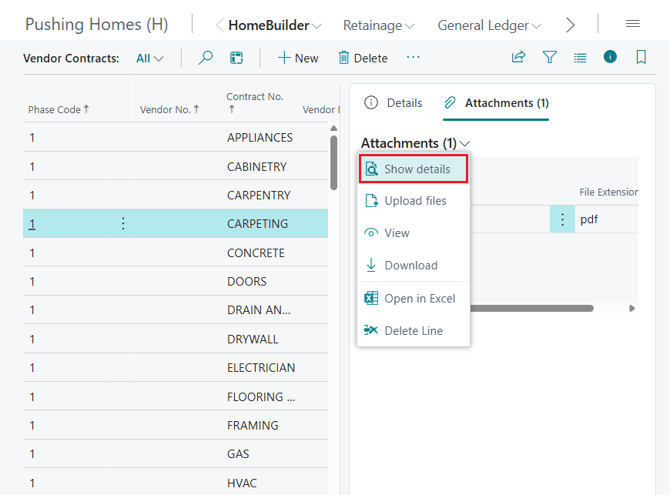
- In the FactBox pane on the right, go to the Attachments tab.
- The tab has its own actions menu, reached by the chevron — the small downward-pointing arrow at the top right of the Attachments tab. Click it to show the actions available for attachments.
- Choose Show Details. This opens the Attached Documents page: the full list of files held on that record, with the detail fields for each one. The FactBox itself only shows file names, which is why the Category has to be set here.
Note
The same menu offers Attach File, which uploads a file without opening the Attached Documents page. It works, but the file arrives with no Category and no Type and stays that way until somebody comes back for it. Going in through Show Details lets you upload and classify in the same visit — make it the habit.
Step 2 — pick the attachment and enter the Category Code
- On the Attached Documents page, select the row for the file you want to classify.
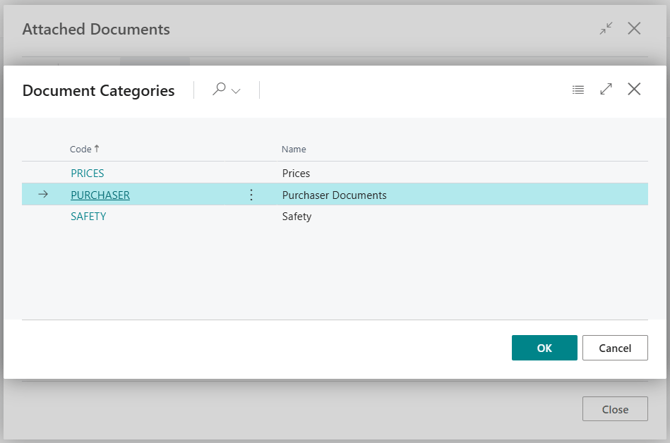
- In Category Code, open the lookup — the arrow at the right-hand edge of the field, or press F4. A short list opens. This is a lookup, not free text: you cannot type a Category that is not offered, and the list you are offered is filtered.
- Choose the Category, for example PURCHASER.
- Then set Type Code the same way. That lookup is filtered again — to the Types inside the Category you have just chosen.
Why the list is short, and why it differs from record to record
The Category Code lookup does not show every Document Category in the system. It shows only the Categories that contain at least one Document Type whose checkbox for this kind of record is ticked.
- Attach a file to a Vendor Contract and you are offered only the Categories that hold a Type with Vendor Contract ticked.
- Attach a file to a Global Vendor and you are offered only the Categories that hold a Type with Global Vendor ticked — usually a different, and often longer, list.
- On a Lot, the lookup accepts Types with either Lot or Purchaser ticked, because a purchaser document is filed on the Lot.
The Type Code lookup then narrows the same way, to Types inside the chosen Category that carry that same tick.
So the list you are offered is the system answering “what is it sensible to call a document filed here?” — and it is the Document Types you set up earlier that decide the answer. If a Category you expected is missing, the fix is on the Document Types page, not on this one.
Note
The two fields keep each other honest. Pick a Type first and its Category Code fills in automatically. Change the Category to one the current Type does not belong to and the Type Code is cleared, so the pair can never disagree. Clear the Category Code and the Type Code is cleared with it.
Result: the document is stored, classified, visible to every user who can see the record, and because it now carries a Category and a Type, it is now discoverable from Builder Documents by anyone who does not know which record it was filed against.
Example: Attaching Insurance Documents to the Vendor Contract and Global Vendor
Vendor Contract
- Open the Vendor Contract
- Go to Attachments → Show Details
- Upload insurance file
- Assign:
- Category: Insurance
- Type: Certificate of Insurance
Global Vendor
- Open Global Vendors
- Select vendor → Attachments
- Upload the same or related insurance document
- Assign category and type
Builder Documents
Find the page by searching for Builder Documents, or by navigating: HomeBuilder → Operations → Transactions → Builder Documents.
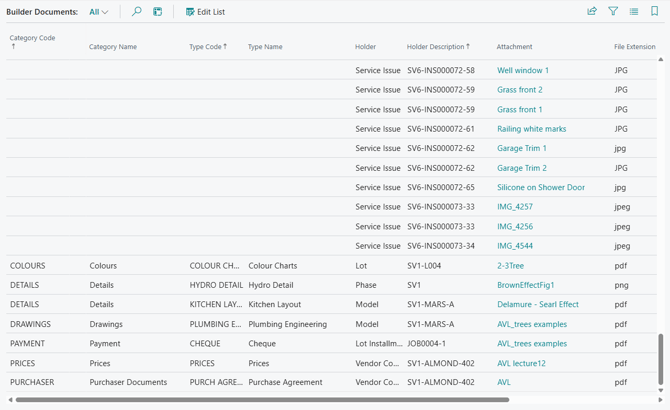
This is every HomeBuilder attachment in the company on one list, whatever record it is attached to. Where the Attached Documents page answers “what is filed against this contract?”, Builder Documents answers the harder question: “where is that document?” when you know roughly what it was and roughly who it concerned, but not which page somebody filed it on.
The page is a view, not a filing point. You cannot attach or delete here. You can read, sort, filter, edit the Description, and download.
Note
The list covers attachments held on a HomeBuilder record. Attachments on ordinary Business Central documents (a Purchase Invoice, a Customer card) are not HomeBuilder documents and do not appear here.
Field Definitions
| Field | What it gives you |
| Category Code / Category Name | The umbrella the document was filed under. Blank means the document was never categorized. See below. |
| Type Code / Type Name | The specific kind of document. Blank for the same reason. |
| Holder | The kind of record holding the document: Phase, Model, Lot, Vendor Contract, Global Vendor, Lot Installment, Buyer Notification, Service Issue, Diary Entry or Purchase Request. Filter on it to narrow a search to one part of the business, every document held against a Vendor Contract for example. |
| Holder Description | Which record, built from that record's own keys so it reads the way you would say it out loud. A Lot shows as Phase-Lot (PHASE01-LOT007); a Vendor Contract as Phase-Vendor-Contract No. (PHASE01-V00030-3); a Lot Installment as Phase-Lot-Installment No.; a Model as Phase-Model. This is the column you read to find the document's home. |
| Name | The attached file. Click it to download the file. |
| File Extension | The file type. |
| Description | The free text entered on the Attached Documents page. Editable here, which makes this a practical place to tidy up descriptions in bulk. |
| Origin | Whether the document was entered in Business Central or uploaded through a Portal. Hidden by default; show it through Personalization. |
Holder and Holder Description are the pair that make the page worth opening. Category Code and Type Code tell you what a document is; Holder and Holder Description tell you where it lives. Between them you can get from “somebody uploaded the fall-protection policy for that drywall trade, some time last year” to the file itself, without knowing which page it was attached to.
The list opens sorted by Category Code, then Type Code, then Holder Description, so documents of the same kind sit together and run in record order within that.
Finding documents that were never classified
Filter Category Code to blank. What comes back is every file uploaded without going through Show Details, plus anything attached before the Categories and Types were set up.
Use the list to audit and clean up: Holder and Holder Description tell you which record each stray file is on, so you can go to that record, open Attachments → Show Details, and set the Category and Type properly. The Category and Type cannot be set from Builder Documents itself, the columns there are read-only by design, so that classification always happens in the context of the record.
Getting here from the setup pages
The Documents count in the Related Information FactBox on Document Categories and on Document Types opens this page pre-filtered, to that Category, or to that Type. It is usually faster than filtering by hand, and it is the quickest way to check whether a Type you set up is actually being used.
Storage Options - Administration Topic
Business Central or Azure Blob Storage
- Business Central database (default)
- Azure Blob Storage (recommended for vendor portal use) - requires setup from the IT company responsible for your Microsoft licensing
Change Global Attachment Storage Company
- Go to Home Builder Setup
- Find Attachment Storage for Global Tables
- Choose the company where global attachments are maintained. You must choose only one company.
Recommendation
- Use Azure Blob Storage if you plan to use the Vendor Portal now or in the future
Key Takeaways
- Set up Document Categories and Document Types before anybody attaches anything. Documents filed first arrive unclassified and have to be revisited one at a time.
- Categories is the umbrella, the broad heading. Types are the specific kind of document, and each Type belongs to one Category.
- The seven checkboxes on the Document Type (Phase, Model, Lot, Purchaser, Vendor Contract, Global Vendor, Lot Installment) control where a document may be attached. They are what the Category and Type lookups read, so setting them correctly is what makes the right choices appear for the person filing the file.
- Attach through Attachments → Show Details, and set the Category Code and Type Code in the same visit. Both are lookups, filtered to what is valid for the record you are on.
- Builder Documents is the central view: filter Category Code to blank to find what was never classified, and use Holder and Holder Description to find where a document lives.
- Azure Blob Storage is strongly recommended for scalable storage, and is required in practice if you plan to use the Vendor or Buyer Portal.