Open the link to review the Sales Retainage Data Migration process.
System Setup
Specify "Retainage Release Suffix" in section "Background Posting" in "Sales & Receivables Setup".
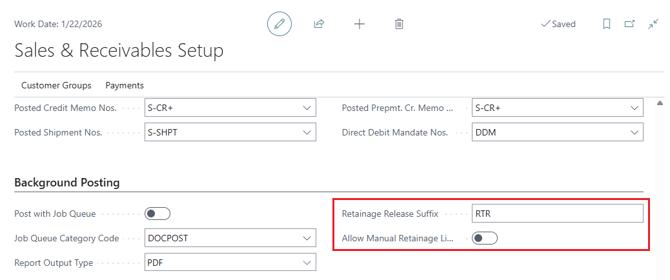
Check flag "Allow Manual Retainage Lines" if you want to add retainage or retainage release lines to sales documents manually.
Tip: Normally leave this flag off, system control is tighter that way.
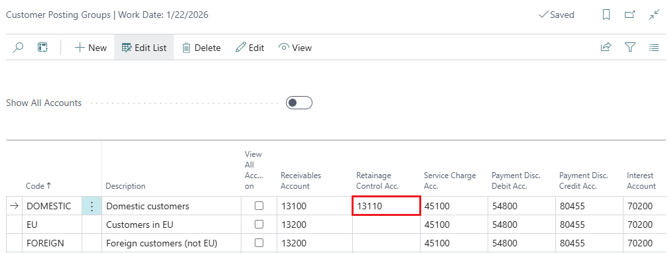
Customer Posting Groups must have a Retainage Control Account specified:
Customer Setup (Not Mandatory but Helpful for Repeated Use)
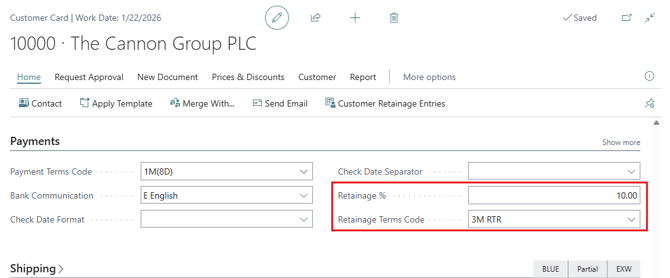
Enter retainage related fields in Customer Cards for customers subject to retainage.
Generating a Sales Invoice with Retainage Lines
Note
To Generate a Sales Invoice with Retainage Lines you must be subscribed to SuiteEngine Sales Retainage. For details of the installation, read Install From AppSource
- Create a Sales Invoice, pick a Customer, enter your lines and enter the Retainage % and Retainage Terms Code if they did not default from the customer. See example below for retainage at 10%.
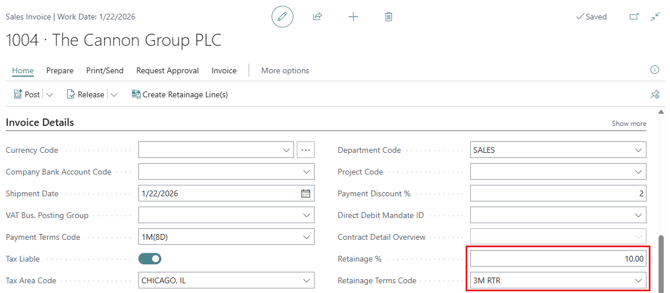
- Now go to Process and select the Create Retainage Lines Action Button. The system is going to create one Retainage Line for each tax change:

- Here is the GL Posting Preview for the example when the net amount is $1000.00, retainage amount $100 and tax amount (HST) is 13%:
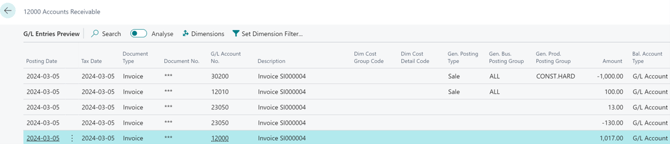
The full 1,000 amount is accounted for as revenue in the GL Account 30200.
12010 is the AR- Holdbacks/Retainage account showing 10% x 1000 = 100
23050 is the HST Collected account, that has the full 1000x 13%= 130 as a Credit and 100 (Retainage) x 13%= 13 as a Debit.
Regular AR account – 12000- shows $1017, which is:
- 1000-10% Retainage is 900
- HST is: 13% x1000 =130
- Subtract HST that will be part of the Retainage: 10% x130=13
- Finally: 900+130-13=1017
To view Customer Ledger Entries, on the Customer Card, go to Customer, then Ledger Entries.
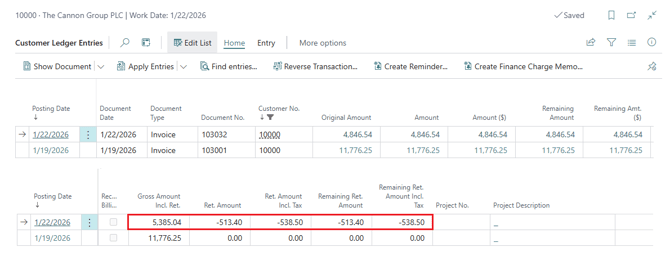
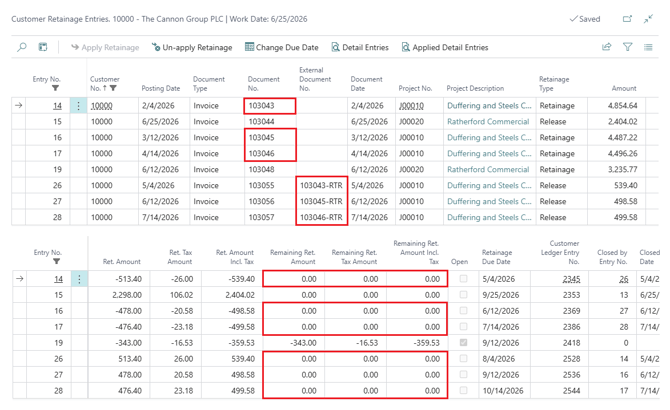
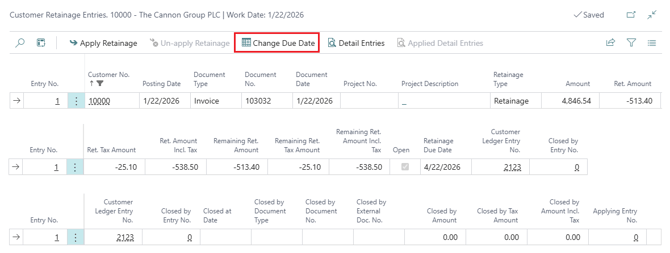
- Retainage Values are displayed on the Customer Ledger Entry. To view Customer Retainage Entries, on the Customer Card, go to Process and click on Customer Retainage Entries:
- When the time comes, search Release Sales Retainage, select the lines you want to release, and hit Release Selected Invoices:
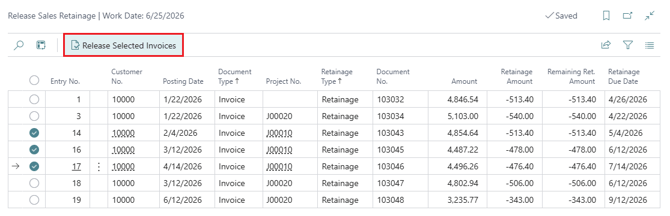
- There are options in the Release pop-up which work as follows:
- Release Method:
- "For Each Invoice" - one Sales Invoice will be posted for each Retainage Entry.
- "Group by Customer" - one invoice per customer with one sales line for each Retainage Entry that you select prior to processing the release (note that you will not see the "Project No." on the Retainage Ledger if you make this selection)
- Set Posting Date From:
- Defaults to the Retainage Due Date with an override if you select "Entered Value" and fill in the date on the next field.
- Don't Release Posting Invoices:
- Defaults to posting however you can choose to have the system create an unposted Sales Invoice which you can modify. Note that we strongly recommend against changing the values as partial applications are not setup in Retainage. The value of this option is to do things like change Dimension, address etc.
- Release Method:
- The default Action will produce a posted Sales Invoice. This will result in a new posted Sales Invoice visible in Customer Retainage Entries: