
Once you have set up a trial subscription and obtained your credentials, you are ready to set up your CSM for BigCommerce solution. To assist you in the creation of your primary sale channel, CSM for BigCommerce includes a setup wizard that streamlines the setup process.
Caution: if your online business has multiple stores, and you want to create a separate CSM Sales Channel for each one, it is recommended that you manually set them up, one at a time. This will ensure that the credentials you established during the setup of your primary sales channel are not inadvertently overridden or deleted.
Obtain Business Central Tenant ID
Your Tenant ID is used to link your Business Central account to the BigCommerce API. In Business Central, click the ?/Question Mark button at top-right and then select the Help & Support link
- Scroll to the bottom of the page and you will see your Microsoft Entra tenant ID
- Consequently, you will also see your tenant ID in your URL, directly after "https://businesscentral.dynamics.com/"
- Copy this Tenant ID
Install the CSM for Big Commerce app on BigCommerce
Next, you need to next install the CSM for Business Central app from the BigCommerce Apps & Integrations site.
-
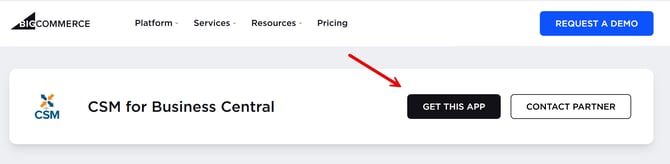
Point your browser to https://www.bigcommerce.com/apps/csm-for-business-central/
-
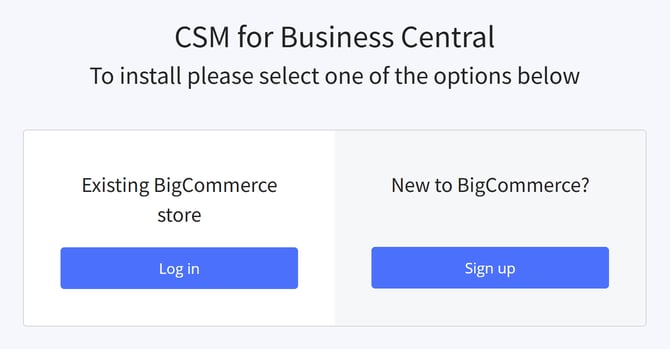
- The next screen will prompt you to confirm whether or not this is for an Existing BigCommerce store or if you are New to BigCommerce. Ideally, you already have a BigCommerce account and can Log in.
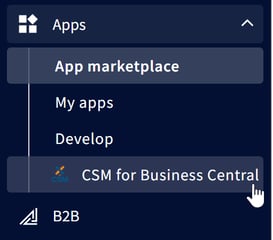
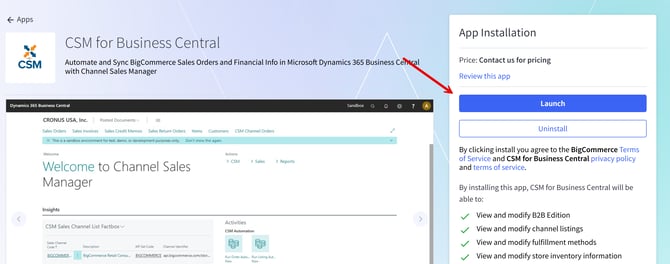
- Once you have the app installed on your BigCommerce account, click the app and then click Launch. If you get lost, you can always find your installed applications under the Apps section of the left menu.
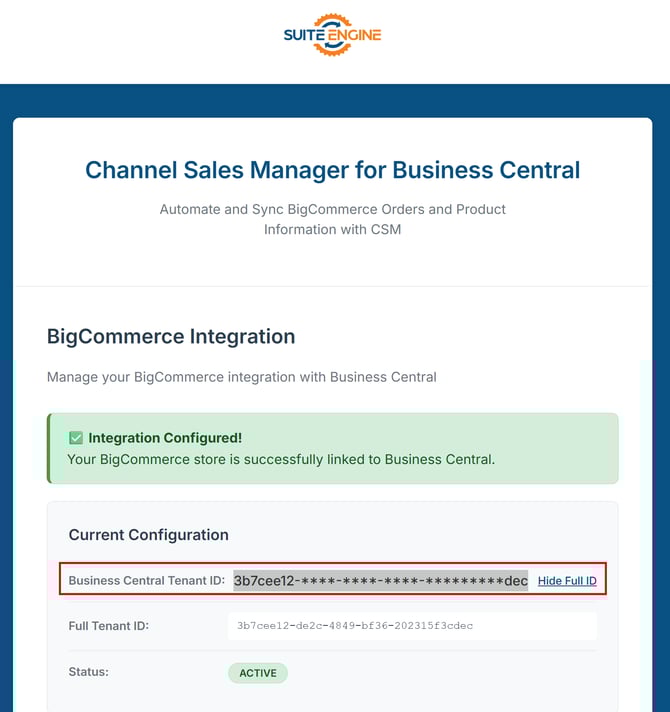
- The next page will then request for your Business Central Tenant ID to be pasted into the corresponding field. This is the same Tenant ID that you would have just copied from the first step. Paste it here and you should see the integration confirmed on the BigCommerce side of things.
➡️ Next Step: Quick Setup Wizard