
Create your Subscription
For your first installed Suite Engine product, it will be necessary to create a new Suite Engine Subscription.
- Search for CSM Setup and select the related link
- Click on the Registration tab. Underneath the Registration and Billing information FastTab, enter the following subscription information. (If you are a partner doing this on behalf of the customer, it is best to use the end-user's information.)
- Company Name
- Contact Email
- Address
- Address 2 (optional)
- City
- State
- Postal Code
- Country
- Phone
- Under the Subscriptions tab, select the Free Trial option associated with the platform product you are activating.
- Click on the Registration tab. Underneath the Registration and Billing information FastTab, enter the following subscription information. (If you are a partner doing this on behalf of the customer, it is best to use the end-user's information.)
Note: If you attempt to create a new trial without populating the required fields above, an error message will inform you of what data you need to include.
If all the required values are present, a new Suite Engine subscription account will be created and assigned in Business Central; the new subscription number will be displayed in the CSM Customer ID field and the Free Trial button will be replaced with subscription options for each supported platform module.
The Free Trial activation will also update the subscription status fields on the Registration and Billing Information FastTab so you can track the # of days remaining in your trial. Suite Engine products by default allow for a 30-day trial period, during which you have access to the full functionality of the Suite Engine product.
Adding a Payment Method to your Subscription
At the end of your 30-day free trial, the connection to your platform will be disabled. To avoid this disruption in service, you must provide a valid payment method (this can be cancelled at any time).
- From the CSM Setup Page
- On the Home tab, select Go To Payment Portal
- This opens the Suite Engine Subscription Self Service Portal for the assigned CSM customer ID that was just created when the Free Trial was activated.
- The payment portal (powered by Stripe) presents information on all Suite Engine subscriptions that have been set up under this particular account.
- From here, you can Add Payment Methods, Cancel a Subscription or adjust your existing subscriptions.
- This payment portal is completely secure, and your payment information is safe!
- If you are cancelling your subscription, please be sure to cancel all modules including CSM Core or you will continue to be billed for module that was not cancelled.
- On the Home tab, select Go To Payment Portal
Note: to minimize disruptions to your integrations, it is recommended that you visit the Suite Engine Subscription Self Service Portal and set up a payment method before your CSM trial expires.
You will not be charged until your trial period ends, at which point your full subscription will be automatically activated.
---
Aside from viewing subscription information in the CSM Setup card, you can also search for Suite Engine Subscriptions and select the related link. This will show you all subscriptions that you have on your account, whether or not in evaluation, active or expired status.
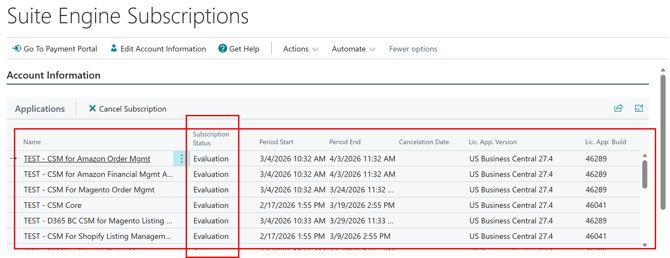
Caution: If you are moving from a Sandbox environment to Production, you will want to make sure your subscriptions follow you, vs setting up and paying for duplicate subscriptions. If you need to move a subscription from Sandbox to Production, we have an article that describes the process.
CSM should now be installed with initial setup steps completed and you should have a trial or active subscription!
Note: Each Marketplace/eCommerce platform has their own methodology for connecting to their API. We have done our best to create a standardized format for connecting Business Central to their platform, but there are some variances.
If you are connecting to more than one platform, please pay special attention to the integration process as there will be variances.
➡️Continue the integration with one of our supported Sales Channels:
 |
 |
 |
 |
 |
 |