
This article walks through the full process of sending inventory to an Amazon fulfillment center in a three phased approach:
-
Create and Submit an Inventory Plan
-
Process Inbound Shipments
-
Confirm Delivery
Phase 1: Create and Submit an Inventory Plan
The FBA Inventory Plan tells Amazon what products you're sending, how many, and from where.
Caution: Please take note of these Inventory Plan Rules enforced by CSM.
- The plan must be in Open status to make changes
- Plans must be Released before submitting to Amazon
- Only one ship-from location per plan
- All items on a plan must be case packed
- Each Channel Item No. can appear on only one line
- Quantities must result in full cases - enter a case count and CSM calculates the total, or enter a quantity and CSM rounds down to the nearest full case
- Search for CSM Sales Channels and select the related link
- Select your Amazon FBA Sales Channel
- From the Home ribbon, select FBA Inventory Plans and click New. (To reuse a previous plan as a starting point, open it and choose Copy Plan.)
- General FastTab
- Confirm the ship-from location. It defaults from the Sales Channel setting but can be overridden. The location's address and contact information must be populated.
- Shipping Plan Lines FastTab
- Select your Item # and enter quantities
- General FastTab
- Select Home > Release to release the Inventory Plan
- Ensure the Status listed for your plan shows Released
- Select Actions > Submit Plan to Amazon
- You will see several API messages scroll through on your screen as we look at all placement options; this is normal and the process might take up to 60 seconds to complete.
- If the process errors out, we recommend running it again. Sometimes the many API endpoints throws an error and it just needs to be re-run.
- CSM will send the plan to Amazon and will return Placement Options. These options determine how Amazon distributes your inventory across their network.
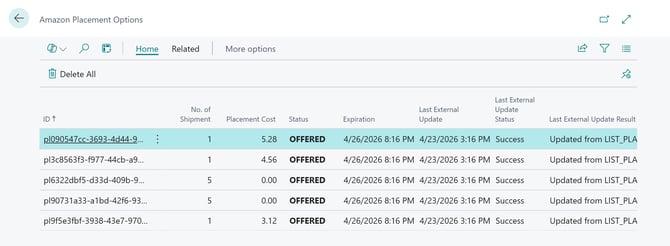
- Select a Placement Option, then click Actions > Confirm Placement
- CSM will submit the confirmation to Amazon and redirect you to the resulting Inbound Shipment
- Once accepted, your shipment will also be listed on Amazon's Seller Central, under FBA > Shipments > Shipping Queue
- You will see several API messages scroll through on your screen as we look at all placement options; this is normal and the process might take up to 60 seconds to complete.
- From the Home ribbon, select FBA Inventory Plans and click New. (To reuse a previous plan as a starting point, open it and choose Copy Plan.)
- Select your Amazon FBA Sales Channel
Phase 2: Process Inbound Shipments
Each Inbound Shipment represents a specific Amazon fulfillment center you're directed to send inventory to. We have four steps we'll go through in this phase.
- Set Shipping Date and Shipping Carrier
- Carton Feeds (only applies to Case Packed Shipments)
- Estimate and Confirm
- Download and Print Labels
Set Shipping Date and Shipping Carrier
- After confirming placement, you will be to an FBA Inbound Shipments screen
- Select a Shipping Date
- A prompt will confirm the date and generate Transportation Options.
- The Shipping Carrier field auto-populates with Amazon's preferred carrier
- Use the dropdown to review and/or select alternatives
- Select a Shipping Date
-
-
-
-
Amazon Partnered Carrier
- Shipping Mode: Ground Small Parcel
-
Once you have the shipping carrier marked as confirmed, click Confirm Transport Option
-
-
Shipping Mode: LTL
-
Open the Shipment Plan and click Transport > Delivery Windows
-
Select Actions > Get Delivery Windows
- Select a delivery window and click Actions > Confirm Delivery Window
- Select Transport > Add Pallet
- Enter Length, Width, Height, and Weight for each pallet. These appear in the Inbound Shipment Lines FastTab on the FBA Inbound Shipment screen
- In the Transport Content FastTab, enter the Freight Bill Number, Seller Declared Value Currency, and Seller Declared Value Amount
- Return to the FBA Inbound Shipments screen, select the points of elipsis next to the carrier, and click Confirm Transport Option
-
- Shipping Mode: Ground Small Parcel
- Non-Amazon Partnered Carrier
- Shipping Mode: Small Parcel
- Open the Shipment Plan and click Transport > Delivery Windows
- Select a delivery window and click Actions > Confirm Delivery Window
-
In the Shipment Boxes FastTab, enter the carrier-assigned Tracking Id for each box
- In the Transport Content FastTab, enter the Seller Declared Value Currency and Seller Declared Value Amount
- Return to the FBA Inbound Shipments screen, select the points of elipsis next to the carrier, and click Confirm Transport Options
- Open the Shipment Plan and click Transport > Delivery Windows
- Shipping Mode: LTL
- Open the Shipment Plan and click Transport > Delivery Windows
- Select a delivery window and click Actions > Confirm Delivery Window
-
In the LTL FastTab, enter the Transport LTL Pro Number
- Return to the FBA Inbound Shipments screen, select the points of elipsis next to the carrier, and click Confirm Transport Options
- Open the Shipment Plan and click Transport > Delivery Windows
- Shipping Mode: Small Parcel
-
-
-
Note: Once a Transportation Option is confirmed, CSM automatically creates a Transfer Order in Business Central to move goods from your ship-from location to the FBA location.
You can view this from the FBA Inbound Shipment by selecting Related > Shipment > Transfer Order > Show Transfer. If a plan generates multiple shipments, a Transportation Option must be confirmed for each one.
Carton Feeds (only applies to Case Packed Shipments)
- From the Carton Feed ribbon, click Suggest Cartons
- CSM builds one carton record per case using the weight and package template set on each CSM Listing.
- Click Send/Check Carton Feed to submit the carton details to Amazon
- Wait approximately 2 minutes, then click Send/Check Carton Feed again to refresh the status
- It should change to Complete
-
For Mixed Box shipments, cartons must be built manually and items assigned to each carton
-
For LTL shipments, pallets are added via the Carton Feed ribbon
-
- Click Send Transport Content to submit carton dimensions and weights to Amazon.
- If you used Suggest Cartons and your listings have the Case Packed Weight and Package Template populated, you're ready to send. Otherwise, verify that each carton has complete dimension and weight values before sending.
Estimate and Confirm (Amazon Partnered Shipments Only)
- Click Estimate Transport Request. The Transport Content status changes to Estimating.
- Use Get Transport Status/Content to refresh.
- Once the status is Estimated, review the charge amount.
- Click Confirm Transport Request. Refresh until the status is CONFIRMED.
- The Transport Estimate Void by Date will appear. Use Void Transport Request to cancel before this deadline if needed.
Download and Print Labels
| Label Type | How to Access |
|---|---|
| Package / carrier labels | Labels > Download Package Labels |
| Case pack labels | Inbound Shipment Lines FastTab > Lines > Print Labels |
| Pallet labels (LTL only) | Labels > Download Pallet Labels |
Carrier labels are only available for Amazon Partnered shipments. For Partnered LTL, you can also download the Bill of Lading from the Labels menu.
Phase 3: Confirm Delivery
Once the shipment has been picked up by the carrier:
- Navigate to Inbound Shipment > Mark Shipped
- This marks the shipment as sent and automatically posts the associated Transfer Order in Business Central.