
Mapping Customers
If you have existing customers in both Business Central and your external platform, you should map these records so that retrieved orders will seamlessly connect to the correct Customer record in BC.
Creating a Platform Customer from a BC Customer Card
CSM will create a CSM Customer record, send the Customer's name, address, and email to the platform, and retrieve the external platform ID back into BC to establish the link between both records. This action is not available if the Customer is already linked to all CSM Sales Channels in your environment.
- Search for Customers and select the related link
- Select your Customer and choose Actions > Create CSM Sales Channel Customer
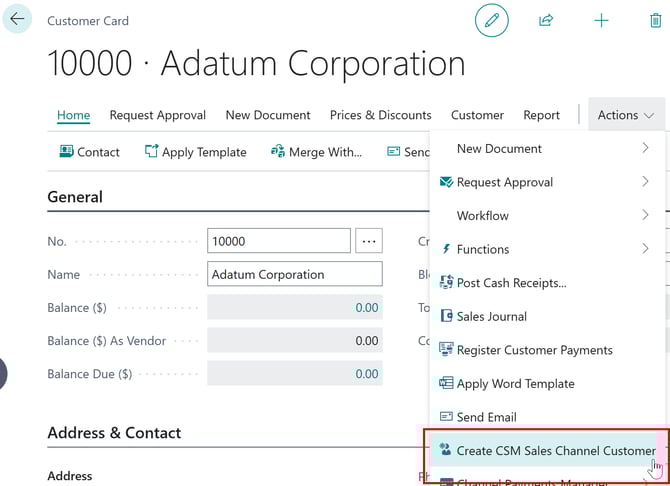
- Select the Sales Channel to send the Customer to and click OK
Mass-Creating Platform Customers from the Customers List
CSM will create a CSM Customer record for each selected Customer that is not already linked to the chosen Sales Channel, send their information to the external platform, and then retrieve the external IDs back into BC to establish the link between both records.
CSM validates that required data (name, email) is defined and that proper Customer/Contact relationships exist. If validation fails, CSM creates the CSM Customer record but does not export it to the platform. A summary message indicates how many Customers were created, how many were skipped due to existing links, and how many failed due to insufficient data.
Review the Last External Update Result field on the CSM Customer for details on any failures.
Tip: You can view all linked sales channels for a customer from the Customer card: Related > CSM Channel Customers.
Note: This process also works for BC Contacts. The same actions are available from the Contacts list, and Contacts are created as Customers on the platform.
-
Search for Customers and select the related link
-
Refine your filters on your search result to display the desired customers
-
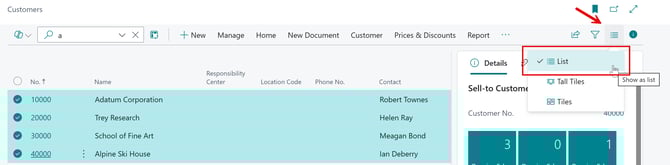
Ensure you are in List mode by selecting the icon at top-right
-
Change to From the Customers List, select the customers you want to send by using the CONTROL or SHIFT and clicking through the desired Customers
- Select Actions > Mass Create CSM Sales Channel Customer
- Select the Sales Channel to send the Customers to and click OK
-
Creating a Platform Customer from the Sales Channel
CSM will send the Customer/Contact's name and address information to the platform to and then retrieve the external ID back into BC to establish the link between both records.
-
Search for CSM Sales Channels and select the related link
-
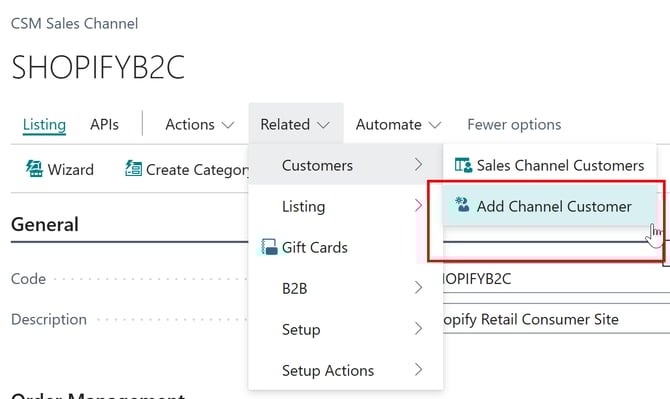
Select your Sales Channel and choose Related > Customers > Add Channel Customer
-
In the wizard, select the BC customer record in the Customer No. field (and optionally select a Contact) and click Next
- On the next page, enter a unique identifier for the customer for the platform (typically this is their email address)
-
Choose Next, then Finish
-
Mapping Items
CSM must be able to map Item information retrieved from the platform to a corresponding Item in Business Central in order to build Sales Orders correctly.
Note: If you are using Listing Management, refer to the Listing Management documentation.
If your platform product SKUs are identical to your BC item numbers, no additional mapping is required.
If your platform SKUs differ from your BC item numbers, you must set up item identifiers:
-
Search for Items and select the related link
-
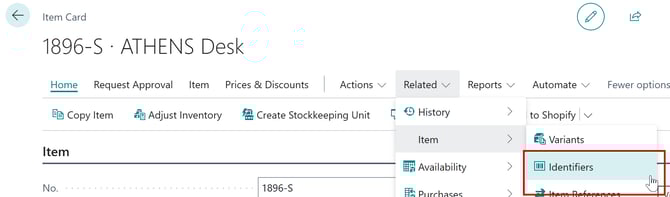
Select your Item and choose Related > Item > Identifiers
-
-
Enter the platform SKU in the Code field and assign a Unit of Measure Code
-
-
-

Mapping Item Categories
CSM channel categories map to Business Central item category codes. Like BC's item category hierarchy, CSM channel categories support parent-child relationships. Linking platform product categories to CSM channel categories is not required but is recommended, as it streamlines the listing creation process.*
Creating channel categories from BC item categories:
- Open your sales channel > Related > Listing > Create Category Wizard
- On the first page, set Method to Item Category and choose Next
- Enter the BC Item Category Code for which you want to create a channel category
- Auto Add Category Children — Enable to create CSM channel categories for all child categories
- Create Sales Channel Attribute Set — Enable to auto-create attribute sets for each new category
- Create / Sync Sales Channel Attributes — Enable to create sales channel attributes for each item attribute assigned to the corresponding BC item categories
- Choose Next, then Finish
Assigning external IDs:
- From your sales channel > Related > Listing > Channel Categories
- On each newly created line, enter the platform's external ID/tag ID in the External ID field
*Platform-specific behavior:
-
BigCommerce: Channel categories correspond to "product category" records. Each has a unique external ID, which can be found by opening the category in edit mode from BigCommerce's admin and reviewing the URL. The ID is the value before
/edit. For example:-
https://mybigcommerce.com/manage/products/categories/23/edit→ external ID is 23
-
- WooCommerce: Channel categories correspond to "product category" records. Each has a unique tag ID, which can be found by opening the category in WooCommerce's admin and reviewing the URL. The ID appears after
tag_ID=. For example:-
https://csmwoo.com/wp-admin/term.php?taxonomy=product_cat&tag_ID=79→ tag ID is 79 -
You can alternatively choose Send to Channel on each line to send the category to WooCommerce and have the external ID retrieved automatically.
-