
In this Article:
Overview | Lot Customers | Lot Contacts | Import Lot Purchasers
Overview
Every Lot carries one Customer (purchaser) and any number of Contacts belonging to that customer. Customers and Contacts are standard Business Central records and HomeBuilder links them to the Lot and keeps a history of the link.
- Customers are mandatory for certain Lot functions, including installments, invoicing and closing.
- Contacts are optional but useful — they are the people you actually correspond with about the home, such as both partners in a couple or a purchaser's representative.
This article covers assigning and changing the customer on a Lot, managing the contacts behind that customer, and bulk-loading purchasers from a spreadsheet with the Export and Import Lot Purchasers tools.
Note
Before a Customer can be assigned to a Lot, the Customer record must already exist. Create Customers using standard Business Central functionality, and Contacts using standard contact management, or create both in bulk with the Import Lot Purchasers tool described below.
Lot Customers
Accessing Lot Customers
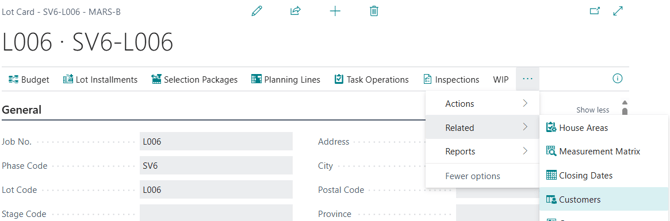
- From the Lot — search Lots, select a Lot to open the Lot Card, then select Related › Customers.
- From the Lot Card — the currently assigned purchaser is shown on the Purchaser FastTab.
- All customers — search Customers to open the Customer List, which contains every Customer available in the HomeBuilder company you are working in.
Assigning and changing the purchaser
The purchaser is set in the Customer No. field on the Purchaser FastTab of the Lot Card. The remaining fields, Name, Phone No. and E-mail are read-only and are retrieved from the Customer record.
You can change the customer on a Lot at any time, subject to the Sales Status rule below. Each time you assign or change Customer No., the system writes a record to the Lot's customer history. That history is shown on the Lot Customer page: a non-editable grid of every Customer that has been related to the Lot as a home buyer.
Note
Customer No. is editable only while the Sales Status is Unsold/Available.
You cannot change the purchaser while the Sales Status is Sold Conditional or Sold Firm. Both represent a legal contract between the purchaser and the home builder, so the Sales Status must be changed before the Lot can be sold to another purchaser.
Tip
You will sometimes need to post transactions against a Lot before there is a real paying customer. Create a temporary customer so the system can continue. Many builders name this customer Inventory, because the Lot is still in the builder's inventory. Replace it with the real purchaser once the sale is made; the swap is preserved in the Lot's customer history.
Lot Customers page
the Lot Customers page holds one line per customer that has been linked to the Lot:
- Customer No. and Name — the customer record itself.
- Sequence No. — the order in which customers were assigned, so the ownership chain can be read top to bottom.
- Is Current — flags the customer presently assigned to the Lot. Only one line carries this flag.
- Date From and Date To — the period each customer was linked to the Lot. The current customer has no Date To.
- Phone and Address — contact details carried through from the Customer record.

Actions on the Lot Customers page
- Customer Card
- Opens the standard Business Central Customer Card for the selected Customer.
- This is where the name, address, payment terms and other master data are maintained. They cannot be edited from the Lot Customers grid, which is history only.
- Contacts
- Opens the standard Contacts page for the selected Customer.
- This is the same list described in the next section, so you can reach a purchaser's contacts either from the Lot or from the customer history.
Lot Contacts
Contacts are the individuals associated with the Lot's customer. A Lot has only one Customer at a time, but that Customer may have one or several Contacts.
Accessing Lot Contacts
- From the Lot Card — select Related › Contacts.
- From a Customer Card — select the Contact action.
Lot Contacts page
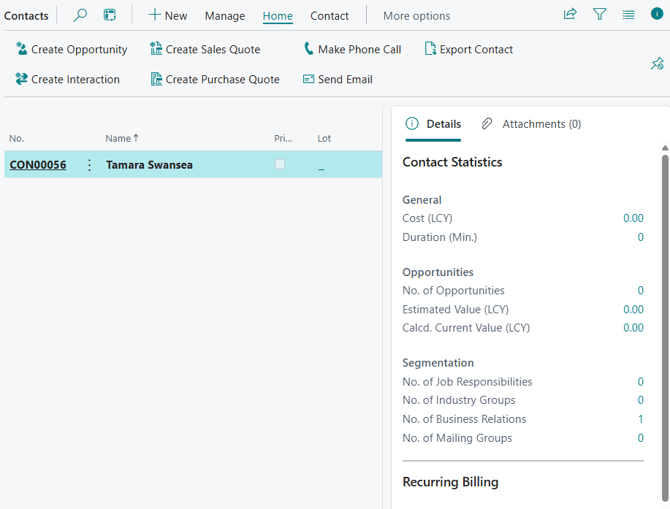
Opening Contacts from the Lot shows the contacts of the customer currently assigned to that Lot. Each line holds:
- No. and Name — the contact record, numbered from the contact number series.
- Primary — flags the main point of contact. Each Lot requires exactly one Primary Contact.
- Lot — every Lot the contact is linked to. A single contact can appear against several Lots, which is common where a purchaser buys more than one property.
- Company Name and Contact Business Relation — the customer the contact belongs to, and the nature of the relationship (Customer).
- Phone No. and Email — inherited from the contact record, and used by the Portal and by inspection invitations.
Adding and removing contacts
- Select Add to attach an existing Contact to the customer.
- Select the Contact you want to remove and use Delete to detach it.
- Set the Primary flag on exactly one contact per Lot. When you load contacts in bulk, this is set in the import template, see below.
Because these are standard Business Central contacts, the usual contact actions are available from this page too: Create Interaction to log a call or letter, Make Phone Call, Send Email, Create Sales Quote, Create Opportunity and Export Contact. The FactBox shows contact statistics such as opportunities and interactions recorded with the person.
Import Lot Purchasers
The Export Lot Purchasers and Import Lot Purchasers tools let you create and assign purchasers in bulk from a spreadsheet, rather than entering them Lot by Lot. This is the fastest way to load purchaser data when you are migrating from a legacy system or opening a new phase.
What the tools do
When you run the import, the system will:
- Create each Contact, using a system-generated Contact No.
- Create each Customer, using the Lot No. as the Customer No.
- Link the Contacts to their Customer.
- Link the Customers and Contacts to their Lots.
Before you start
Note
Both actions are reached from the HomeBuilder Role Center under Report/Exports. They cannot be navigated to with a Search.
Export first and use the exported file as your import template. Lots that already have a Customer and Contact will appear populated; Lots created in HomeBuilder with no customer assigned will appear blank and ready to fill in.

The Process
- Create the Lots in HomeBuilder
-
Create the Lots first; the import assigns purchasers to existing Lots, it does not create them. Lots are normally created manually. Where there are more than about 50 Lots, consider using Configuration Packages instead.
-
- Add the customers to the template
- Run Export Lot Purchasers and open the resulting file. How you fill in the customer columns depends on whether the customer already exists:
-
If the customer already exists in HomeBuilder — enter their Customer No. and Name next to the appropriate Lot. Alternatively, assign them manually to each Lot first (from the Lot Card, on the Purchaser FastTab) and then re-run the Export Lot Purchasers report to pick them up.
- If the customer does not exist in HomeBuilder — enter only the Customer Name, taken from your legacy system or an Excel list, next to the Lot it belongs to. The import will create these Customers and assign them to their respective Lots.
-
- Run Export Lot Purchasers and open the resulting file. How you fill in the customer columns depends on whether the customer already exists:
- Fill in the contact names
-
Each Lot has only one Customer but may have one or several Contacts. Enter each contact's name against the correct Lot.
- If a Contact already exists in the system, it will already be present in the exported file, with a Contract No. Do not delete that Contact number — if you do, the import will create a duplicate Contact.
-
- Set the Primary Contact
-
Each Lot requires exactly one Primary Contact. Select Yes in the Primary Contact column once, and only once for every Lot.
- Also not while completing the template:
- The Phase Code will be the same for each Lot within a phase.
- Enter any other information you hold such as phone, address and so on. It does not matter whether the email is formatted as a hyperlink.
- Save and close the template before importing it.
-
- Import the template
- From the HomeBuilder Role Center, go to Reports/Exports and select Import Lot Purchasers. Choose your completed template and import it.
- If there are validation errors, correct them in the spreadsheet and import again. No contacts are created while errors remain.
- Once the file is clean, the system displays a confirmation message reporting the number of rows successfully imported.
- From the HomeBuilder Role Center, go to Reports/Exports and select Import Lot Purchasers. Choose your completed template and import it.

Verifying the import
Open Lots, highlight a Lot, and check Contacts, either in the FactBox on the right-hand side or through Related › Contacts. The new Contacts should be present on the Lot, and the Purchaser FastTab should show the assigned Customer.