
In This Article:
Overview | Grading Conditions | Ownership Types | Closing Date Types | Construction Attributes | Lot Categories | Building Types | Development Statuses | Stock Statuses | Installment Statuses | Regions and Municipalities | Phase Attributes and Site Superintendents
Overview
This article covers the smaller HomeBuilder setup tables that do not have an article of their own: the descriptive attributes that classify a Lot, the geography tables behind them, the Phase attributes, and Site Superintendents.
Almost all of these tables are simple Code-and-Name lists, they are informational and used for reporting and filtering. They all have a global scope, meaning once they are set up in one company, they are available for use in all companies. Except where noted below, they carry no posting or processing behavior.
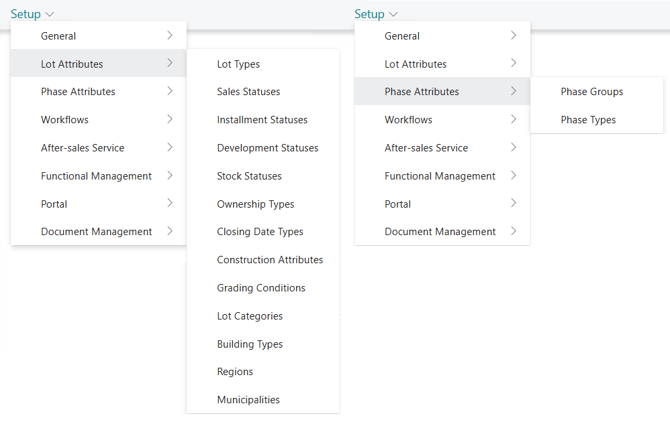
All of them are reached in the same two ways: use the Search, or navigate from the Role Center under HomeBuilder → Setup. The Role Center groups them as General, Lot Attributes and Phase Attributes.
Grading Conditions
Grading Condition represents physical properties of the Lot, such as Look-out, Walk-out, Corner, Corner Deck, etc.
- This is just for information and potentially reporting. There is no additional functionality here.
- It is used as an informational property in the Lot Card.
- To define grading conditions, open the page "Grading Conditions" by searching for it or by navigating to Roles Center (i.e., Homebuilder - Setup - Grading Conditions).
Note
"Grading Conditions" have a global scope, which means once set up in one company, they are available for use in all companies.
Ownership Types
Ownership Type represents a type of property ownership, such as Freehold, Standard Condominium, or Vacant Land Condominium.
- It is used as an informational property in the Lot Card.
- To define ownership types, open the page "Ownership Types" by searching for it or by navigating to Roles Center (i.e., Homebuilder - Setup - Ownership Types).
Note
"Ownership Types" have a global scope, which means once set up in one company, they are available for use in all companies.
Closing Date Types
The closing date for any lot can be moved multiple times. The system stores the history of closing dates for each Lot.
- Closing Date Type provides a reason for entering each closing date value (i.e., the reason for changing the closing date at each occurrence).
- To define closing date types, open the page "Closing Date Types" by searching it or by navigating to Roles Center (i.e., Homebuilder Setup Closing Date Types). Examples are shown below:
The Closing Date Types can be associated with Key Dates. When "Closing Date" is changed in the Lot Closing Dates, the "Schedule Date" values will be automatically updated in Lot Key Dates specified in columns "Closing Key Date Code" and "Notice Key Date Code".
Note
"Closing Date Types" have a global scope, which means once set up in one company, they are available for use in all companies.
Construction Attributes
Construction Attributes are purely information fields on the Lot Card. These fields describe the constructional specifics of a lot. The list of attribute types is pre-defined.
To define possible values for the attributes, open the page "Construction Attributes" by searching for it or by navigating to Roles Center (i.e., Homebuilder - Setup - Construction Attributes). "Construction Attributes" have a global scope, which means once set up in one company, they are available for use in all companies.
Lot Categories
Lot Category is a free classification of the Lot. For example by product line, by price band, or by any grouping your company reports on.
- Fields: Code and Name.
- Informational only; appears on the Lot Card under Classifications, and as a column on the Lots list.
- Included in the Export Lots / Import Lots data files.
- Access via Search or the Role Center: HomeBuilder → Setup → Lot Attributes → Lot Categories.
Note: Lot Categories have a global scope, which means once set up in one company, they are available for use in all companies.
Building Types
Building Type describes the physical form of the building on the Lot — for example Bungalow, Two-Storey, Townhouse, or Stacked Townhouse.
- Fields: Code, Name, and Storeys. Storeys is a decimal, so half-levels (for example 1.5 for a bungaloft) can be recorded.
- Informational only; appears on the Lot Card under Classifications.
- Access via Search or the Role Center: HomeBuilder → Setup → Lot Attributes → Building Types.
Note: Building Types have a global scope, which means once set up in one company, they are available for use in all companies.
Development Statuses
Development Status records where the Lot stands in the land development process. For example, Raw Land, Draft Plan Approved, Servicing, or Registered.
- Fields: Code and Name.
- Informational only; appears on the Lot Card under Statuses.
- Access via Search or the Role Center: HomeBuilder → Setup → Lot Attributes → Development Statuses.
Note: Development Statuses have a global scope, which means once set up in one company, they are available for use in all companies.
Stock Statuses
Stock Status records the inventory position of the Lot as a saleable unit. For example, Available, On Hold, Model Home, or Not Released.
- Fields: Code and Name.
- Appears on the Lot Card under Statuses.
- The Lot Card also shows two read-only audit fields next to it, Stock Status Updated At and Stock Status Updated By, which the system stamps automatically whenever the Stock Status is changed. Use them when you need to establish who last released or held a Lot, and when.
- Access via Search or the Role Center: HomeBuilder → Setup → Lot Attributes → Stock Statuses.
Note: Stock Statuses have a global scope, which means once set up in one company, they are available for use in all companies.
Installment Statuses
Unlike the tables above, Installment Status is not purely informational. It controls what can be done with a Lot Installment. Each installment carries a status, and the status decides how the installment may be processed.
| Field | Purpose |
| Code | Identifies the status. |
| Name | Description of the status. Must be unique across all Installment Statuses. |
| Can Post Bank Deposit | Installments with this status may be included in a Bank Deposit. |
| Can Post Cash Receipt Journal | Installments with this status may be posted through a Cash Receipt Journal. |
| Negative Amount | Marks the status as one used for negative amounts, such as a refund. |
| Default | The status assigned to new Lot Installments. |
| Blocked | Prevents the status from being used on new installments. |
The enforces the following rules:
- Exactly one Installment Status must be marked as Default. You cannot have more than one, and you cannot leave the company without one.
- The default status cannot be Blocked, and a blocked status cannot be made the default.
- The default status cannot be deleted. Mark another status as default first.
- Name must be unique.
Access via Search or the Role Center: HomeBuilder → Setup → Lot Attributes → Installment Statuses. For how installments are created and processed, see the Lot Installments article.
Note: Installment Statuses have a global scope, which means once set up in one company, they are available for use in all companies.
Regions and Municipalities
Regions
- Fields: Code, Name, Country Code (pointing at the standard Business Central Country/Region table) and the read-only Country Name.
- Set up Regions first, because Municipalities refer to them.
- Access via Search or the Role Center: HomeBuilder → Setup → Lot Attributes → Regions.
Municipalities
- Fields: Code, Name, Region Code and the read-only Region Name.
- Leaving Region Code blank is allowed, a Municipality with no Region is treated as available everywhere.
- Access via Search or the Role Center: HomeBuilder → Setup → Lot Attributes → Municipalities.
Regions and Municipalities Behavior on the Lot Card
Region Code and Municipality Code appear in the General group at the top of the Lot Card. The two fields are linked:
- If the Lot already has a Region Code, the Municipality Code lookup shows only the Municipalities of that Region, plus any Municipality that has no Region assigned.
- If the Lot has no Region Code, the lookup shows all Municipalities.
Setting up Regions before Municipalities, and filling in the Region on the Lot before the Municipality, therefore gives users a much shorter list to choose from.
Note: Regions and Municipalities have a global scope, which means once set up in one company, they are available for use in all companies.
Phase Attributes and Site Superintendents
Phase Groups
A Phase Group gathers related Phases together. For example, all Phases of one subdivision, or all Phases run by one division of the company. Fields: Code and Name.
Phase Types
A Phase Type describes the kind of Phase. For example, Low-rise, High-rise, or Land Only. Fields: Code and Name.
Note
Both are assigned on the Phase Card, in the General group, using the Phase Group Code and Phase Type Code fields. Each has a read-only companion name field.
The Lot Card also shows Phase Group Code and Phase Type Code, in the Classifications group. On the Lot these are read-only lookups from the Lot’s Phase. They are shown so you can filter and report on Lots by Phase classification, but they are always maintained on the Phase Card, never on the Lot.
Access via Search or the Role Center: HomeBuilder → Setup → Phase Attributes → Phase Groups and … → Phase Types.
Note: Phase Groups and Phase Types have a global scope, which means once set up in one company, they are available for use in all companies.
Site Superintendents
Site Superintendents is the list of the people who supervise construction on site. It is what links a person’s Business Central user account to the Lots they are responsible for, so that the site supervisor’s Role Center and task screens show the right work.
| Field | Purpose |
| Code | Identifies the Site Superintendent. |
| Name | The person’s name. |
| User Name | Links the record to a Business Central user. Pick the user here; the system stores the user’s security ID behind the scenes. |
| Address used when the system sends site-related correspondence. | |
| Blocked | Prevents the Site Superintendent from being assigned to new Lots. Use this when someone leaves rather than deleting the record. |
Access via Search or the Role Center: HomeBuilder → Setup → General → Site Superintendents.
Note: Site Superintendents have a global scope, which means once set up in one company, they are available for use in all companies.