
Overview
In RPM, every rental invoice is posted from a Pre-Billing document. Contracts, Work Orders and Service Contracts are never invoiced directly; their billable lines are moved to a Pre-Billing first, and the Pre-Billing posts as a Posted RPM Invoice (or a Posted RPM Credit Memo if its total is negative).
There are three ways to get lines onto a Pre-Billing and posted:
- Post from the Contract. The Contract’s Post action moves every line due through the Post Thru Date to a Pre-Billing and posts it in one step.
- Suggest, review, then post. Suggest Pre-Billing Lines copies due lines to a new or existing Pre-Billing. You review, print or send it for approval, then post it.
- Batch. Batch Create Pre-Billing builds Pre-Billings for many Contracts and Work Orders at once. Batch Post RPM Documents invoices many documents in one run.
A line is due when its Next Billing Date falls on or before the Post Thru Date you enter. After posting, RPM advances the line’s Billed Thru Date and Next Billing Date, and deletes the Pre-Billing.
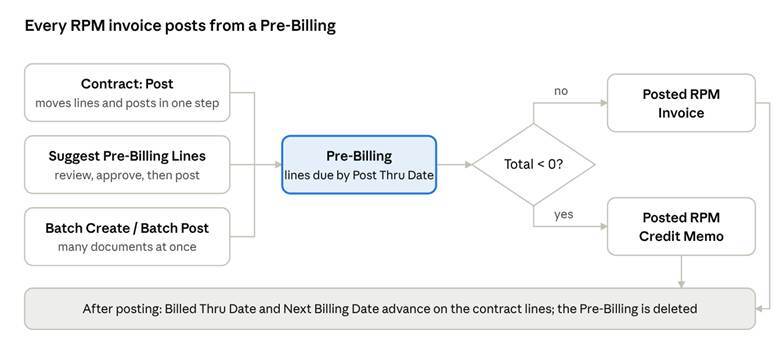
All three methods converge on a Pre-Billing; its total decides whether it posts as an invoice or a credit memo.
Before You Start: Setup
Billing depends on number series and billing codes being in place in RPM Setup. Check these once per company.
- Open RPM Setup and confirm these number series are filled in: Pre-Billing Nos., Invoice Nos., Posted Invoice Nos., Credit Memo Nos. and Posted Credit Memo Nos. Work Orders and Service Contracts use Work Order Posted Invoice Nos. and Serv. Contr. Posted Inv. Nos.
- Set Default Billing Code. New rental lines pick this up unless the item or unit supplies another code.
- Set Default Posting Date to Work Date (fills the posting date for you) or No Date (forces the user to enter one).
- Set Def. Show Seg. When Posting to Yes, No or Last Saved. This decides whether the billing segments open for review during posting.
- Optional: turn on Post with Job Queue to post in the background. Set Job Queue Priority for Post if you use it.
- Optional: set Pre-Billing New Doc. Status and Pre-Billing Active Doc. Status if you track Pre-Billing status or use approvals.
Billing Codes
A billing code controls how and when a rental line bills. Open RPM Billing Codes to review them. The key fields are:
- Billing Recurrence Type: One Time, Every, or Specific Day of the Month.
- Recurrence No. of Periods and Recurrence Period Type (Day(s), Week(s), Month(s)): the billing cycle, for example every 1 month.
- Bill At: Beginning of Period (In Advance) or End of Period (In Arrears).
- Billing Type: Rental or Sale.
- Price Type: Per Day, Per Period Detail, or Calculate Lowest Price (Best Price).
- End of Rental: Indefinite, Estimated or Actual.
- Charge Minimum: bills a minimum charge on short rentals.
- Posted document: a Posted RPM Invoice, or a Posted RPM Credit Memo if the total is negative. Find it under RPM Posted Invoices or from the Contract’s Invoices action.
- Ledger entries: customer ledger, G/L and tax entries, plus RPM Cost/Revenue Ledger Entries for each rental line.
- Revenue Only lines: post only revenue and cost entries. Item ledger, value and resource ledger entries are skipped.
- Contract lines: Billed Thru Date is set to the end of the period just billed. Next Billing Date moves to the start of the next period.
- Pre-Billing: deleted once the invoice posts.
- Milestone billing: if you applied milestone lines, their applications are recorded against the posted invoice.
- “There is nothing to post.” No line has a Next Billing Date on or before the Post Thru Date. Check the line dates or use a later Post Thru Date.
- “You cannot Invoice a Contract. You need to suggest lines to a Pre-Billing document and Invoice from there.” A contract was sent straight to posting with Invoice selected. Use the Contract’s Post action, Suggest Pre-Billing Lines, or a batch job instead.
- “You must select one of the checkboxes in order to post.” On the Posting Options page, select Invoice, Credit, Ship or Receive.
- “One or more lines have a quantity of zero. Are you sure you want to continue posting?” Remove or fix the zero-quantity lines, or confirm to continue.
- “…is not within your range of allowed posting dates” Change the Posting Date, or widen the allowed dates in General Ledger Setup or User Setup.
- “You cannot invoice more than you have shipped for contract…” Post the shipment first.
- “General Posting Setup does not exist for Gen. Bus. Posting Group…” or “Inventory Posting Setup does not exist…” Add the missing posting setup combination.
- “The combination of dimensions used in… is blocked” Fix the dimensions on the header or line.
- “These inspection sheets must be completed before the documents can be posted.” Complete the mandatory inspection sheets on the related work order.
- Unit Service Lines with no linked components. RPM warns that the customer will still be billed but service costs won’t be captured. Link components first if you need the cost.
- “You cannot cancel (or correct) this posted RPM invoice because it is fully or partially paid.” Create an RPM Credit Memo manually.
How to Bill a Contract
Pick one of the three methods below. Each uses the same Post Thru Date rule: a line bills when its Next Billing Date is on or before the date you enter.
Method 1: Post Directly from the Contract
Use this when you want to invoice one contract right away with no review step.
- Open the RPM Contract.
- On the lines, check Next Billing Date, Billed Thru Date and Billing Code for each rental line.
- Optional: choose Preview Posting to see the entries before you commit.
- Choose Post. The Document Post page opens.
- In Post Thru Date, enter the last date you want to bill through.
- Enter the Posting Date and Document Date.
- Optional: turn on Show Segments to review each billing period before it posts.
- Choose OK. RPM moves the due lines to a Pre-Billing and posts it as an invoice.
- If any lines have a quantity of zero, RPM asks you to confirm before it continues.
Method 2: Suggest Lines to a Pre-Billing, Then Post
Use this when the invoice needs review, a customer signature or an approval before it posts.
- Open the RPM Contract (or the Contract List, Service Contract List or Work Order).
- Choose Suggest Pre-Billing Lines.
- In the date field, enter the date up to which you want to suggest open lines.
- Choose Create a Pre-Billing Document to start a new one, or Choose a Pre-Billing Document to add to an existing one.
- For a new Pre-Billing, leave Auto Create No. on, or choose Choose No. and enter a New Pre-Billing No.
- Optional: turn on Include Document Comment or Show Segments.
- Choose OK. The lines are copied to the Pre-Billing.
- Open the Pre-Billing from the Contract’s Pre-Billings action or from the RPM Pre-Billing List.
- Review the lines. Add more with Get Contract Lines. Use Calculate Invoice Discount or Calculate Doc. Level Charges if they apply.
- Optional: choose Test Report, Print Pre-Billing or Email Pre-Billing to send it to the customer, or Send Approval Request.
- When it is ready, post it (see How to Post a Pre-Billing or RPM Invoice).
Method 3: Batch Create or Batch Post Many Documents
Use this for a regular billing run across many customers. Both batch jobs are on the RPM Document Processor Role Centers, or you can search for them.
To create Pre-Billings in bulk:
- Search for Batch Create Pre-Billing.
- Choose which document types to include: Contracts, Work Orders, or both. You must pick at least one.
- In Select Thru Date, enter the date through which to pick up lines.
- Optional: turn on Combine Documents to put lines from several documents for the same customer on one Pre-Billing. You can also combine by Ship-to or by Ext. Document No.
- Optional: turn on Add Document Comment Line.
- Set filters on the RPM Header tab if needed, for example by customer.
- Choose OK, then review and post the Pre-Billings.
To invoice in bulk without a review step:
- Search for Batch Post RPM Documents.
- Choose which documents to invoice: Contracts, Work Orders, Service Contracts and/or Pre-Billings.
- Enter the Post Thru Date, Posting Date and Document Date.
- Optional: turn on Filter Next Invoice Date on Header. Only documents whose header Next Invoice Date is on or before the Post Thru Date are then evaluated. This speeds up the run.
- Choose OK. RPM reports how many documents posted.
How to Post a Pre-Billing or RPM Invoice
Posting a Pre-Billing creates the Posted RPM Invoice. The same steps apply to a manually entered RPM Invoice.
- Open the Pre-Billing (or RPM Invoice).
- Optional: choose Preview Posting (on the RPM Invoice) or Test Report to check for errors first.
- Choose Post. The Posting Options page opens.
- Under Documents To Post, confirm the Post Thru Date, Posting Date and Document Date.
- Under Type of Postings, select Invoice (or Credit for a credit). The Lines to Invoice count shows how many lines will post.
- Choose OK.
- If nothing is selected, RPM shows “You must select one of the checkboxes in order to post.” Select a posting type and try again.
- RPM posts the document and opens the posted document. The Pre-Billing is deleted.
If Post with Job Queue is on in RPM Setup, the document is queued instead of posted right away. Use Remove From Job Queue to cancel a queued post.
Invoice or Credit Memo?
RPM decides from the Pre-Billing total. A positive total posts as a Posted RPM Invoice using Posted Invoice Nos. A negative total posts as a Posted RPM Credit Memo using Posted Credit Memo Nos. On an RPM Invoice, you can also use Move Negative Lines to split negative lines off before posting.
How to Correct a Posted Invoice
- Open the Posted RPM Invoice.
- To reverse it completely, choose Cancel. RPM creates and posts a credit memo that reverses the invoice, and marks the invoice canceled.
- To reverse and rebill, choose Create Corrective Pre-Billing. It copies the posted lines to a new or existing Pre-Billing, with options to reverse the sign and copy lines more than once. Remove the lines you don’t need, then post.
- Choose Show Canceled/Corrective Credit Memo to find the related credit memo.
- To change the few header fields still editable after posting, use Update Document.
You cannot cancel or correct an invoice that is fully or partially paid. In that case, create an RPM Credit Memo manually.
What Happens When You Post
Posting creates the invoice, its ledger entries, and moves the contract’s billing dates forward.
- Posted document: a Posted RPM Invoice, or a Posted RPM Credit Memo if the total is negative. Find it under RPM Posted Invoices or from the Contract’s Invoices action.
- Ledger entries: customer ledger, G/L and tax entries, plus RPM Cost/Revenue Ledger Entries for each rental line.
- Revenue Only lines: post only revenue and cost entries. Item ledger, value and resource ledger entries are skipped.
- Contract lines: Billed Thru Date is set to the end of the period just billed. Next Billing Date moves to the start of the next period.
- Pre-Billing: deleted once the invoice posts.
- Milestone billing: if you applied milestone lines, their applications are recorded against the posted invoice.
If you post the wrong period, use Cancel or Create Corrective Pre-Billing on the posted invoice. Undoing the posting resets the contract line’s Billed Thru Date from the remaining posted history.
Troubleshooting
These messages come from the RPM posting and error-check code. Each is followed by what to do.
- There is nothing to post.” No line has a Next Billing Date on or before the Post Thru Date. Check the line dates or use a later Post Thru Date.
- “You cannot Invoice a Contract. You need to suggest lines to a Pre-Billing document and Invoice from there.” A contract was sent straight to posting with Invoice selected. Use the Contract’s Post action, Suggest Pre-Billing Lines, or a batch job instead.
- “You must select one of the checkboxes in order to post.” On the Posting Options page, select Invoice, Credit, Ship or Receive.
- “One or more lines have a quantity of zero. Are you sure you want to continue posting?” Remove or fix the zero-quantity lines, or confirm to continue.
- “…is not within your range of allowed posting dates” Change the Posting Date, or widen the allowed dates in General Ledger Setup or User Setup.
- “You cannot invoice more than you have shipped for contract…” Post the shipment first.
- “General Posting Setup does not exist for Gen. Bus. Posting Group…” or “Inventory Posting Setup does not exist…” Add the missing posting setup combination.
- “The combination of dimensions used in… is blocked” Fix the dimensions on the header or line.
- “These inspection sheets must be completed before the documents can be posted.” Complete the mandatory inspection sheets on the related work order.
- Unit Service Lines with no linked components. RPM warns that the customer will still be billed but service costs won’t be captured. Link components first if you need the cost.
- “You cannot cancel (or correct) this posted RPM invoice because it is fully or partially paid.” Create an RPM Credit Memo manually.