
Releasing Purchase Retainage
Link to Creating Retainage Entries Page
Quick Start – Release Retainage in Six Steps
This page covers the simplest release: each retainage entry is released on its own invoice. You don’t need to enter a vendor invoice number or document date. The rest of this guide explains the options in more detail.
- Search (Tell Me) for Release Purchase Retainage and open the page.
- Select the retainage entries to release. You can select one or many, for one or more vendors.
- Choose Release Selected Invoices. Leave Release Method set to Multiple Invoices (the default).
- Set Set Posting Date From to Entered Value.
- Enter the Posting Date.
- Choose OK. The system creates and posts one purchase invoice for each selected entry, ready to pay.
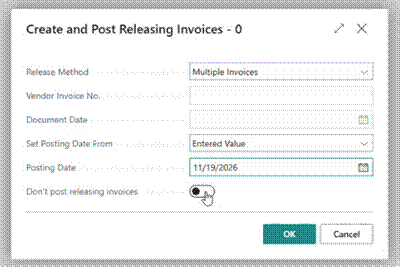
Figure 1 – Create and Post Releasing Invoices – Multiple Invoices with an entered posting date
|
Tip If the vendor has sent a single invoice covering several retainage entries, use Invoice from Vendor instead. See Method B. |
Detailed Guide with Options for Releasing Retainage
Overview
- Step 1 – Open Release Purchase Retainage
- Step 2 – Select the Entries to Release
- Step 3 – Release the Retainage
-- Method A: Multiple Invoices
-- Method B: Invoice from Vendor
Don’t Post Releasing Invoices
- Step 4 – Review the Results
What a Releasing Invoice Contains
G/L Impact
- Step 5 – Pay the Released Retainage
Quick Reference
Retainage withheld on a posted purchase invoice stays open in the Vendor Retainage Entries sub-ledger until it is released. Releasing retainage creates and posts a new purchase invoice for the retained amount. That invoice becomes a normal open payable to the vendor, and the retainage entry is cleared.
Releases are done from the Release Purchase Retainage page. There are two release methods:
- Multiple Invoices – creates and posts one releasing invoice for each selected retainage entry. You can select entries for different vendors in one run. This is the simplest method.
- Invoice from Vendor – combines all selected retainage entries for one vendor onto a single releasing invoice. Use this when the vendor sends one invoice to bill several retainage entries.
- Retainage suffix. Purchases & Payables Setup holds a retainage suffix (for example, RT). When you use the Multiple Invoices method, the system builds each releasing invoice’s Vendor Invoice No. from the original external document number, a dash and this suffix. For example, CLOSE YEAR 2 becomes CLOSE YEAR 2-RT. The dash is added automatically.
- Approvals. If purchase invoice approval workflows are enabled, the releasing invoices may need approval before they can be posted. See “Don’t Post Releasing Invoices” below.
- Vendor Invoice No. – generated (suffix method) or entered by you (Invoice from Vendor).
- Lines – one G/L Account line per released entry, posted to the retainage G/L account used when the retainage was originally withheld (22100 in this example). The Retainage flag is set on each line.
- Description – “Retainage Release for ‘Invoice’ #<original external document no.>”, so you can trace each line back to the source invoice.
- Tax – recalculated using the tax combinations (Tax Area Code / Tax Group Code) from the original retainage detail entries.
- Due Date – calculated from the vendor’s payment terms and the posting date.
Both methods are automatic: the system builds the invoice lines, amounts and taxes from the original retainage. You don’t need to create the invoice by hand.
|
Note Sales retainage, if installed and set up, is released the same way from the equivalent sales page. |
Before You Start Step 1 – Open Release Purchase Retainage
Choose the search (Tell Me) icon, enter Release Purchase Retainage, and open the page. It lists every open purchase retainage entry, with the vendor, original document, External Document No., Retainage Amount, Remaining Ret. Amount and Retainage Due Date.

Figure 2 – Release Purchase Retainage page with four open retainage entries for two vendors
Use the Retainage Due Date column to see which retainage is due. You can filter or sort on it like any other list.
Step 2 – Select the Entries to Release
Select one or more entries using the selection checkboxes on the left (or Select More from the row menu). Then choose Release Selected Invoices from the action bar. The Create and Post Releasing Invoices dialog opens.
The dialog contains the following fields:
|
Field |
Description |
|
Release Method |
Multiple Invoices (the default) or Invoice from Vendor. |
|
Vendor Invoice No. |
Leave blank for Multiple Invoices (generated automatically). Required for Invoice from Vendor. |
|
Document Date |
Leave blank for Multiple Invoices. Required for Invoice from Vendor. |
|
Set Posting Date From |
Retainage Due Date (default) posts each invoice on its entry’s Retainage Due Date. Entered Value uses the Posting Date entered below. Invoice from Vendor always uses Entered Value. |
|
Posting Date |
Used when Set Posting Date From = Entered Value. |
|
Don’t post releasing invoices |
Creates the invoices without posting them. Use with caution. See below. |
Step 3 – Release the Retainage Method A: Multiple Invoices
This is the simplest release. Each selected entry gets its own releasing invoice, and you can select entries for one or many vendors. Even if two entries belong to the same vendor, each one gets a separate invoice. You don’t need to enter a Vendor Invoice No. or Document Date.
- Choose Release Selected Invoices and leave Release Method set to Multiple Invoices (the default).
- Leave Vendor Invoice No. and Document Date blank. The Vendor Invoice No. is calculated as the original External Document No. + “-” + the retainage suffix.
- Set Set Posting Date From to Entered Value and enter the Posting Date. This is the most likely setting. If you leave Retainage Due Date, each invoice posts on its entry’s original due date, which may fall in a closed period.
- Leave Don’t post releasing invoices off.
- Choose OK. The system creates and posts one purchase invoice for each selected entry.
The completed dialog is shown in Figure 1.
Use this method when the vendor bills several retainage entries on one invoice. All selected entries are merged onto a single releasing invoice, so the vendor’s invoice number and the document date must be entered.
- Select only entries for one vendor. This method processes one vendor at a time, so repeat it for each vendor.
- Choose Release Selected Invoices and set Release Method to Invoice from Vendor.
- Enter the vendor’s invoice number in Vendor Invoice No. (required).
- Enter the Document Date and Posting Date (both required). Set Posting Date From is fixed to Entered Value because the entries’ original due dates can’t be used for a combined invoice.
- Choose OK. The system creates and posts one invoice containing a line for each released entry.
With Invoice from Vendor, the Don’t post releasing invoices option is not available. The combined invoice is always posted.
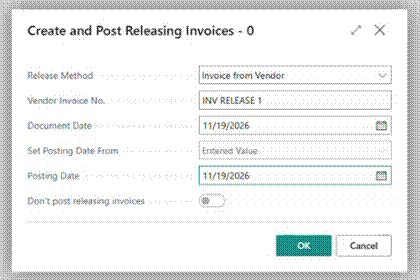
Figure 3 – Invoice from Vendor method – vendor invoice number, document date and posting date are required
|
Caution – use only if you are sure Turning on Don’t post releasing invoices creates the releasing purchase invoices but leaves them unposted. There are only two valid reasons to do this: • Purchase invoice approvals must be completed before the invoice can be posted. • You need to change the description on the invoice. Do not use it to change the vendor, items, G/L accounts, amounts or taxes. If any of these change, the posted invoice will no longer apply against the retainage entries it was created from. If you are not sure, leave this option off. |
Released entries no longer appear on the Release Purchase Retainage page. To review the invoices that were created, open Posted Purchase Invoices and sort by newest first.
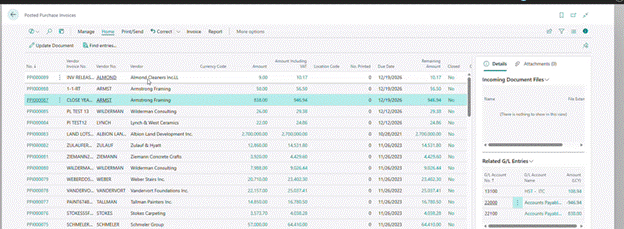
Figure 4 – Posted releasing invoices: two from Multiple Invoices (Armstrong Framing) and one from Invoice from Vendor (Almond Cleaners)
In the example above, the four open entries shown in Figure 2 were released as follows:
|
Method |
Vendor |
Vendor Invoice No. |
Excl. Tax |
Incl. Tax |
|
Multiple Invoices |
Armstrong Framing |
CLOSE YEAR 2-RT |
838.00 |
946.94 |
|
Multiple Invoices |
Armstrong Framing |
1-1-RT |
50.00 |
56.50 |
|
Invoice from Vendor |
Almond Cleaners |
INV RELEASE 1 |
9.00 |
10.17 |
What a Releasing Invoice Contains
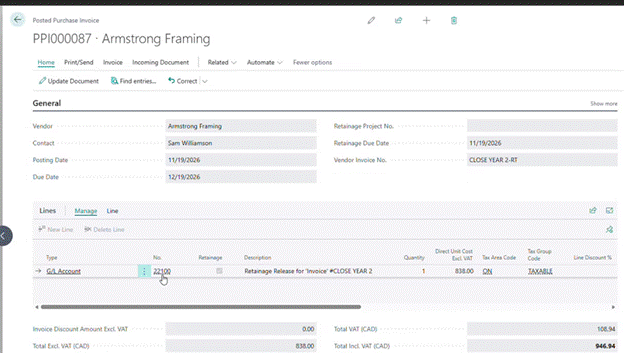
Figure 5 – Releasing invoice from the Multiple Invoices method – one line, suffix applied to the Vendor Invoice No.
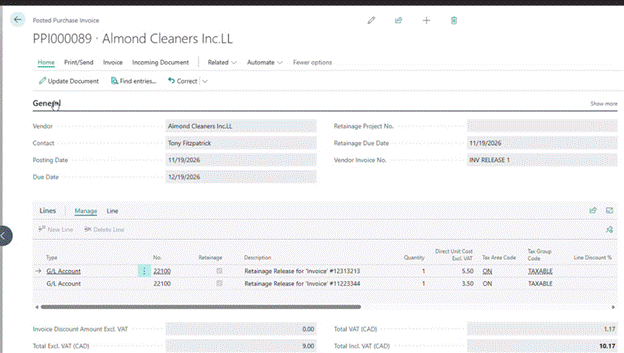
Figure 6 – Releasing invoice from the Invoice from Vendor method – two retainage entries released on one invoice
Releasing clears the retainage balance and moves it into regular accounts payable. Using invoice PPI000087 as the example:
|
G/L Account |
Description |
Debit |
Credit |
|
22100 |
Retainage payable (original retainage account) |
838.00 |
|
|
13100 |
HST – ITC (tax recalculated on release) |
108.94 |
|
|
22000 |
Accounts Payable |
|
946.94 |
Step 5 – Pay the Released Retainage
The releasing invoice is a normal open vendor invoice, with its Remaining Amount equal to the released amount including tax. Pay it through your usual vendor payment process, as you would any other purchase invoice.
|
|
Multiple Invoices |
Invoice from Vendor |
|
Invoices created |
One per retainage entry |
One per vendor |
|
Vendors per run |
Any number |
One |
|
Vendor Invoice No. |
Not needed – automatic (ext. doc no. + suffix) |
Required – entered by you |
|
Document Date |
Not needed |
Required |
|
Posting date |
Entered Value (most likely) or Retainage Due Date |
Entered Value only |
|
Don’t post option |
Available (use with caution) |
Not available |