
When you are ready to use CSM, orders will likely be retrieved at regular intervals with our automation solutions. Data will be retrieved based on a last run timestamp, meaning anything entered since the last time the automation was run will be retrieved and the timestamp will be updated to ensure there are no duplicates.
When running manual tests, you may want to adjust the last run timestamp to prevent CSM from pulling all previous orders since the default setting is 10/01/21 12:00 PM.
Updating the Last Run Timestamp
- Search for CSM Sales Channel and select the related link
- Select the Sales Channel you'd like to work with
- From the Related ribbon, choose Setup Actions > Starting Order Date Retrieval
- On the CSM User Input page, enter your desired starting date and time and select OK
Run Order Automation
-
Search for CSM Administrator Role Center and select the related link
- Select the Sales Channel you just updated with the Starting Order Date
- Click the Run Order Automation button
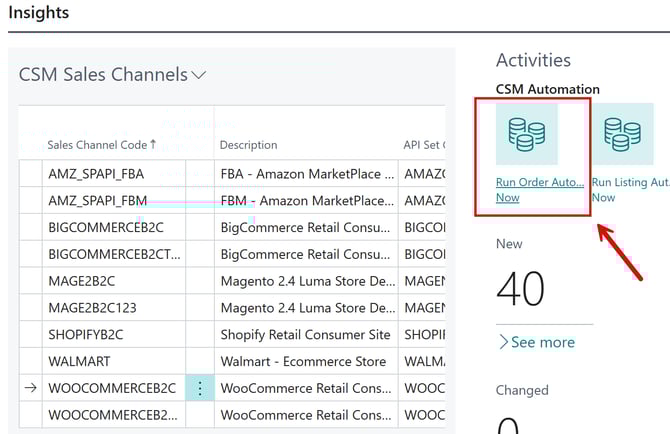
- The related API automation routines will be run by CSM, and any orders that fall on or after the API set’s defined starting date and time will be retrieved into Business Central as CSM orders.
Note: It may be necessary on occasion to manually adjust retrieval dates and times for troubleshooting or re-processing activities. Such changes should be performed by or under the guidance of someone who understands the ramifications of making these adjustments.
Retrieving a Single Channel Order
You have the option to retrieve a single channel order. This is not practical for day-to-day order processing but can be useful in testing and troubleshooting scenarios where you have a single order that you need to analyze.
- Search for CSM Sales Channel and select the related link
- Select the Sales Channel you'd like to work with
-
- From the Actions ribbon, choose Other > Get Specific Channel Order
- On the Retrieve Single Channel Order page, enter the order number you want to and click OK
- CSM will retrieve the specified order’s information and create a Channel Order for it in Business Central
- From the Actions ribbon, choose Other > Get Specific Channel Order