
We will provide instructions on mapping the following operations:
- Marketplace and eCommerce Platforms
- Shipping Carriers
- Shipping Methods
- Currencies
-
Order Status Matrix
- eCommerce Platforms
- Payment Methods
- Order Notes
- Weight Units
- eCommerce Platform Specific
- Cross References
- Price Groups
- Tax Groups
- Gift Cards
Shipping Carriers
CSM Shipping carriers will map Business Central shipping agent codes to their platform equivalents. If CSM identifies a BC shipping agent code matching an external ID, it auto-links them; otherwise, a new shipping agent code is created and assigned.*
- Search for CSM Sales Channels and select the related link
- Select your Sales Channel and choose Related > Setup > Shipping Carriers
*Platform-specific behavior:
- BigCommerce: BigCommerce can import shipping carriers into Business Central; from the Actions ribbon, choose Retrieve Shipping Carriers.
- WooCommerce: WooCommerce can import shipping carriers into Business Central; from the Related ribbon, choose Setup Actions > Load Shipping Carriers. WooCommerce does not maintain shipping carrier information natively. Carrier tracking requires a third-party plugin.
- Magento/Adobe: Users with extensions that add carriers must manually create the corresponding CSM records.
Shipping Methods
CSM Shipping Methods will map Business Central shipping agent service codes to their platform equivalents. If CSM identifies a BC shipping agent service code matching an external ID, it auto-links them; otherwise, a new shipping agent service code is created and assigned.
Note: Each platform uses its own terminology when describing shipping methods. Amazon and Walmart call these "shipping methods," Shopify calls them "delivery methods," BigCommerce calls them "shipping quotes," and Magento/Adobe calls them "delivery methods."
- Search for CSM Sales Channels and select the related link
- Select your Sales Channel and choose Related > Setup > Shipping Methods
- To retrieve methods from platform:
- From the Actions ribbon, choose Retrieve Shipping Methods
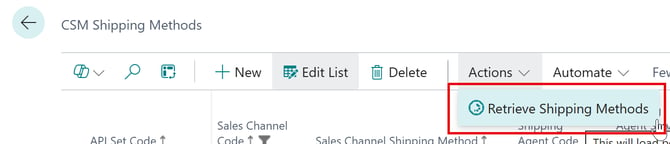
- In the Shipping Agent Code field, assign a BC shipping agent code to each shipping method (required)
- Optionally assign a Shipping Agent Service Code
- f you don't want to post shipping charges to a dedicated BC account, set Shipping Order Behavior to Skip.
- If you do want to post shipping charges to a dedicated BC account, set Shipping Order Behavior to Default and select the appropriate values in the Shipping Order Charge Type and Shipping Order Charge No. fields.
- From the Actions ribbon, choose Retrieve Shipping Methods
Platform-specific behavior:
-
BigCommerce: Shipping quotes exist within BigCommerce shipping zones. CSM also retrieves shipping zone records and assigns them to your Sales Channel. You can review these under Related > Setup > Shipping Zones. These records exist solely to facilitate linking and should not be modified.
-
Magento/Adobe: If your Magento/Adobe environment uses extensions that add delivery methods, you must manually create the corresponding CSM shipping method records.
Currencies
If your Sales Channel is configured to assign currencies from retrieved Orders to BC Sales Orders, you must map platform currency codes to corresponding BC currency codes.
- Search for CSM Sales Channels and select the related link
- Select your Sales Channel and choose Related > Setup > Currencies
Platform-specific behavior:
- Magento/Adobe: use Actions > Retrieve from Channel to auto-load currencies from your connected platform.
Order Status Matrix
When an Order is retrieved from your platform, CSM assigns an Order status based on the Order Status Matrix. This Matrix maps combinations of factors to an implied CSM Order Status, allowing you to control how different order scenarios are processed.
- Search for CSM Sales Channels and select the related link
- Select your Sales Channel and choose Related > Setup > Order Status Matrix
- Each line represents a unique combination of:
- Channel Status: the status assigned on the external platform (varies by platform)
- BC Order Status: the status of the corresponding BC sales order (Open, Released, or No Order if no BC order exists)
- Balanced: whether the Order header total matches the sum of order lines
- Existing Order: whether the status applies to Orders that already exist in BC
- Implied Order Status: determines the CSM Order status assigned to Orders matching that combination.
-
Trigger ID: the trigger to execute if the Status was changed due to this rule.
- Each line represents a unique combination of:
- Select your Sales Channel and choose Related > Setup > Order Status Matrix
The matrix is pre-loaded during Sales Channel creation and typically works out-of-the-box. We recommend you do not modify it until you begin retrieving Orders. If Orders aren't processing as expected, review and adjust the matrix settings as needed.
Platform-specific behavior:
-
BigCommerce: By default, the matrix assigns a status of Error to Orders with a BigCommerce status of Completed and no existing Sales Order in Business Central.
Payment Methods
CSM payment methods map Business Central payment methods to the platform's payment method records.
Applies to Shopify, BigCommerce, WooCommerce and Magento/Adobe:
- Search for CSM Sales Channels and select the related link
- Select your Sales Channel and choose Related > Setup > Payment Methods
- Balance Account Type/Bal. Account No.: payment methods representing credit card transactions should have a balancing account so BC can automatically post and apply payments when sales orders are invoiced. You can assign a balancing account either on the linked BC payment method or directly on the CSM payment method line using the Bal. Account Type and Account No. fields. When posting, CSM checks the CSM payment method line first; if no balancing account is defined, it uses the linked BC payment method.
- Automatic Application: automatically applies payments to the associated BC Sales Invoice or Credit Memo.
- Single Capture: Permits only a single payment capture per transaction.
- Perform Invoice Capture: Automatically sends a capture transaction (eg - credit card settlement) to the platform after Invoice transmission.
- Perform Capture for Zero Amt: Sends a capture transaction to the platform after Invoice transmission even when the Invoice amount is zero.
- Select your Sales Channel and choose Related > Setup > Payment Methods
Platform-specific behavior:
-
Shopify: Shopify does not permit multiple credit card payments per transaction, so you should enable the Single Capture field.
-
BigCommerce: From the Actions ribbon, you can choose Retrieve Payment Methods and CSM will attempt to auto-link records where a matching BC payment method code is found.
-
BigCommerce uses dedicated Gift Certificate and Store Credit payment methods, which are automatically loaded during the Retrieve Payment Methods action.
-
For each one, assign a BC payment method code with a defined balancing account (a liability account is recommended).
-
Enable these fields on relevant lines so CSM can properly adjust Order Totals. To retrieve Refunds entered on BigCommerce into Business Central, the assigned payment method(s) must have a defined balancing account.
-
-
Order Notes
CSM can retrieve order notes from the platform and place them on the corresponding BC sales order. Retrieved notes are stored as CSM Order Document Lines on the CSM order.
Applies to Shopify, BigCommerce, WooCommerce and Magento/Adobe:
- Search for CSM Sales Channels and select the related link
- Select your Sales Channel and choose Related > Setup > Order Notes Placement
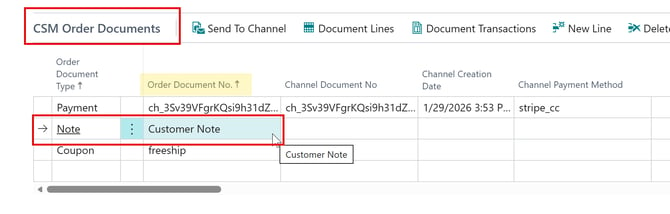
- On a new line, enter the platform's identifying code for the note type in the Order Document No. field
- In the Placement field, choose whether to place notes as Sales Lines or Sales Order Comments
- Select your Sales Channel and choose Related > Setup > Order Notes Placement
Tip: If you're unsure of the correct syntax to use for the Order Document No., retrieve an Order with the desired note type into BC, then check the CSM Order Documents FastTab in Channel Orders. The identifying value appears in the Order Document No. field.
Platform-specific behavior:
- Shopify: Admin notes are automatically retrieved with order data.
- BigCommerce: Both customer-entered notes and system/admin notes are automatically retrieved.
- WooCommerce: Customer-entered notes are automatically retrieved. System or admin notes must be manually retrieved.
- Magento/Adobe: By default, only admin comments are supported; customer checkout notes require an extension. Admin notes are assigned unique identifying numbers per order, making it difficult to enter a standard reference value. This functionality is more applicable when customizations or extensions are in place to assign standardized identifiers to retrieved notes.
Weight Units
Business Central's Item Units of Measure include a Weight field but do not specify the unit type (lb, oz, etc.). The Weight Unit table allows you to define the weight units each Sales Channel should use for Listings.
Applies to Shopify, BigCommerce, WooCommerce and Magento/Adobe:
- Search for CSM Sales Channels and select the related link
- Select your Sales Channel and choose Related > Setup > Weight Units
- Enter the weight unit value the Channel uses (eg - lb, oz, kg)
- Select your Sales Channel and choose Related > Setup > Weight Units
Platform-specific behavior:
-
BigCommerce: Currently hardcodes the value as "lb" and does not send weight information from Listings to the platform.
Cross References
Some platforms require full country and state/province names rather than the abbreviated codes typically used in Business Central. If these values don't match, order updates sent from Business Central to the platform will fail.
Applies to Shopify and BigCommerce:
- Open your sales channel > Related > Setup > CSM Cross References
- Add a new line for each mapping:
- API Set Code: Select the API used for your channel
- Sales Channel Code: Select your sales channel
- Type: Enter
COUNTRYfor country mappings orSTATE_PROVfor state/province mappings - Code: The platform's expected value
- Value: The corresponding Business Central value
- Value 2: The description of the code entered
Platform-specific behavior:
-
BigCommerce: CSM includes a downloadable CSMCrossReferenceStateProv.xlsx file with cross references for all US states and Canadian provinces. Open the file, copy all cells, and paste them into the CSM Cross Reference table. For countries beyond the US and Canada, you can obtain the correct abbreviations and names via BigCommerce's API reference tool:
- In the API reference, navigate to Geography > Countries > Get All Countries
- Set the Limit parameter to
250and send the request - Note the relevant country's ID from the results
- Navigate to Geography > States > Get All Country's States
- Enter the country ID and send the request
- Export the returned abbreviations and names to Excel, format appropriately, and paste into Business Central
- Set the Limit parameter to
- In the API reference, navigate to Geography > Countries > Get All Countries
Price Groups
Applies to Shopify and Magento/Adobe:
- Open your Magento/Adobe sales channel > Related > Setup > Price Groups
- From the Actions ribbon, choose Retrieve Price Groups
CSM retrieves customer group records from Magento/Adobe and creates corresponding CSM price group records. You can also manually complete the mapping.
To send or update price groups from Business Central to Magento/Adobe:
- Select the price group line (must have an assigned BC customer price group and tax class ID)
- Optionally enter a value in the External Description field for Magento/Adobe's display name
- From the Actions ribbon, choose Send to External
If the record doesn't exist in Magento/Adobe, it will be created and the Magento/Adobe customer group ID will populate the External ID field. If it already exists, the Magento/Adobe record is updated with the new data.
Platform-specific behavior:
-
Shopify: CSM Price Groups are used by Listing Management and are documented in the Listing Management documentation.
-
Magento/Adobe: CSM maps Magento/Adobe Customer Groups to Business Central Price Groups, enabling proper customer group assignment when creating Magento/Adobe customers from BC records. Listing Management also uses this mapping to send customer-group-based pricing to Magento/Adobe.
Tax Groups
Most eCommerce platforms categorize the types of tax applied to products. Terminology varies by platform, but CSM refers to these categorizations as "CSM tax groups." CSM tax groups are mapped to existing Business Central tax group codes.
Applies to BigCommerce and WooCommerce:
- Open your sales channel > Related > Setup > Tax Groups
- Create a new line
- Select or confirm the API Set Code (BigCommerce auto-populates this; WooCommerce requires manual selection)
- In the Tax Group Code field, enter the corresponding BC tax group code
- In the External ID field, enter the platform's tax class identifier
Platform-specific behavior:
-
BigCommerce: Tax groups correspond to "tax class" records. Default classes include default taxes, non-taxable products, shipping tax, and gift-wrapping tax — additional classes can be created as needed. Each tax class has a unique numeric external ID. See our knowledge base article on the BigCommerce API Reference Tool for help locating these IDs.
-
WooCommerce: Tax classes do not have numeric IDs. Enter the WooCommerce tax class name directly in the External ID field.
Gift Cards
Applies to Shopify:
- Open your Shopify sales channel > Related > Gift Cards
- This page displays all issued gift cards with details including unique ID, starting and remaining balance, and expiration/disablement dates. Filters allow you to include or exclude zero-balance, expired, and disabled cards.
To retrieve active gift cards from Shopify:
- From the Actions ribbon, choose Retrieve Active Gift Cards. Subsequent updates are communicated through CSM automation routines.
To issue a new gift card:
- From the Gift Cards page, choose Issue Gift Card
- Specify the initial amount, expiration date, and optional notes
- If gift card posting accounts are defined for the channel, the Post to GL field on the Posting FastTab is automatically enabled (can be manually disabled)
- Choose OK to confirm
➡️ Next Step: Mapping Customers/Items