
In This Article:
Bundles Overview | Bundles Example | Using Bundles with Lot Selection PackagesBundles – How Do They Work?
Overview
Bundles are one of the most complex parts of the system. They are useful, but only use them if you are prepared to learn, do the setup, and maintain the system carefully.
- To access, from the main HomeBuilder Page, select Color Chart Items, then select an item with the designation Bundle.
Definitions:
- Bundle.
- Is an item that requires input from multiple Vendors. For example, a Fireplace may require a gas supply, electrical wiring, and installation of the fireplace itself.
- Use Component Prices.
- Can be checked only if the Item has Designation 'Bundle' and Variants Required equal to 'No'. When it is changed to 'Yes', the Unit Price will be calculated using Unit Prices defined in the BOM Components of the Bundle.
- Unit Cost.
- For Bundles, the Unit Cost is determined based on the cost of Service BOM Components.
- Component.
- Is the item which can be used as a part of one or more bundles. Examples of component items are Gas Supply for Fireplace, Fireplace Wiring, and Fireplace Installation.
- Has Components Boolean.
- Indicates if the Item has Components. Only an Item with the Designation 'Bundle' may have a Component.
Note
If you do not see the Boolean Has Components, click the Cog on the top right corner of Business Central and select Personalize to bring it to your view.
Service BOM Components page
To see components, you must access the Service BOM Components page. From the Business Central homepage, choose Color Chart Items. Select an Item that has the Designation Bundle and mark the Boolean Has Components, then click Components Action on the Home Menu. This will take you to the Service BOM Components page and display Components.
Note
This action is enabled only for Items with Designation 'Bundle'. It opens the page "Service BOM Components" which shows the list of Components of the Item.
Here is the description of some of the Service BOM Components page fields:
- Type.
- Can be an Item, Resource, or G/L Account
- No.
- No. of Item, Resource, or G/L Account
- Unit of Measure Code.
- Defines Unit of Measure of the Component.
- Quantity per.
- Defines how many Component units are needed to deliver one unit of the Bundle product.
- Variant Code.
-
Determines usage of the component for implementing certain variants of the Bundle. The BOM (Bill of Materials) for the Bundle of certain Variants will include the following:
- BOM Components with this variant.
- BOM Components without a variant.
-
In the example below, the BOM for bundle SH-MRK-20 with Variant Code 'SV-100' will include:
- BOM Component with Item No. 'SH-MRK-INST' and Variant Code 'SV-100'.
- BOM Component with Item No. 'ELEC-APPL'.
-
If the BOM Component has a non-empty Variant Code, the Item referenced by field "No." (like 'SH-MRK-INST') also must have Variant Code. In an attempt to enter a Variant Code that does not exist in the referenced Item, the system will suggest creating one.
-
- Use Component Cost.
- If this field is set to 'Yes', then the Unit Cost for the component will be retrieved from the component Item referenced by No.; or from the component Item Variant in case the Variant Code is not empty.
- If this field is set to 'No', then Unit Cost gets defined specifically for the BOM Component.
- This field is enabled only for Type 'Item'.
- Unit Cost.
- Defines Unit Cost for a BOM Component.
- Price/Profit Calculation.
- This field has the same options as in Item: Profit=Price-Cost, Price=Cost+Profit, No Relations.
- Markup.
- Defines ratio Price to Cost. On changing Markup, the fields "Profit %" and "Unit Price" will be re-calculated.
- Unit Price.
- Defines Unit Price for a BOM Component.
- Cost Scope.
- If the BOM Component is of Type 'Item', its Cost Scope is inherited from the Item referenced by No., otherwise, it is inherited from the Bundle.
- There is the following rule for the Items that can be included in the Bundle as Components:
- If a bundle Item has a Cost Scope 'Universal' then all its Component Items must have a Cost Scope 'Universal'. If a Bundle Item has a Cost Scope 'Per Model/HA', then its Component Items may have either Cost Scope.
- Cost Detail Code.
- Cost Code for purchases in case the Bundle is not related to an Upgrade or Extra. If Type = 'Item' then the value is taken from the field "Cost Detail Code" of the Item referenced by "No.".
- Cost Detail Code (Extra).
- Cost Code for purchases in case the Bundle is not related to an Upgrade or Extra. If Type = 'Item' then the value is taken from the field "Cost Detail Code (Extra) of the Item referenced by "No.".
- Instruction.
- Instruction for Vendors specific to the BOM component.
The page Service BOM Components has the following Actions.
- Set Markup.
- This action works the same way as in the Item Variants. It is enabled if the Bundle Item has a flag "Color Chart" equal to 'Yes'.
- Construction Item Card.
- This action is enabled if the BOM Component has the type 'Item'. It opens the Construction Item Card for the Item referenced by "No.".
Note
- For Bundles, the "Unit Cost" is determined based on the cost of the Phase BOM Components.
- The field "Use Component Prices" can be checked only if the Item has the Designation 'Bundle'. If checked, then the Unit Price will be calculated based on the prices in the Phase BOM Components.
- Fields Price/Profit Calculation, Markup, Unit Price, and Use Component Prices are enabled only if the Item has the "Color Chart" field set to 'Yes'.
An Example: Hardwood to Replace Carpet Requiring Trim to be Added
- Search Construction Items and select an Item that will serve as our base to create an Item with the Designation Bundle.
- We choose Floor Hardwood.
- Now the Item has to be copied to become an Item with the Designation Bundle.
- With the Item selected (eg. Floor Hardwood), go to Actions and click Copy to New Item.
- Typically you assign a number slightly higher than the original and add a clear name indicating Item property. In our example, the new name is Floor Hardwood Bundle.
- Open the new Construction Item Card (Floor Hardwood Bundle)
- In the Construction Fasttab the Item Designation must be changed to Bundle
- In this scenario, we will create a main hardwood example installed in sq ft (sqm).
- To set it, open your Item Card and on the Item FastTab select SQFT in the Base Unit of Measure field.
- To set it, open your Item Card and on the Item FastTab select SQFT in the Base Unit of Measure field.
Creating Components for our Floor Hardwood Bundle
In order to do that, we need to first have these Components. In our example, we will create them.
- From the Construction Items list, select the Item you want to copy,(Floor Hardwood Bundle) then click Actions, copy to New Item, or click on New to create a brand new Construction Item. You can name it Floor Hardwood Component.
- Assign a Designation Component.
- The hardwood Component must be in sq ft (i.e.: the same Unit of Measure as the Bundle)
Note
The new Component is just a copy of the Item with the designation bundle. However, the "copying" is necessary because
- You cannot use one Item as a Bundle item and a Component Item at the same time.
- You will be adding trim where the trim was not previously required, necessitating the creation of the Bundle.
-
Creating Hardwood Trim as a standard fee with a quantity of 1 per BOM.
- In this example, we will create a brand new Component (i.e without copying)
- Search Construction Items and click New.
- Assign the Base Unit of Measure: Piece (or each if that is what you have configured) and the Designation Component.
- In the Fasttab Cost and Prices, set the cost Scope as Universal and establish a Unit Cost, e.g. $250
-
Paint as a standard fee with quantity of 1 per BOM.
- The process is analogical to creating Hardwood Trim
- The process is analogical to creating Hardwood Trim
Time to Assign Components to the Floor Hardwood Bundle
- From the Construction Item Card (here: Floor Hardwood Bundle) click Components.
- This will open the Page Service BOM Components. This is where the Components of your Bundle must be added.
- Select the 3 components that were just created:
- Floor Hardwood Component
- Hardwood Trim Component
- Paint Component
Important
- Concerning Cost Scopes:
- Concerning the Cost Scope: The main bundle has a cost structure of Universal as the price is determined by the area to be covered at a standard unit cost. This means that no component is allowed to be costed Per Model/HA.
- When the Bundle is Per Model/HA you are not required to have Components with a Cost Scope "Universal". However, when the Bundle has a Cost Scope Universal, you can’t have Components with a Cost Scope "Per Model/HA", i.e. the Components of the Bundle with a Universal Cost Scope must also have a Universal Scope.
Using Bundles with Lot Selection Packages
Search Lots, select a Lot that will be used, and click on Lot Selection Packages.
Once you created the new Lot Selection Package, from the page Lot Selection Package, click the "Choices" action button which will take you to the Lot Selection Choices page.
Once you have selected Item No. and Variant Code (if applicable) of a bundle item, you can review the choice components by clicking the "Components" action button. This will open the Choice Components page where you can change "Quantity Per", " Vendor No." and "Vendor Contract No." or override unit cost using the "Unit Cost Override field" if needed.
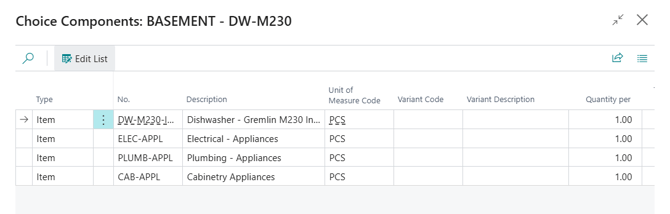
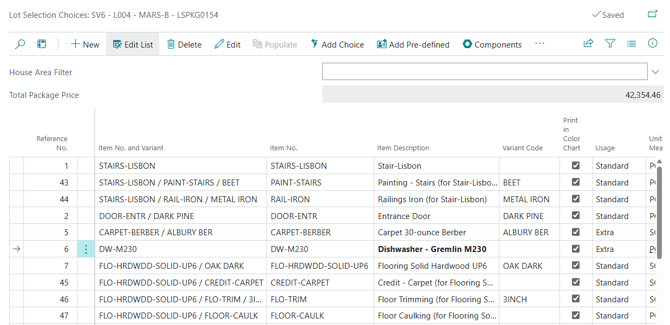
Item Descriptions in bold signify that the Item selection is a bundle.