
Summary Process
- After completing the setup described in Upgrades and Extras, you can Create Lot Selection Package on a Lot. Search Lots, select a Lot that will be used, and click on Lot Selection Packages.This is going to open a Lot Selection Packages page for the Lot you have selected. Click New and choose between 2 Types of Lot Selection Packages:
- Color Chart - It has pre-determined selections. Only one Lot Selection Package can have the Type "Color Chart" for a Lot. (1 Color Chart selection for 1 customer for 1 Lot).
- Addendum - this can be understood as a change to the original agreement. There can be multiple "Addendums" added to the Lot that the client will later pay for.
- After creating the Lot Selection Package, you will need to go to Lot Selection Choices.
- After making all the choices, you will need to complete each status as described below in detail. The options, in order, are:
- Open.
- Closed.
- Approved.
- Released.
- Add any Lot Selection Packages payment installments.
- From here, an operations manager plans the work required to deliver the purchaser's choices, and issues Purchase Orders for Extras (POEs) to the trades, one document per vendor per Vendor Contract. Planning begins on the Work Planning page, described below; the rest of the process has its own article, Purchase Orders for Extras.
Understanding the Contents and Options in the Lot Selections Package page:
Note
To access, search Lot Selection Packages
There is a lot of functionality in this table, and so there is an explanation of the key fields below:
| Field Name | Function |
|---|---|
| No. | Number is unique within a company and gets automatically populated using No. Series specified in Homebuilder Setup. |
| Document Date | The date when the selection took place (to be printed in the "Color Chart" report). |
| Type | There are two types of selection packages: 'Color Chart' and 'Addendum'. There can be only one 'Color Chart' selection package per customer per lot. |
| Description | Informational only |
| Customer No. | Gets populated from the Lot at the time of the creation of the selection package. |
| Status | As you proceed through the package process, this status field shows what status this package is at. Different tests are run to progress through the statuses and once you have Released, you cannot reverse this. All other statuses can be reversed. Status options (4 in order) are: 'Open', 'Closed', 'Approved' and 'Released'. |
| Approved By User ID | Whoever approved the package |
| Consultant ID | The User who created the package, this can change if the status is set to 'Open' |
| Payment Type | Option 1 - Amendment: The sale will be recognized at the time of lot closing and amendment to the house price. Option 2 - Payment: The sale gets recognized by posting a sales invoice (less common). |
| Amounts (including taxes) | Automatically filled in based upon options selected. Taxes are calculated based upon the Customer/Item (tax codes) mix. |
The page has the following actions (buttons).
| Button Name | Function |
|---|---|
| Choices | Opens the Lot Selection Choices page to allow the décor designer to manage purchaser's choices on colors, upgrades, and extras. |
| Close | A Status update action typically handled by the Décor Designer. Will advance the 'Status' field from Open (level 1) to Closed (level 2). This will only run if each option has been selected or deleted. |
| Re-open | A Status update action to reverse the 'Status' field from Closed (level 2) to Open (level 1) |
| Approve | A Status update action typically handled by the Décor Manager. Will advance the 'Status' field from Closed (level 2) to Approved (level 3). The user must have the functional permission 'CAN APPROVE SELECTION'. |
| Un-approve | A Status update action to reverse the 'Status' field from Approved (level 3) to Closed (level 2). The user must have the functional permission 'CAN APPROVE SELECTION'. |
| Release (see additional notes below) | A Status update action typically handled by the Operations Manager. Will advance the 'Status' field from Approved (level 3) to Released (level 4 and final). This cannot be reversed. The user must have the functional permission 'CAN RELEASE SELECTION'. |
| Print Color Chart | Prints all selections made |
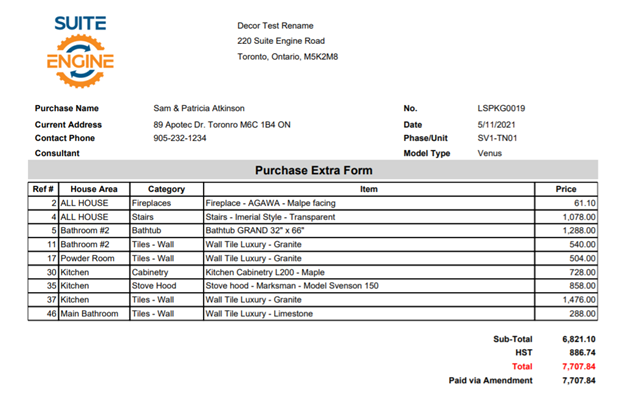
| Print Purchase Extras | Only the print selections that will cost the purchaser |
| Validate Selected | If some of the selection choices are invalid, the system shows a page with validation errors. |
| Work Planning | Opens the Package Work Planning page, where an operations manager reviews and corrects the planning lines created by Release, and from which Purchase Orders for Extras are produced. See below, and see Purchase Orders for Extras. |
| Package Planning Lines | Shows all planning lines created for the package in a single list, without the choice-by-choice grouping of the Work Planning page. Useful for reviewing quantities, costs and vendors across the whole package at once. |
| Installments | This action shows package installments, i.e., payments to be made by a purchaser for upgrades and extras. These are pushed to Lot Installments when the package is released. |
| POEs | Shows the Purchase Orders for Extras created from this package. See Purchase Orders for Extras. |
| Add Planning Line | This action allows the décor designer to manually add a planning line. Classic examples of this are for credits and also unusual items and situations, such as Tile and Hardwood, where the system setup has not been designed for this. |
Example of the printout for Color Chart Extras:
Note
The Release action also executes the following steps:
- Creates Job Planning Lines for all the choices of a selection package to perform three additional functions.
- Increase the budget numbers on the Budgets and Costs page.
- Allow Purchasing to automatically populate purchases using "Populate from Planning Lines".
- Allow the site-super to see selections made in the Scheduling and Task Operations part of the system.
- Changes Status of Lot Selection Package to 'Released'.
- Copies package installments to Lot Installments for cash collection management.
Work Planning and the Package Planning Lines
When a package is Released, the system creates a Job Planning Line for every choice in it. Those planning lines are the bridge between what the purchaser chose and what the builder has to organise: they carry the quantity, the cost, and the vendor who will do the work.
From that point the package passes from the décor designer to the operations manager, and the Work Planning page is where the handover happens. Open it with the Work Planning action.
The page shows two grids. The upper grid lists the Lot Selection Choices; the lower grid, Choice Planning Lines, shows the planning lines behind whichever choice is selected above. A single choice can have several planning lines, a fireplace chosen as one item may need framing, gas fitting and electrical, each from a different trade.
On this page an operations manager can:
- review the planning lines created for each choice;
- correct Quantity, Unit Cost, Vendor No. and Vendor Contract No.;
- add a planning line to a choice where the work needs one; and
- release the choices and create Purchase Orders for Extras for the vendors.
The last of those is the start of a process in its own right, covering how choices are released to the trades, how the documents are grouped and created, and how they are printed and sent. It is described in Purchase Orders for Extras.
POEs (Purchase Orders for Extras)
A Purchase Order for Extras is the document that tells a trade what this purchaser has chosen and where in the home it goes. One is produced for each vendor, under each Vendor Contract, from the planning lines released on the Work Planning page.
A POE is not a standard Purchase Order: it does not post, and it does not commit a purchase. The budget was already set when the package was released. The POE is what makes sure the work actually gets done, and done to the purchaser's choice, the flooring installer learns the grade and the room, the plumber learns which tub and which bathroom.
The POEs created from a package can be seen with the POEs action on this page, or by drilling down on No. of POEs.
For how POEs are created, what they contain, how they are printed with or without costs, how they are sent to vendors, and what their statuses mean, see Purchase Order for Extras.
Note
To see the "big picture" interplay between Workflow Tasks, Construction or Selection Packages/Color Charts, Models, Planning Lines, and Purchase Invoices, visit Task-Item-Purchase Invoice Linking Help File article. You will find an informative diagram and links to areas you might want to explore in detail.