
In this article:
Overview | What a POE Is | Before You Begin | How POEs Fit the Process | Step 1: Release the Selection Package | Step 2: Review the Planning Lines | Step 3: Release the Choices for POE | Step 4: Create the POEs | Where to Find POEs | The POE Card and List | Field Definitions for POE | Actions on a POE | Adding a Line to a POE | POE Statuses | Printing and Sending | Setup That Affects POEs | Troubleshooting
Overview
A Purchase Order for Extras (POE) is the document that tells a trade what a specific purchaser has chosen for a specific home, and what the builder will pay for it.
Think of the moment a purchaser finishes a color appointment. They have chosen upgraded hardwood in the great room, a deeper soaker tub in the main bath, and a gas line run to the deck for a barbecue. Those three decisions belong to three different trades, and none of those trades was in the room. The flooring installer needs the hardwood grade and the room; the plumber needs the tub model and the bathroom; the gas fitter needs a line he was never scheduled to run. The POE is how each of them finds out, in a document that names only their own work.
A POE is not a standard Business Central Purchase Order. It does not post, it does not commit a purchase, and it does not receive an invoice. It is a communication document that sits alongside the budget the Lot Selection Package has already created, and it carries the two things a trade needs that a budget line cannot carry: the purchaser's actual choice, and any instruction attached to it.
What a POE is
A POE is a per-vendor document generated from the planning lines of a released Lot Selection Package.
Note
One POE covers one vendor working under one Vendor Contract. If a purchaser's choices involve seven trades, seven POEs are created. If one trade is working under two different Vendor Contracts in the phase (example: a framing contract and a finish carpentry contract) that trade receives two POEs, one per contract, even though it is the same company.
How a POE Differs From a Purchase Order
| Purchase Order for Extras (POE) | Standard Purchase Order | |
| Purpose | Tells a vendor what a purchaser chose | Commits a purchase |
| Posting | Never posted | Posted to receive and invoice |
| Costs | Informational; mirrors the planning line | Financial commitment |
| Source | Lot Selection Choices, through planning lines | Entered or planned directly |
| Numbering | POE No. Series in HomeBuilder Setup | Purchase Order No. Series |
Invoices for this work still arrive through the normal purchasing route, matched against the Job Planning Lines that the Selection Package created. The POE is what makes sure the work is actually done and done correctly; it is not what pays for it.
Before You Begin
POEs are the last step of the Upgrades and Extras cycle, so everything that cycle depends on must already be in place. See the setup list at the top of INTRODUCTION: UPGRADES AND EXTRAS IN HOMEBUILDER.
Specifically for POEs:
- A POE No. Series must be set on the HomeBuilder Setup page. Without it, no POE can be created. This is a one-time implementation step and is the single most common reason a first attempt at Create POEs fails.
- The Lot Selection Package must be Released. The Release for POE action is disabled at every earlier status. See Step 1 below.
- Every planning line to be sent must carry a Vendor No. A line with no vendor cannot be released for POE, because there is no document for it to go on.
- Vendor Contracts should be in place for the phase. POEs group by vendor *and* Vendor Contract, and a blank contract is treated as a group of its own.
TIP
Work through one Lot end to end before releasing a phase's worth of packages. The validation messages are specific and easy to act on, but they are much easier to interpret against a handful of lines than against several hundred.
How POEs Fit the Process
The purchaser's decisions travel through four stages before they reach a trade, and each stage answers a different question.
| Stage | Question it answers | Where it happens |
| Selection Choices | What did the purchaser choose? | Lot Selection Choices |
| Release of the package | What exactly should be installed or supplied on the Lot? (i.e. creates Planning Lines) | Lot Selection Package |
| Work Planning | Who is doing it, and for how much? | Package Work Planning |
| POE | What does that trade need to be told? | Purchase Orders for Extras |
The steps below walk through the last three.
Note
The reason "Release for POE" exists as a distinct step, rather than the system creating POEs the moment the package is released, is that builders asked for it.
Releasing the package is a commercial event: the price is fixed and the budget is set.
Telling the trades is an operational one, and it happens later, selectively, and often trade by trade as the schedule allows.
The two were separated so that an operations manager can send the framing POE in March and the flooring POE in July, from the same package, without either decision forcing the other.
Step 1: Release the Selection Package
POEs are created from planning lines, and planning lines do not exist until the Lot Selection Package is released.
On the Lot Selection Package, run Release. This requires the functional permission CAN RELEASE SELECTION and is typically done by the operations manager. Among other things, the action creates a Job Planning Line for every choice in the package.
For what else Release does, and for the statuses that precede it, see HOMEBUILDER: LOT SELECTION PACKAGES.
Warning
Release cannot be reversed. Every earlier status transition can be, but once a package is Released it stays Released. Confirm the choices, the prices and the vendors before releasing.
Step 2: Review the Planning Lines
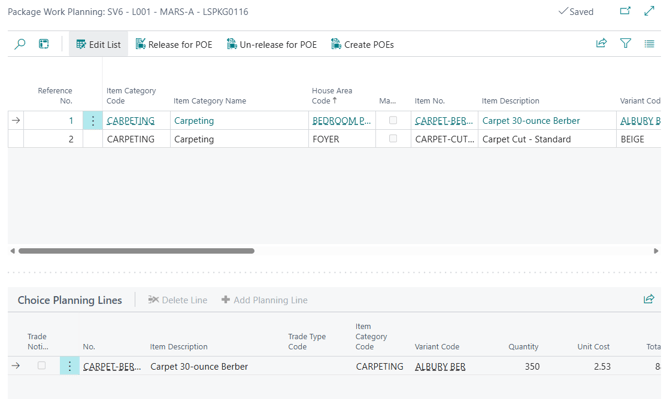
Open Work Planning from the Lot Selection Package. The Package Work Planning page opens, showing the package's Phase, Lot, Model and package number in its caption.
The page has two grids:
- The upper grid lists the Lot Selection Choices (what the purchaser chose).
- The lower grid, Choice Planning Lines, lists the planning lines behind whichever choice is selected above (who supplies it, in what quantity, at what cost).
Selecting a choice in the upper grid refreshes the lower grid to match. A single choice can have several planning lines: a Bundle such as a fireplace breaks down into framing, gas fitting, electrical and the unit itself, each with its own vendor.
This is the working page for the operations manager. Before releasing anything, review and where necessary correct:
- Quantity and Unit Cost on each planning line.
- Vendor No. and Vendor Contract No., which determine which POE the line lands on.
- Additional planning lines, added with Add Planning Line on the lower grid, for work a choice implies but the item structure does not carry.
Reading the Colors
The upper grid is color-coded, and the colors are the quickest way to see where a package has got to:
| Appearance | Meaning |
| Plain text | A choice not yet released for POE |
| Bold | A Bundle (a choice made up of several component items) |
| Colored (accent) | Released for POE |
| Bold and colored | A Bundle that has been released for POE |
Note
Customer Fee choices never appear on a POE and are skipped by every action on this page. A fee is something the purchaser pays the builder, not work a trade performs, so there is no vendor to tell.
Step 3: Release the Choices for POE
Select the choices that are ready to go to the trades and run Release for POE.
The action marks both the choice and its planning lines as released for POE, and the selected lines change colour. It is enabled only while the Selection Package status is Released.
What the System Checks
For each selected choice that is not a Customer Fee, the system verifies two things before it changes anything:
- The choice has planning lines. If it has none, the action stops with "Lot Selection Choice (Reference No. X) does not have Planning Lines to be released for POEs." This usually means the choice was added after the package was released, so no planning line was ever created for it.
- Every one of those planning lines has a Vendor No. If any is blank, the action stops with "Please specify Vendor in Planning Lines for Lot Selection Choice (Reference No. X)." Fill in the vendor on the lower grid and run the action again.
Both checks run across the whole selection before any line is changed, so a failure leaves nothing half-released.
What Changes After Release
Releasing a choice for POE freezes it:
- The Choice Planning Lines grid becomes read-only for that choice.
- Add Planning Line is disabled for that choice.
This is deliberate. Once a choice is queued to go to a trade, its quantities and costs should not drift.
Un-release for POE
Un-release for POE reverses the action, returning the choice and its planning lines to an editable state.
It works only while no POE has been issued for the choice. If one has, the action stops with "Cannot un-release Lot Selection Choice (Reference No. X) for POE, there are POEs issued for it." To make a change at that point, delete the POE first (see Deleting a POE below) which releases its planning lines and lets you un-release the choice.
Step 4: Create the POEs
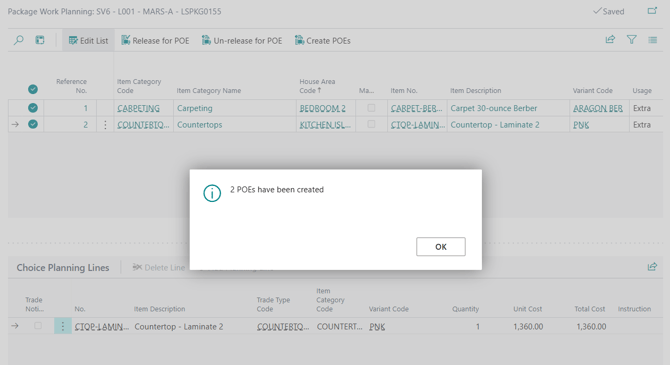
With the choices released, run Create POEs on the Package Work Planning page.
Which Lines Are Picked Up
The action does not take everything in the package. A planning line is included only if all of the following are true:
- It is an Item line.
- Its Designation is Single Item or Component. A Bundle's own line is not sent; its components are, each to its own vendor.
- It is flagged as a Color Chart line.
- It is Released for POE.
- It is not already on a POE.
That last condition is what makes the action safe to run repeatedly. Release a few more choices, run Create POEs again, and only the new lines are picked up, the existing POEs will remain untouched.
How Lines are Grouped
Lines are sorted and grouped by Vendor No. and Vendor Contract No., and one POE is created for each distinct combination.
Each POE is also stamped with context where the system can establish it unambiguously:
- Job No. (the Lot) is filled in only if every line in the run belongs to the same Lot.
- Selection Package No. is filled in only if every line belongs to the same Selection Package.
Run from the Work Planning page of a single package, both are always filled in. They are left blank when a broader selection spanning several lots or packages is processed, so that a POE is never labelled as belonging to one lot when it covers several.
Before It Runs
Every line is validated first. The action stops, without creating anything, if any line is missing a Phase Code, a Lot Code, a House Area Code, or a Vendor No. The message names the offending planning line.
The action finishes by reporting how many documents it produced.
Where to Find POEs
POEs can be reached from wherever the question is being asked:
| From | Shows | How |
| Lot Selection Package | The POEs from that one package | The POEs action, or drill down on No. of POEs |
| Phase | Every POE in the phase | The POEs action on the Phase list or card |
| Role Center | Every POE in the company | The POEs cue in the Activities tile group |
| Search | Every POE in the company | Search for Purchase Orders for Extras |
| Search | Every POE line, across all documents | Search for POE Lines (All) |
Tip
POE Lines (All) is the page to use for questions asked from the item's point of view rather than the document's, "which lots have this tile on order, and with whom?" It lists lines across every POE with the Lot, House Area, item, variant and vendor on each.
The POE Card and List
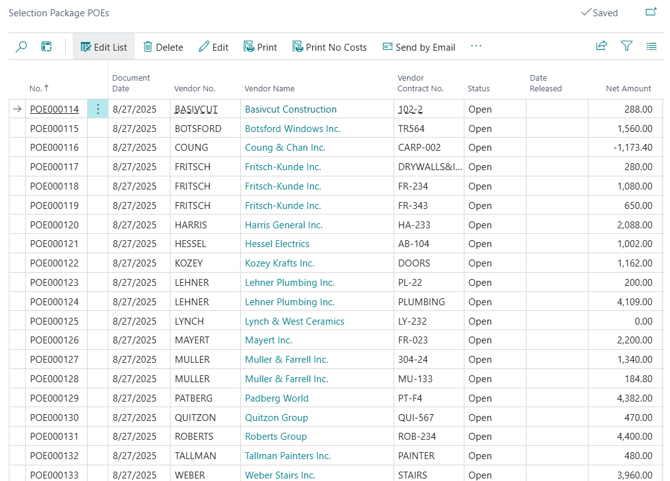
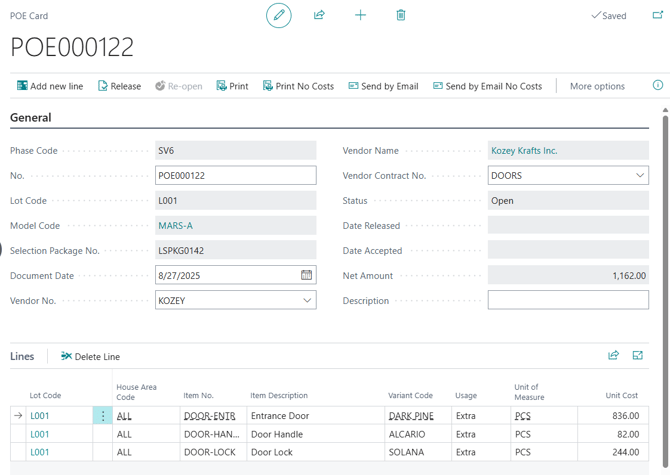
The POE list shows the documents; the POE Card shows one document and its lines.
Note
The list opened from a Selection Package is captioned Selection Package POEs and offers a reduced set of actions: Edit, Print, Print No Costs, and the two email actions. It is a view of that package's documents. To release or re-open a POE, open it with Edit, or work from the full Purchase Orders for Extras list.
Field Definitions
Header
| Field | Definition |
| No. | Unique within the company, assigned from the POE No. Series in HomeBuilder Setup. |
| Document Date | The date the POE was created. |
| Phase Code | The phase the work belongs to. |
| Vendor No., Vendor Name | The trade the document is addressed to. |
| Vendor Contract No. | The contract the work falls under. Together with Vendor No., this is what the POE was grouped by. |
| Status | Open, Released or Accepted. See POE Statuses below. |
| Date Released, Released by User | Stamped by the Release action. |
| Date Accepted | Stamped when the vendor accepts the POE through the Vendor Portal. |
| Net Amount | The total of the line amounts. Calculated. |
| No. of Lines | How many lines the POE carries. Calculated. |
| Description | Informational. Free text. |
| Job No., Lot Code, Model Code | The Lot the POE belongs to, where the system could establish one. See "How Lines Are Grouped" above. |
| Selection Package No. | The Selection Package the POE came from, where the system could establish one. |
| Portal Status, Portal Status Date/Time | How far the document has travelled through the Vendor Portal. |
Note
Vendor No. and Vendor Contract No. cannot be changed once the POE has left Open status. The system refuses with "Vendor No. and Vendor Contract No. cannot be changed if the Status is other than 'Open'." Re-open the POE first, or delete it and re-create it against the right contract.
Lines
| Field | Definition |
| House Area Code | Where in the home the work is. The single most useful field on the printed document for the trade. |
| Item No., Item Description | What the item is. |
|
Variant Code, Variant Description |
The finish the purchaser chose, the color, the grade, the style. |
| Usage | Standard, Upgrade or Extra, carried from the choice. |
| Unit of Measure | How the item is measured. |
| Quantity, Unit Cost, Line Amount | How much, at what cost. Line Amount is Quantity times Unit Cost. |
| Bundle Item No., Bundle Item Description, Bundle Variant Code, Bundle Variant Description | For a component line, the Bundle it came from. This is how a plumber can see that the rough-in they are being asked for belongs to the purchaser's fireplace package. |
| Color Chart Note | The note carried from the Model Item. Printed only where Show Note to Vendor is set on the choice. |
| Custom Note | The purchaser's own comments, recorded by the designer on the choice. |
| Instruction | Free text for the trade. |
| Job No., Job Task No., Job Planning Line No. | The planning line this POE line was created from. |
Warning
Quantity and Unit Cost are live on a POE line. Editing either on the POE writes the new value straight back to the Job Planning Line it came from, and therefore to the Lot's budget. This is intended, it lets an operations manager correct a quantity in one place while preparing the document. But it means a POE line is not a scratch copy. A quantity changed here is a quantity changed on the job.
Actions on a POE
- Add new line
- Available on the Card while the POE is Open.
- Adds a line to the document and creates a matching Job Planning Line for the Lot, so the added work reaches the budget as well as the trade. See Adding a Line to a POE below for the required fields and what can go wrong.
- Release
- Available from both the List and the Card; can be run against several documents at once from the list, the normal way to issue a phase's worth of POEs together.
- Advances the status from Open to Released.
- Grayed out until the POE has a Phase Code, a Vendor No. and a Vendor Contract No. A POE created by Create POEs always has them; one created manually may not.
- Print
- Available from both the List and the Card.
- Prints the POE with unit costs and line amounts, for the trade that is being paid those amounts.
- Print No Costs
- Available from both the List and the Card.
- Prints the POE showing the work, items, variants and quantities, with no money on the page. It is for anyone who needs to know what is being installed but has no business seeing what it costs.
- Send by Email
- Available from both the List and the Card; several POEs can be selected in the list and sent in one action, each going to its own vendor. This is the normal way to issue a phase's worth of documents once the planning is done.
- Emails the with-costs version of the POE to the address on the Vendor Card.
- Send by Email No Costs
- Available from both the List and the Card.
- Emails the no-costs version of the POE to the address on the Vendor Card.
- Sent Emails
- Available from both the List and the Card.
- Shows the email history for the document, what was sent, to whom, and when. The record to check when a vendor says a POE never arrived
Adding a Line to a POE
Work sometimes only becomes apparent after the POE exists, a trade points out that the upgraded tub needs a reinforced floor, or a site super finds the gas line needs a longer run than planned. Add new line puts that work on the existing document instead of starting a second one.
Run Add new line on the POE Card while the status is Open. Specify Phase Code, Lot Code, Item No., Variant Code (where the item has variants), House Area Code and Quantity, then confirm.
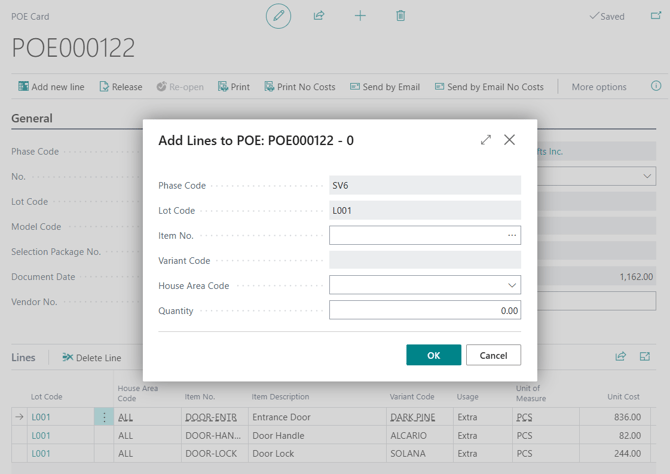
The system creates both a POE Line and a Job Planning Line for the Lot. The added work therefore reaches the trade and the budget together, rather than appearing on a document nobody has costed.
What Can Go Wrong
| Message | Meaning |
| Please enter "Phase Code" / "Lot Code" / "Item No." / "Variant Code" / "House Area Code" | A required entry is missing. |
| Cannot create Planning Line for X because the Phase Item is not marked as 'Available'. | The item exists but is not available in this phase. Make it available on the Phase Items page. |
| Cannot find Variant X, for Phase Item Y | The variant does not exist on that item in this phase. |
| Task X does not exist for Lot P-L. Push Construction Workflow Template with this task to the Lot. | The item's workflow task is not on the Lot's schedule, so there is nothing for the planning line to attach to. |
| "WF Template Task No." is not defined for Item X | The Construction Item has no workflow task assigned. Set it on the Construction Item Card and push the item to the Model again. The system offers to open the card for you. |
POE Statuses
A POE has three statuses.
| Status | Meaning | Set by |
| Open | Being prepared. Lines can be added, costs and quantities corrected, vendor and contract changed. | Creation, or Re-open |
| Released | Marked as issued to the vendor. | The Release action |
| Accepted | The vendor has acknowledged the POE through the Vendor Portal. | The Vendor Portal |
Warning
Released does not mean sent. Setting the status to Released is an internal marker that the document is ready to go out. The POE still has to be printed, emailed, or published to the Vendor Portal. Nothing leaves the building because a status changed.
Accepted is the one status the builder does not set. It is stamped, with the date, when the vendor opens the POE in the Vendor Portal and accepts it, which is why it is worth publishing POEs to the portal even for trades who also receive them by email: it is the only status that reflects something the vendor did rather than something the builder did.
Re-open returns a POE to Open from either Released or Accepted, and clears all three stamps.
Deleting a POE
A POE can be deleted only while its status is Open. Deleting it removes its lines and clears the POE No. and POE Line No. from the planning lines it was built from, which returns those lines to the pool that Create POEs draws on. The choices can then be un-released, corrected, and released again.
Printing and Sending
With or Without Costs
Every print and email action comes in two forms, and choosing between them is a commercial decision, not a formatting one.
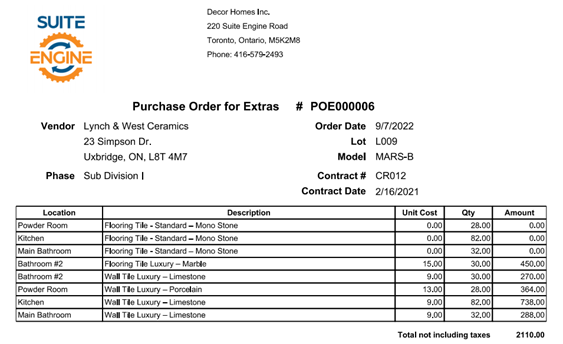
- With costs — shows the unit costs and line amounts. Use it for the trade that is being paid these amounts.
- No costs — shows the work, the items, the variants and the quantities, with no money on the page. Use it for anyone who needs to know what is being installed but has no business seeing what it costs: a site super, a purchaser's own inspector, or a trade quoting work adjacent to someone else's.
The Four Layouts
Four report layouts ship with the system:
| Report | Shows |
| Purchase Order for Extras | Costs, without item numbers |
| Purchase Order for Extras no Costs | No costs, without item numbers |
| Purchase Order for Extras with Item No. | Costs, with item numbers |
| Purchase Order for Extras no Costs with Item No. | No costs, with item numbers |
Which layout the Print and Send actions use is controlled centrally through Report Selections, under the usages SEHB POE and SEHB POE No Costs. Set this once during implementation.
Tip
The "with Item No." layouts exist because trades differ. A flooring supplier who stocks the builder's items wants the item number; a framing crew wants the room and the description and finds an item number to be noise. If the builder's trades are split on this, the layout can be swapped in Report Selections without touching anything else.
Notes on the Printed Document
Two settings decide what a trade actually reads.
- Show Note to Vendor, on the Lot Selection Choice, determines whether that choice's Color Chart Note is printed on the POE. It is set from the Model Item and cannot be changed by a décor designer, the intent being that internal notes stay internal by default.
- Print Component Descr. in POE, on the HomeBuilder Setup page, determines whether the component descriptions of a Bundle are printed alongside the Bundle. Turn it on where trades need to see what the bundle contains; leave it off for a cleaner document.
Sending
Send by Email sends the document to the email address on the Vendor Card. Several POEs can be selected in the list and sent in one action, each going to its own vendor. This is the normal way to issue a phase's worth of documents once the planning is done.
Sent Emails shows what was actually sent for a document and when, which is the record to check when a trade says they never received it.
Note
POEs are also published to the Vendor Portal when they are released, where the portal is in use. This is what allows a vendor to accept a POE and set its status to Accepted.
Setup That Affects POEs
| Setting | Where | Effect |
| POE No. Series | HomeBuilder Setup | Mandatory. No POE can be created without it. |
| Print Component Descr. in POE | HomeBuilder Setup | Prints Bundle component descriptions on the POE. |
| Report Selections — SEHB POE | Report Selections | Which layout the with-costs print and email use. |
| Report Selections — SEHB POE No Costs | Report Selections | Which layout the no-costs print and email use. |
| Vendor email address | Vendor Card | Where Send by Email delivers. |
| Vendor Contracts | Phase | Determines how POEs are grouped, and is required before a POE can be released. |
Troubleshooting
| Symptom | Cause and remedy |
| Release for POE is greyed out | The Lot Selection Package is not Released. Complete Close, Approve and Release first. |
| "does not have Planning Lines to be released for POEs" | The choice was added after the package was released, so no planning line exists for it. Add one with Add Planning Line on the Work Planning page. |
| "Please specify Vendor in Planning Lines for Lot Selection Choice" | A planning line behind the choice has no vendor. Fill in Vendor No. on the lower grid of the Work Planning page. |
| "Cannot un-release ... there are POEs issued for it" | Delete the POE. Possible while it is Open, then un-release the choice. |
| Create POEs produces nothing | Nothing met the criteria. The usual reasons are that no choice has been released for POE, or that every released line is already on a POE. |
| Create POEs stops on a planning line | The line is missing a Phase Code, Lot Code, House Area Code or Vendor No. The message names the line. |
| More POEs than expected for one vendor | The vendor's lines fall under more than one Vendor Contract. Grouping is by vendor and contract. |
| A Bundle did not appear on any POE | Correct. Bundles are sent as their components, each to its own vendor. Check the components, not the Bundle. |
| A choice never reaches a POE at all | Check its Designation. Customer Fees are excluded by design, they are charges to the purchaser, not work for a trade. |
| Release on the POE is greyed out | The POE has no Phase Code, Vendor No. or Vendor Contract No. Most likely it was created manually with New. |
| A note is missing from the printed POE | Show Note to Vendor is not set on the choice. It comes from the Model Item. |
| The vendor says nothing arrived | Check Sent Emails on the POE, and the email address on the Vendor Card. Released marks intent, not delivery. |