
In the HomeBuilder System, there are two types of Selection Packages:
- Color Chart: You can create only one per customer. When Customers change, you can create a new Color Chart. (Multiple Color Charts per Lot are possible, but not per Customer.) It is a guided selection of multiple elements.
- Addendum: You can create multiple Addendums for the same Customer.
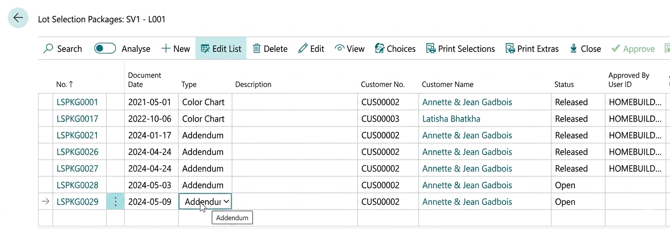
To access, search Lots, then select Lot Selection Packages Action. On the Lot Selection Packages List page, click New to create a Lot Selection Package. Fill in the information on the Lot Selection Package Card.
Note
- To edit information in the Lot Selection Package Card, in the Lot Selection Package List, hit edit.
- To make choices for that Selection Package, hit Choices.
- Take off values- measurements, length, coverage: from an architectural drawing.
- To set a Default House Area Code on the Lot Selection Choices Card, Search HomeBuilder Setup, and in the FastTab Operations, pick a Default Selection Choice.
- From a contractual point of view, any changes to a contract of a customer are called an amendment to the legal documentation.
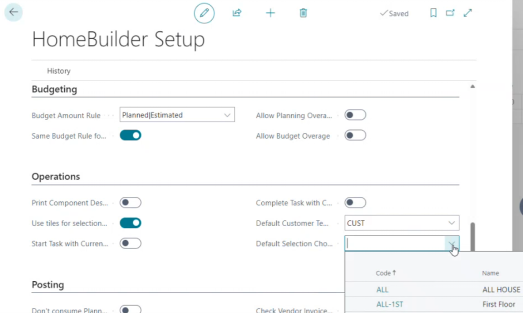
On the Lot Selection Packages List page, select Choices.
Printing Options
Two prints are available from the Lot Selection Package, and both are purchaser-facing documents covering the whole home.
- Print Extras — prints only the choices that cost the purchaser something, with prices. This is the document the purchaser signs off and pays against, and it is what the décor designer works from at the end of an appointment.
- Print Selections — prints every selection made, including the standard ones, without prices. Use it when the purchaser needs a complete record of what they have chosen rather than a bill: a summary of the home as specified.
Whether an individual choice appears on the Color Chart print is controlled by the Print in Color Chart field on the choice, which is set to Yes by default.
Documents for the Trades
Neither of the prints above is the document a trade receives. Both cover the entire home and are organised around the purchaser's decisions, not around anyone's scope of work.
What goes to a trade is a Purchase Order for Extras (POE), one document per vendor, listing only that vendor's work, with the House Area, the item, the variant the purchaser chose, the quantity and any instruction. POEs can be printed or emailed with or without costs, so a trade can be shown what to install without being shown what someone else is being paid.
POEs are produced by the operations manager after the Selection Package has been released. See Purchase Order for Extras.
Taking Installments (Customer Payments)
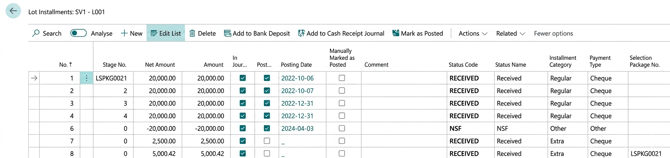
- On the Lot, select Selection Package. Then click Installments.
- This option will only display the Installment when the Selection Package is released.
- On the Lot, select Installments and process the Lot Installment. Fill in the Installment Category "Extra" and the Selection Package No.
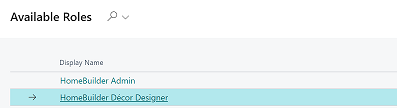
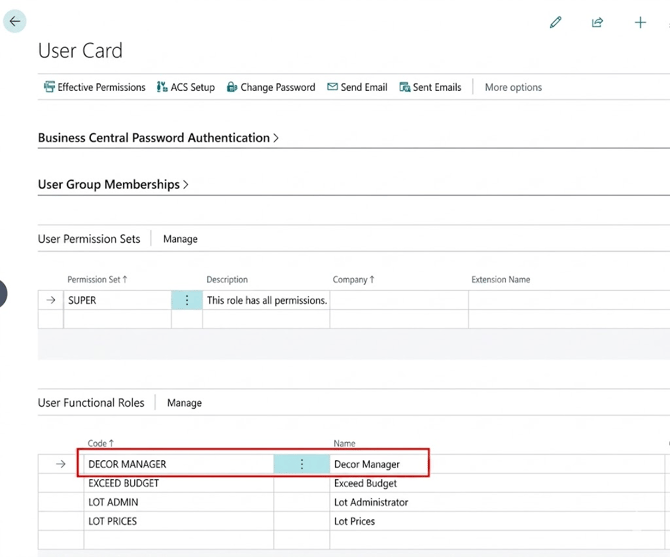
Approval levels on the User level (HomeBuilder Décor Designer Functional Role). The HomeBuilder Décor Designer functional role is designed to make the necessary functions easily available to a team member choosing this Role. - To access, go to the cog on the right-hand side and click My Settings. On My Setting Page, on the Role, hit the ellipses and select the HomeBuilder Décor Designer functional role.
- To ensure each User has proper Permissions (access level), search Users, select the User, and find the User Functional Roles FastTab. Add a proper User Functional Role to this User.
Populating the Color Chart Selection List
From the Lot, click Selection Packages, select or create a new Color Chart Selection package, and select the Choices Action Button. This will bring you to the Lot Selection Choices page, where you select the Populate Action Button to create a default list of Color chart selection options available for the client to choose from. This list is constructed in the following two ways:
- The list applies to a particular Model. Hence, part of the list is created using a Model with a flag Color Chart set to True.
- As a reminder, you select the Items that apply to a particular Model and then "push" them to the Model. The items get added to a model upon executing the action "Push to Models" in the page "Construction Items". See Model Items
- On Phase, select the Color Selections Button. It will bring you to the Color Selections page, which has every combination of Item Category and a House Area that will be used for populating the list.