
Caution: Before we start, ensure that you have registered as a developer; this is a crucial first step in order to obtain the proper credentials.
When registering as a developer, Amazon provides three options: Private Seller, Private Vendor and Public Seller/Vendor.
-
If you are implementing CSM for your Amazon Marketplace (most common), follow the instructions to Register as a Private Seller Developer.
Before we get started on this lengthy and critical process, let's go over a few chief terms and concepts. To access Amazon's data from any other source (Business Central), they require that you go through security layers to authenticate your API calls.
-
Developer Account: Amazon's gate. This registers you as someone building (or connecting to) software against their platform. The developer account ties your app to a legal entity, enforces their terms of service, and will eventually provide you with an application ID that every API call traces back to.
-
AWS Account*: AWS = Amazon Web Services. SP-API (Amazon's Selling Partner API) runs on top of the AWS infrastructure. You need an account to interact with it.
-
AWS/IAM User: A trackable identity inside of your AWS account. This user generates the access keys your app uses to authenticate requests.
-
AWS/IAM Policy: Defines what the IAM User can do. For SP-API, it's one thing: assume a role. Nothing else.
-
AWS/IAM Role: What actually has permission to call the SP-API. Your IAM User doesn't call the API directly; it temporarily assumes this role and gets short-lived credentials.
-
AWS/STS Trust Policy: Controls who can assume the role. Locks it to your specific IAM User so nothing else in your AWS account can use it.
-
The point of all of these configurations: Amazon doesn't let your app call SP-API with static credentials alone. Your IAM User's keys and role are permanent, but every actual API call goes through STS, which issues temporary tokens that expire. So even if a token is intercepted, it's useless shortly after. The only credentials you'd ever need to change manually is your LWA client secret.
* Warning: On 10/2/23, Amazon announced that they no longer require the use of AWS Identity and Access Management for connecting to their SP-API.
CSM is in the process of updating the API connections to respect this reduction in complex requirements, but the instructions for creating and accessing the AWS credentials are still enclosed in the following section.
* Create an AWS Account
If you're not already an AWS customer, you can create a free AWS account. For more information, refer to AWS Free Tier - the Free Tier will work fine for the purpose of our CSM integration.- Point your browser to the AWS Free Account page and then select Create a Free Account
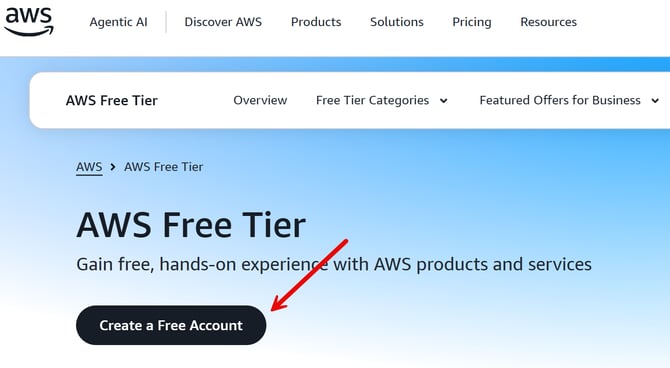
- Enter in your email address; ensure you use an email address that will be administering this account. Based on how your company functions, you may want this to be a shared email account.
- Choose your account name - we suggest using a name relates to the primary purpose of the account.
- Example: CSM AWS Account
- Follow the prompts to retrieve and input the verification code.
- Next, you will be required to choose your password, confirm your plan type (Free), submit contact information and payment information and confirm your identity.
* AWS : Create an IAM User
Once your account is confirmed as created (you'll be notified via email seconds after creating the account), you will need to create your IAM User (IAM = Identity and Access Management) . Even if you already have an AWS account with an IAM User, we recommend creating a new IAM user exclusively for this purpose.
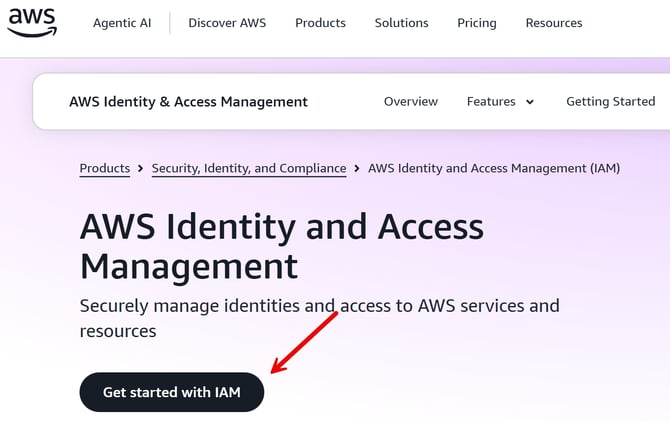
- Point your browser to https://aws.amazon.com/iam/ and select Get started with IAM
- This will bring you to the AWS IAM configuration related to your region (eg - us-east-1)
- From the left navigation pane, choose Users and then select Create user
- Enter a name for the user - as with the AWS Account, we recommend a name relating to the primary purpose of the account/function
- Example: CSMUser (spaces not allowed)
- Click Next, Next again and then Create User
- Select the View user button
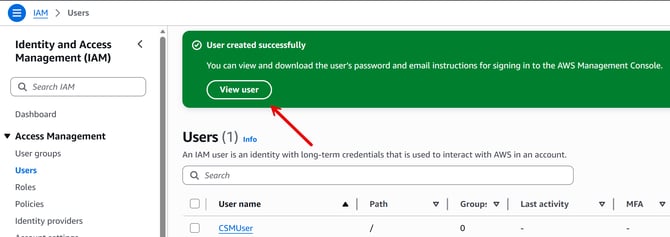
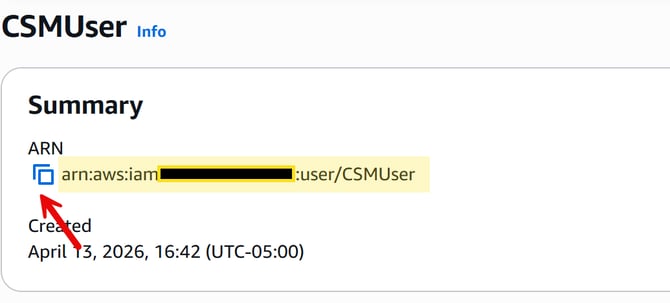
- Retrieve the IAM User ARN (Amazon Resource Name) under the Summary section and save locally - we'll reference this later for the IAM Role creation
- Click Create access key

-
-
-
- You will see several options; we suggest selecting Application running outside AWS and then clicking Next and then Create access key
- Click Show to view your Secret access key and ensure you save both the Access key and Secret access key somewhere locally - you will not be able to return to view the Secret access key again after this step.
-
-
-
-
-
- Click Done
-
-
* AWS: Create an IAM Policy
Caution: If your AWS account leverages AWS Organizations, you must ensure that your organization level policy allows access to SP-API.
For more information, refer to Managing AWS Organizations policies in the AWS documentation.
- From the left navigation pane, choose Policies and then select Create policy
- Choose the JSON tab at top-right and paste the following code into the text box (replacing the existing code)
{
"Version": "2012-10-17",
"Statement": [
{
"Effect": "Allow",
"Action": "execute-api:Invoke", "Resource": "arn:aws:execute-api:*:*:*"
}
]
}
-
- Choose Next
- Enter a name for the policy
- Example: CSMPolicy
- Select Create policy
* Create an IAM Role
- From the left navigation pane, choose Roles and then select Create role
-
- Select AWS account
- In the An AWS account section, you should see the 12-digit numeric account identifier that was contained in the IAM User's ARN you saved locally in an earlier step
- Click Next
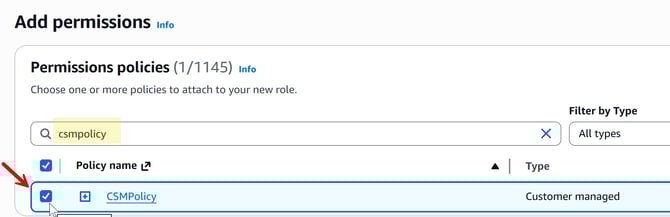
- Search for the IAM Policy you created earlier and then click the checkbox
- Select AWS account
-
- Click Next
- Enter a name for the role
- Example: CSMRole
- Click Create role
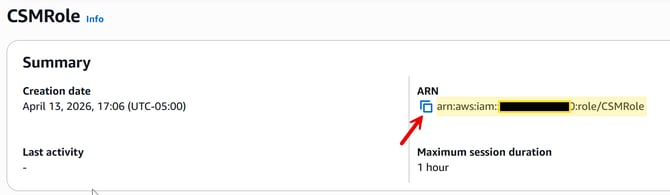
- Click on the Role you just created and ensure you save the IAM Role ARN locally as we will use this for some future steps
* AWS: Add a Security Token Service Policy to your IAM User
- From the left navigation pane, choose Users and then choose the user that we created in an earlier step
- Under the Permissions tab, select the Add permissions dropdown and choose Create inline policy

- Underneath the Service section, type "sts" and select the STS result
- Under the Permissions tab, select the Add permissions dropdown and choose Create inline policy
-
-
- Under Access Level, select the arrow next to Write to expand the section
- Select AssumeRole
- Underneath the Resources section, click the Add ARNs link
- In the Specify ARNs popup, enter the Role ARN we saved from the earlier step
- Click Add ARNs
- Click Next
- Click Create policy
- Under Access Level, select the arrow next to Write to expand the section
-
Register your Application
Note: The Amazon Seller account instructions are based on Developer Central, not the Solution Provider Portal, which is a newer environment that all Amazon sellers will eventually have to use. The experience is largely the same with additional account verification steps and API usage features with the Solution Provider Portal.
- Point your browser to your Amazon Seller Central account
- Click the hamburger menu at top-left; under Apps and Services, select the Develop Apps page
- Click Add new app client.
- The App registration page appears
- Enter a name for the application
- Example: CSM
- API Type: SP-API
- Amazon Partner Type: Sellers (Vendor Support is not yet supported by CSM)
- Seller Roles: we recommend checking these boxes available to ensure all functions in CSM are working as intended:
- Product Listing
- Pricing
- Amazon Fulfillment
- Buyer Communication
- Buyer Solicitation
- Selling Partner Insights
- Finance and Accounting
- Inventory and Order Tracking
- Restricted Data Token (RDT)
-
As part of this registration process, you can apply for a Restricted Data Token that authorizes you to retrieve shipping address details as part of the order retrieval process from Amazon.
-
This extra security token is in place to protect PII (Personally Identifiable Information); if you operate exclusively with FBA, then you do not need this access.
-
We have a page dedicated to walking you through the RDT approval process.
- If you would like to apply for access to this business function, select the Yes, I will delegate access to PII to another developer's application and then select Direct-to-Consumer Shipping
-
-
- Enter a name for the application
- Click Save and exit
- The App registration page appears
- Click Add new app client.
Note: When registering your application, the IAM ARN that you provide must be for the IAM entity to which you attached the IAM policy from Create an IAM policy.
In this workflow, that IAM entity is the IAM role from Create an IAM role.
If you register your application using your IAM user, be sure that the IAM policy is attached to it. Otherwise, your calls to the Selling Partner API will fail.
We recommend registering your application using an IAM role, as shown in this workflow, to help you better control access to your AWS resources.
Accessing Application Information/Credentials
- Point your browser to your Amazon Seller Central account
- Click the hamburger menu at top-left; under Apps and Services, select the Develop Apps page
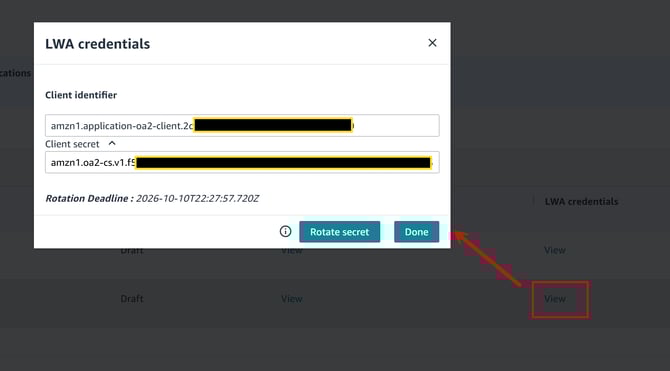
- Click View under LWA credentials for your application and you will be able to access your Client ID and Client Secret. This is also the section you will access every 6 months to Rotate your LWA Credentials.
- Click View under LWA credentials for your application and you will be able to access your Client ID and Client Secret. This is also the section you will access every 6 months to Rotate your LWA Credentials.
Generating a Refresh Token for your Application
- Point your browser to your Amazon Seller Central account
- Click the hamburger menu at top-left; under Apps and Services, select the Develop Apps page
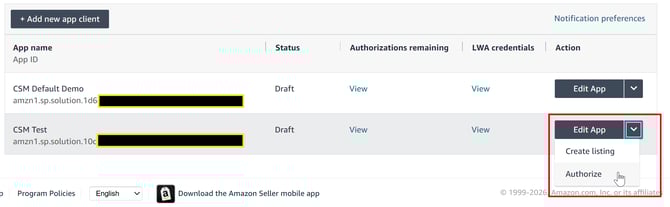
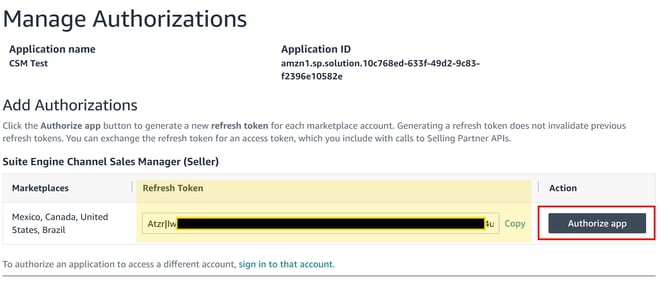
- Underneath the application in question, select the drop down under the Action column and select Authorize. This will generate a Refresh Token for your application connection - be sure to copy and save this token locally as you will not be able to access it again.
- Underneath the application in question, select the drop down under the Action column and select Authorize. This will generate a Refresh Token for your application connection - be sure to copy and save this token locally as you will not be able to access it again.
➡️ Next Step: Restricted Data Tokens