
Note: First, ensure you have installed our CPM Business Central application.
Obtaining and Saving Test API Credentials
- Login to your Stripe account as the account owner/administrator
- Ensure the Test Mode toggle is enabled in the upper righthand corner of the Home page
- Under the Products section on the left menu, choose the Apps option
- If you haven't already installed ourCPM for Business Central Stripe application, you can find and install it here
- On the Apps page, select the CPM for Business Central application
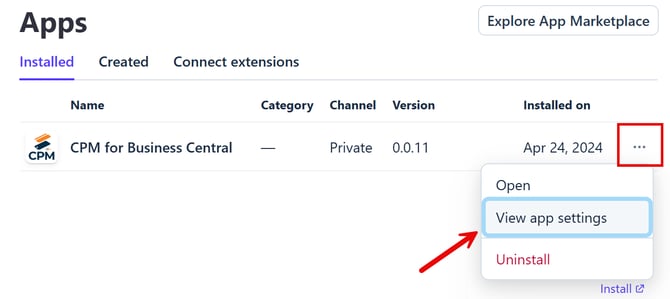
- Select the points of ellipses next to the app and select View app settings
- Select the points of ellipses next to the app and select View app settings
- Select the View API keys option at top-right
-
-
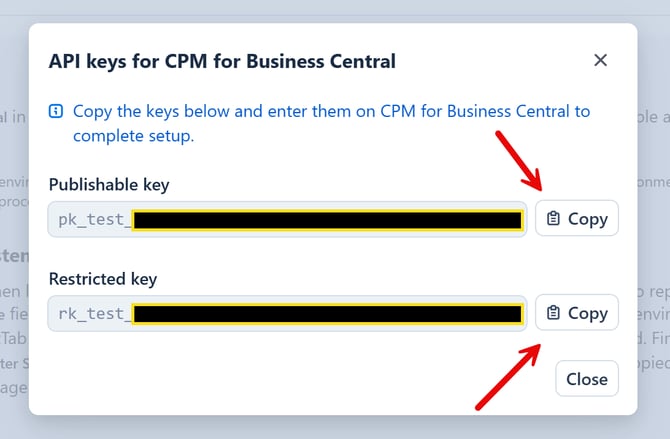
- You will see a popup with a Publishable key and Restricted key
- Use the on-screen Copy buttons (you must first reveal the Restricted key before you can copy it) on the screen and save these keys somewhere locally
-
-
In Business Central, search for CPM Payment Platforms and select the related link
-
- Open the payment platform that you created in the Initial Setup
- In the Payment Platform Mode field, select Test
- On the Stripe Information FastTab, fill in the following fields
- Stripe API Base URL
- Enter the value of https://api.stripe.com in this field. This is the standard URL that is used by Stripe for API calls.
- Stripe Publishable Test Key
- Enter the publishable key you copied from the previous step. This should begin with "pk_test_".
- Stripe API Base URL
- From the ribbon bar, select Actions > Other > Enter Stripe API Key
- Paste in the Restricted Key from the previous step
- Select OK
- To validate that your credentials have been entered correctly, choose Home > Test Platform Communication action.
Note: If the test was successful, you can continue your sales channel configuration. If it failed, please search the knowledge base or contact support.
Moving to Production Mode
Once you have fully tested out your Stripe integration in test mode and you are ready to move to Production, simply follow these few steps, which largely mirror the initial steps above.
- Login to your Stripe account as the account owner/administrator
- Ensure the Test Mode toggle is disabled in the upper righthand corner of the Home page
- Under the Products section on the left menu, choose the Apps option
-
-
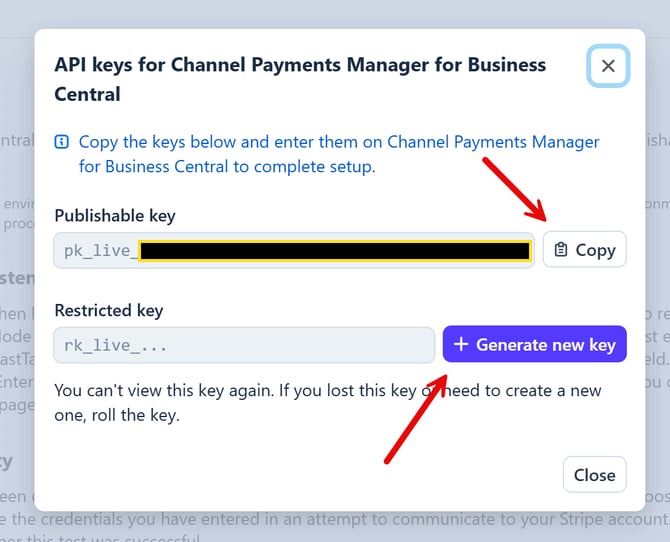
- You will see a popup with a Publishable key and Restricted key
- Use the on-screen Copy buttons (you must first generate / re-generate and reveal the Production Restricted key before you can copy it) on the screen and save these keys somewhere locally.
- Since you are in Production mode, the Restricted key will not be displayed after generated, so ensure you save it locally.
-
-
In Business Central, search for CPM Payment Platforms and select the related link
-
- Open the payment platform that you created in the Initial Setup
- In the Payment Platform Mode field, select Production
- On the Stripe Information FastTab, fill in the following fields
- Stripe Publishable Production/Live Key
- Enter the publishable key you copied from the previous step. This should begin with "pk_live_".
- Stripe Publishable Production/Live Key
- From the ribbon bar, select Actions > Other > Enter Stripe API Key
- Paste in the Restricted Key from the previous step
- Select OK
- Since you have changed your credentials from Test to Production, we recommend testing the credentials. To validate that your credentials have been entered correctly, choose Home > Test Platform Communication action.
Note: CPM takes extra precautions to safely store your Restricted Key in a protected area of Business Central, using encrypted isolated storage to ensure that no one (including developers attempting to access these values through code or another application) can view or obtain this information.
➡️ Next Step: Configure your Payment Platform