
In this Article:
Overview | Model House Areas | Actions on the Model House Areas Page | House Area Cleanup | Measurements | Measurement Matrix
Overview
Model House Areas define which House Areas make up a Model — the rooms, spaces, and exterior areas that a housing unit of that Model contains. Each House Area carries a set of Measurements (for example FLOOR AREA, FLOOR AREA CARPET, FLOOR AREA HDWD), and the quantities entered against them drive Item quantities, budgets, and pricing everywhere the Model is used.
This article covers the three pages that maintain that data: Model House Areas, Model House Area Measurements, and the Model Measurement Matrix.
Note
House Areas and Measurement Types are defined globally first. See House Areas and Measurement Types. This article covers how they are applied to an individual Model. For the Models list page coverage, see Models Overview.
Model House Areas
The Model House Areas can be accessed from by navigating to Models list, selecting a model and running the House Areas action from the action bar. Alternatively, the same action can be performed from the Model card page of an individual model. This action will open the Model House Areas page, as shown below.
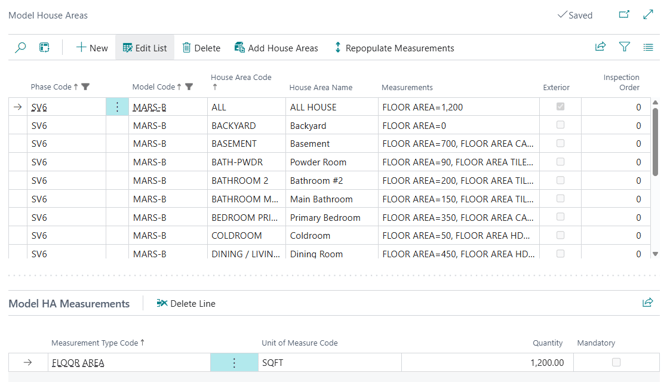
Important House Area Fields
| Field | Description |
| Phase Code | The Phase the Model belongs to. |
| Model Code | The Model the House Area is assigned to. |
| House Area Code | Code of the House Area, taken from the global House Areas list. For example: ALL, BACKYARD, BASEMENT, BATH-PWDR, BEDROOM 2. |
| House Area Name | Name of the House Area. For example ALL HOUSE, Backyard, Basement, Powder Room, Primary Bedroom. |
| Measurements | A read-only summary of the Measurement Types and quantities held for that House Area. For example: "FLOOR AREA=1,200" or "FLOOR AREA=350, FLOOR AREA CARPET=…". Select the House Area to see the full set in the lower grid. |
| Exterior | Marks the House Area as an exterior area, such as ALL HOUSE or Backyard. |
| Inspection Order | Defines the order of inspection for after-sales service inspections, such as the Pre-delivery Inspection. |
Important House Area Measurements Fields
| Fields | Description |
| Measurement Type Code | The Measurement being recorded. For example: FLOOR AREA, FLOOR AREA CARPET, FLOOR AREA HDWD. |
| Unit of Measure Code | The unit the quantity is expressed in — for example SQFT or SQYD. |
| Quantity | The value used in calculations. Choose Edit List to change it. |
| Mandatory | Indicates that the Measurement must carry a quantity. Validate Selected on the Models list reports an error where a mandatory Measurement has no quantity. |
Actions on the Model House Area Page
- Add House Areas
- Select the House Areas that you would like to add to the Model and press "Add House Areas to Model.
- This is the normal way to build up a Model’s House Areas, rather than adding rows one at a time with New.
- Repopulate Measurements
- This action repopulates the Model House Area Measurements.
- Run it after adding new Measurement Types to the global House Area catalog list, so the new Measurement Type Codes are pulled into the Model.
House Area Cleanup
The Model House Area Cleanup routine deletes records (where permitted) for Model Code / House Area Code combinations that no longer exist in the Model House Areas setup for the selected Models. It is the tidy-up step after House Areas have been removed from a Model.
This action can be accessed either from the Model list page upon selecting a model, or from the Model's card page.
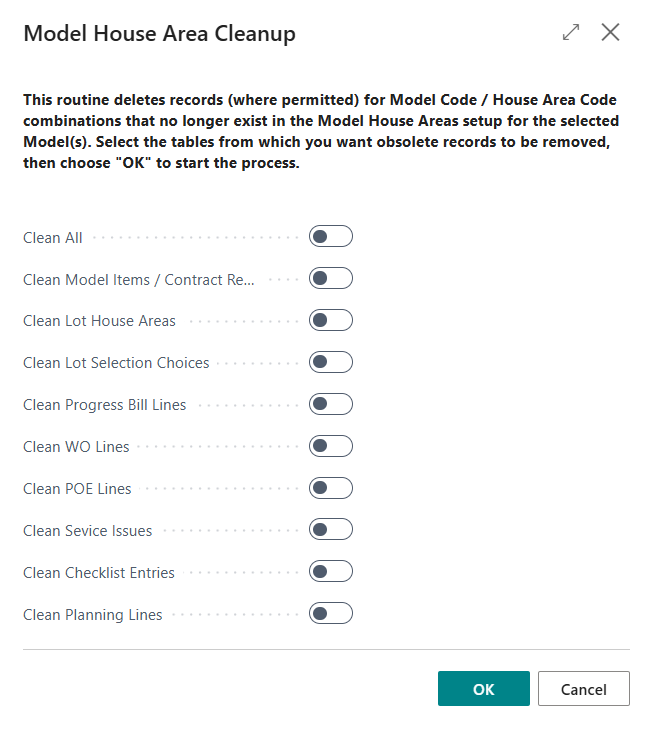
Select the table(s) from which you want obsolete records to be removed, then choose "OK" to start the process.
Caution
This process deletes data. Run it only when you are sure the related Model and House Area combinations are genuinely obsolete.
Measurements
The page "Model House Area Measurements" lists the Measurements for the House Areas of a Model as a single flat list, and provides the ability to edit Quantities. To access, from the Models list or Model card, choose Related, then Measurements.
Important Measurements Fields
| Field | Description |
| Phase Code | The Phase the Model belongs to. |
| Model Code | The Model the Measurement belongs to. |
| House Area Code | The House Area the Measurement is recorded against. |
| House Area Name | Name of that House Area. |
| Measurement Type Code | The Measurement being recorded. For example: FLOOR AREA, SHOWER FLOOR, STONE COUNTER, WALL AREA. |
| Unit of Measure Code | The unit the quantity is expressed in. For example: SQFT or SQYD. |
| Quantity | The value used in calculations. Choose Edit List to change it in place. |
| Mandatory | Indicates the Measurement must carry a quantity. |
Measurement Matrix
The Model Measurement Matrix presents a Model’s Measurements as a cross-tab, so Measurement Types can be compared across House Areas at a glance. To access, from the Models list select a Model and choose Related, then Measurement Matrix.
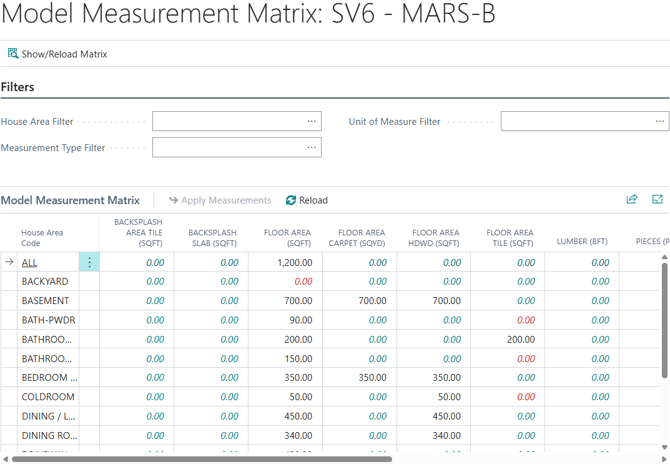
The page opens on a Filters FastTab. Set the filters you need, then choose Show/Reload Matrix to build the view.
| Filter | Purpose |
| House Area Filter | Limits the matrix to the selected House Areas. |
| Unit of Measure Filter | Limits the matrix to Measurements recorded in a given Unit of Measure. For example: SQFT or SQYD. Useful when a Measurement Type is held in more than one unit. |
| Measurement Type Filter | Limits the matrix to the selected Measurement Types. For example, FLOOR AREA only. |
Show/Reload Matrix
Run the Show/Reload Matrix action to build the matrix from the current filters. Choose it again after changing a filter, or after quantities have been edited elsewhere, to refresh what is displayed.
TIP
The matrix is a quick way to spot House Areas that are missing a Quantity before you run Validate Selected on the Models list, since empty cells stand out against populated rows.