
In this Article:
Models Overview | Actions | Reports | Important Fields | Model Lot Types | Copy from Another Model | Model Deletion
Models Overview
A Model represents a specific type of housing unit (house, townhouse, or condo unit). It holds some basic information about the Model that you are building. Housing units of the same Model have the same physical structure and the same elements in construction. The main purpose of the Model is to link all the required data together to make Lots easy to set up and use.
To maintain the list of Models, open the page "Models" by searching for it or by navigating to a Role Center, i.e., HomeBuilder, then Operations, choose Principle, and click Models.
Key Points of Note
- A Model belongs to a Phase.
- The Model is the hub record for everything that drives a Lot. Its Lot Types, House Areas and Measurements, Model Items, Budget, Key Dates, Applicable Workflows, and Pre-defined Packages are all maintained from the Models list page.
- Model Code is mandatory and must be unique within the Phase.
On the Models List page:
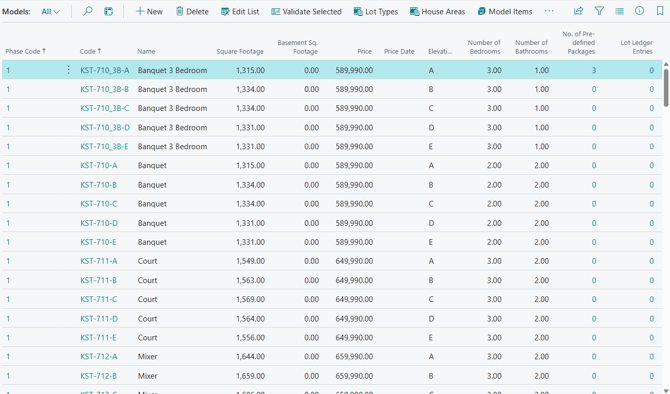
- You will see the Square Footage column. Click Edit List Action button to adjust Square Footage. The number entered here to the Model is informational only and is not mandatory, measurements used for calculations are entered in Measurement Types held within House Areas.
- Price is the Lowest Model price which set is per Model and Lot Type.
- Once you have created a Model, you can use the Action "Copy from another Model". The system gives you the option to copy all the attached information such as:
- Lot Types
- House Areas
- Budget
- Key Dates
- Model Items
- Applicable Workflows
- Document Attachments
Actions
- Validate Selected
- Runs the validation routine against every selected Model and reports the errors, warnings, and notices it finds.
- Select the Models you want to check, then choose Validate Selected. The results open in the "Validation of Models" page, which carries a running count in its title — for example, "6 error(s), 0 warning(s), 0 notice(s)".
- Each finding is listed with its No., Type, Record Id, and Message. Typical findings are "Lot Types are not defined for the model.", "House Areas are not defined for the model.", "Budget Lines are not defined for the model.", and "Quantity is not defined for Measurement Type ...".
- Lot Types
- Opens Model Lot Types for the selected Model: the Lot Types the Model can be built on, and the base price of the Model on each of them.
- The page carries New, Edit List, Delete, and Add Lot Types. See Model Lot Types, below.
- House Areas
- Opens the Model House Areas page, where you list the House Areas that make up the Model and maintain the Measurement quantities held against each one. The page carries the Add House Areas and Repopulate Measurements actions, and its lower Model HA Measurements lines are where Quantity values are entered.
- When a Measurement Quantity changes here, the value is propagated to the Measurements of the Lot House Areas upon confirmation.
- For the full detail, see Model House Areas.
- Model Items
- Opens the Model Items page: the Items applicable to the Model, the House Areas of the Model where each Item can be installed, and the costs and prices specific to that Model House Area.
- Items with Cost Scope 'Universal' have no House Area Code; Items with Cost Scope 'Per Model/HA' do, which is what makes costs and prices possible on a 'per House Area' basis.
- For the full detail, see Model Items.
- Model Budget
- Opens the Model Budget for the selected Model. Budget lines are held per Cost Group Code and Cost Detail Code, and show the Budget Amount Rule alongside the Estimated, Model Item, Planned Cost, Planned Revenue, Planned, and Actual amounts.
- The page carries its own Populate, Push to Lots, and Report actions.
- Copy from another Model
- Copies the contents of the tables related to another Model into the current Model.
- In the pop-up page "Copy from another Model", select the source Phase Code and Model Code, switch on the related entities you want copied, and choose OK.
- Entities available to copy: Lot Types, House Areas, Budget, Key Dates, Model Items, Applicable Workflows, and Document Attachments.
- For more detail, see Copy from another Model below.
- Populate Model Budget
- Creates the Model Budget lines for the selected Model from the Cost Group / Cost Detail structure, so budget amounts can be entered without adding each line by hand.
- Run this on a newly created Model before entering estimated amounts, or after the Cost Detail structure has been extended.
- House Area Cleanup
- Opens the Model House Area Cleanup page, which runs a routine that deletes records (where permitted) for Model Code / House Area Code combinations that no longer exist in the Model House Areas setup for the selected Models.
- You choose which tables obsolete records are removed from, Clean All, or any combination of Model Items / Contract Revision Items, Lot House Areas, Lot Selection Choices, Progress Bill Lines, WO Lines, POE Lines, Service Issues, Checklist Entries, and Planning Lines.
- For the full detail, see House Area Cleanup.
- Key Dates
- Opens Model Key Dates for the selected Model: the Key Date Code, Key Date Name, Sorting Order, and Is Milestone flag that drive the Model’s construction schedule.
- The page carries the Populate from Template action, which brings in a standard set of key dates rather than entering each one.
- Measurements
- Opens the Model House Area Measurements page, a single flat list of every Measurement held against the Model’s House Areas, with editable Quantities.
- It supports Edit in Excel, and the filter on Model Code can be removed to show every Model in the Phase at once.
- For the full detail, see Measurements.
- Measurement Matrix
- Opens the Model Measurement Matrix, a cross-tab view of the Model’s Measurements. Set the House Area Filter, Unit of Measure Filter, and Measurement Type Filter, then choose Show/Reload Matrix to build the view.
- The matrix is the quickest way to compare Measurement Types across House Areas and to spot missing quantities before running Validate Selected.
- For the full detail, see Measurement Matrix.
- Applicable Workflows
- Opens Model Workflows for the selected Model: the Workflow Codes and Workflow Names assigned to the Model. For example: Pre-Construction, Construction, Closing, After Closing, After-sales Service, and Decor Process.
- Each line carries its Scheduling method (for example Manual, or Ends at Closing) and the Construction Workflow and Décor Workflow flags.
- Pre-defined Packages
- Opens Model Pre-defined Packages: the packages defined for the Model, each identified by Code and Name. Choose Package Lines to maintain the Items each package contains.
- The number of packages defined is shown in the No. of Pre-defined Packages column on the Models list.
Reports
- Selections Price List
- Prints the price list of the selections available for the Model.
- Choose a Printer and a Report Layout.
- Filter the report by Item Category Code under Filter: Category, and by Item No. under Filter: Item. Expand Advanced for the additional options.
- Purchaser Selection Options
- Prints the options a purchaser can choose from for the Model.
- Options: Include Items not pushed to Models, Print House Areas, and Print Variants.
- Filter the report by Item No., Item Category Code, and Trade Type Code, and set a Filter totals by value where one is required.
Important Fields
| Field | Description |
| Phase Code | Defines the Phase in which this model belongs. |
| Code | The Model Code. Mandatory, and must be unique within the Phase. |
| Name | Name of the Model. Mandatory. |
| Square Footage | Square footage value of the Model based of the architectural drawings. Informational, non-mandatory field. |
| Price | The lowest Model price, which is set per Model and Lot Type. |
| Price Date | The lowest Model price, which is set per Model and Lot Type. |
| Elevation | Elevation of the Model. Informational, non-mandatory field. |
| Number of Bedrooms | Informational, non-mandatory field. |
| No. of Pre-defined Packages | The number of Pre-defined Packages defined for the Model. Choose the value to open their list. |
| Lot Ledger Entries | The number of Lot Ledger Entries posted against Lots built to this Model. Choose the value to open their list. |
Deleting a (Fully Set Up) Model
Important
This is a more advanced function, and these are just guidelines for an experienced user. This is not to be attempted unless you are highly familiar with Dynamics BC and HomeBuilder. Contact your HomeBuilder consultant if you are in any doubt about what to do here.
This discussion is for people who want to remove Models that are set up but not used on an active Lot. If you can just delete the Model, it is not fully set up, and this will cause no problems.
If you receive errors when you delete, you will need to delete the contents of the tables listed below, in the order they are listed. If you are unable to delete any of the following tables, the most likely reason is that there are postings against a Lot with this Model, in which case, you may not be able to delete the Model.
From the Model List:
- Model Lot Types.
- Model Item Applicable House Areas (accessed from the Model Items page).
- Model Items (read the note below before you do this).
- Model House Areas.
- Model Budget.
You should now be able to delete the Model and if you cannot, refer to a HomeBuilder consultant for assistance.
Note
The system will automatically delete each Vendor Contract Line (Contract Revision Item table) and warn before each one. If you have many Vendor Contract Lines you will be better off deleting them first and then deleting the Model Items. To do this, open any Vendor Contract - click on "Current Prices", open the filter pane, change the filter to the Model you want to delete, and clear all other filters.
Model Lot Types
Model Lot Types are the Lot Types that are specific to the Model. You will only be able to select Models on the Lot where that Lot has at least one of the same Lot Types that exist on the Lot.
To access, search Models, open a Model Card, and select the Lot Types Action Button.
Note
Model Lot Type represents the relationship between Models and Lot Types and answers the question: “On which Lot Types the Model can be built?” Also, it answers the question: "How much does the house with this Model cost if it is built on the lot of the applicable Lot Type?" To define Lot Types, click Lot Types.
Model Pricing
Enter the base price for the model in the Model Lot Type table in the field "Price". The lowest price entered into these records will be shown in the "Price From" field on the Model, and this price will be used to determine the "Original Price" on the Lot.
Copy from Another Model
The function Copy from another Model is useful when you want to copy information from 1 Model to another. To access, search Models, and on the Models List page, go to Actions and select Copy from another Model Action Button.
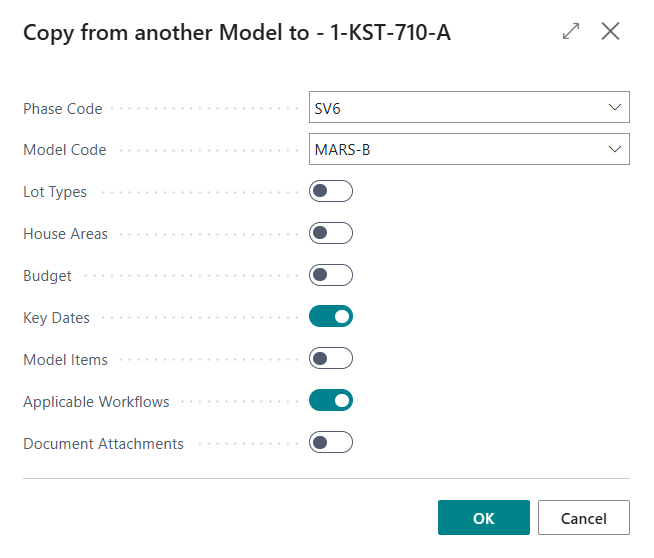
In the example above:
- You copy TO Phase SV6, Model MARS-B, from Phase 1, KST-710-A.
- You selected to copy Key Dates and Applicable Workflows.
Note
This tool is especially suitable for situations where you have one model completed and are introducing a similar new Model to your offering. Limitations: If your target Model (here Lily) already contains Model Items, you have 2 options:
- Just use the copy function. The existing Model Items that have the same number in the target as in the source company (Daisy) will not be updated (changed)
- Delete the Model Items in the target company (Lily). This will cause the Copy from another Model function to copy complete information and will create new Model Items in the target Company (Lily)