
In this Article:
Model Items Overview | Model Items Page | Important Fields | Actions
Model Items Overview
Model Items define which Items are applicable to the Model, House Areas of the Model where the Item can be installed, prices, and costs that are specific to that Model House Area.
To access the list of Model Items, search Models, then in the page "Models" (list page) select one Model and click the action button "Model Items".
Model Items Page
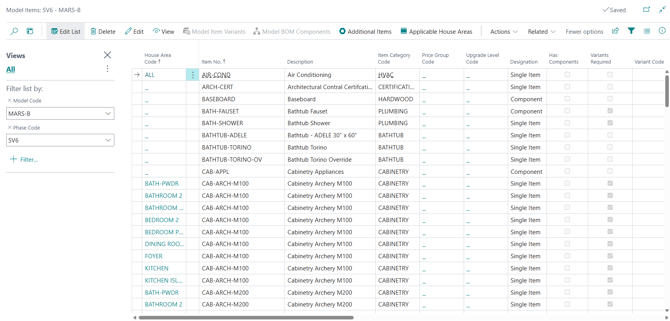
The page "Model Items" contains a non-editable grid with Model Items.
Note
Please note that the House Area Code is empty for Items with Cost Scope 'Universal', whereas Items with Cost Scope 'Per Model/HA' have House Area Codes. The last is necessary to specify costs and prices on a 'per House Area' basis.
Important Fields
| Field | Description |
| Item No. | The Item, taken from the construction catalog. Together with House Area Code it identifies the Model Item. |
| Description | Description of the Item, carried through from the catalog. |
| House Area Code | The House Area of the Model that the Item applies to. Empty for Items with Cost Scope 'Universal'. Choose the value to open the Model Item Card. |
| Item Category Code | The category the Item belongs to, for example PLUMBING, CABINETRY, CARPETING, HVAC. The category drives which House Areas are populated as applicable to the Item. |
| Designation | 'Single Item', 'Component', or 'Bundle'. Determines which of the related pages are available and whether Unit Cost can be edited directly. |
|
Cost Scope |
'Universal' or 'Per Model/HA'. Decides whether one cost applies everywhere, or a separate cost and price is held for each Model House Area combination. This is the field that most often explains why a cost is not where you expect it. |
| Upgrade Level Code | The upgrade level the Item sits at, used when presenting standard versus upgraded selections to a purchaser. |
| Pricing Method | 'Item' or 'Measurement'. Measurement-priced Items take their quantity from the Model House Area Measurements rather than from a fixed Quantity. See, Measurements. |
| Base Unit of Measure | The unit the Item is costed in, for example PCS (in pieces) or SQFT (square feet). Measurement-priced Items must use a unit that matches their Measurement Type. |
| Quantity | Quantity of the Item for the Model House Area. For example number of pieces, or area of coverage. |
| Unit Cost | Cost per Base Unit of Measure. Editable where the Designation is 'Single Item' or 'Component'; for bundles it is calculated from the BOM Components. |
Note
This is not an exhaustive list. The page can also show additional fields such as Price Group Code, Has Components, Variant Required, Variant Code, Cost per Variant and Price/Profit Calculation. The variant and profit fields are covered under Model Item Variants and Model BOM Components, below.
Model Item Actions
- Model Item Variants
- Shows the variants of the Model Item. It allows editing Item Variant Cost and Price for combinations of Model / House Area (for the Items with Cost Scope "Per Model/HA").
- The field "Unit Cost" is editable if the Designation is 'Single Item' or 'Component'. "Unit Cost" for bundles is calculated based on the BOM Components.
- Fields Price/Profit Calculation, Markup, Unit Price, and Use Component Prices are enabled only if the Item has the "Color Chart" field set to 'Yes'.
- Set Markup, the only action on this page. It is enabled if the Item has a "Color Chart" field set to 'Yes'.
- To set markup, select variants and press "Set Markup". In the pop-up page, enter the markup value and press "OK".
- Model BOM Components
- Allows for editing BOM component cost and price for combinations of Model / House Area (i.e. for Items with Cost Scope "Per Model/HA").
- The field "Unit Cost" is editable if "Use Component Cost" is set to 'No'.
- Fields Price/Profit Calculation, Markup, Unit Price, and Use Component Prices are enabled only if the bundle Item has the "Color Chart" field set to 'Yes'.
- The Page has two actions:
- Set Markup — enabled if the bundle Item has a "Color Chart" field set to 'Yes'. Select BOM components, press "Set Markup", enter the markup value, and press "OK".
- Model Item Card — enabled if the BOM Component has type 'Item'. It opens the Model Item Card for the Model Item referenced by "No.".
- Where-Used
- Enabled for Model Items with the Designation 'Component'.
- The page called by this action shows the phase bundle items where this Component Item is used.
- Applicable House Areas
- Opens the page "Model Item Applicable House Areas", which allows a user to define a list of House Areas applicable to a Model Item.
- When a user enters "Item Category Code" for a Model Item, the applicable House Areas will be populated from House Areas of the Global Item Category.
- The House Areas offered come from the Model’s own House Areas. If a House Area you expect is missing, add it to the Model first. See Model House Areas.
- Additional Items
- Allows for associating supplementary, non-standard, or model-specific items (such as specialized materials, structural extras, optional fixtures, or custom labor components) directly to that specific floor plan model.
- When a Model is assigned to a Lot, HomeBuilder uses the model's base configuration plus any defined Additional Items to automatically construct the lot-level project budget and estimating cost lines.
- The page has the following actions:
- Model Item Card — opens the Model Item Card for the Item on the selected line.
- Model Items — returns to the Model Items list. Disabled while the page is filtered to a single parent Model Item.
- Model Item Variants — opens the variants of the Item on the selected line, where Variants Required is set to Yes.
- Applicable House Areas — opens the House Areas applicable to the Item on the selected line.
- Add Items
- Allows a user to add items from Phase Items to a Model. Alternatively, the items get added to a Model upon executing the action "Push to Models" in the page "Construction Items".
- The action opens the page "Add Items to Model". In this page, select the items you would like to add to the phase and click "Add Selected Items".
- Validate Selected
- Allows a user to validate the settings of selected Model Items. If the validation routine finds errors, warnings, or notices, the program displays them in a results window listing the No., Type, Record Id, and Message of each finding.
- Set Markup
- Allows you to set markup for the Phase Items that satisfy all of the following criteria:
- "Designation" is 'Single Item' or 'Component'.
- "Use Component Prices" is set to 'No'.
- "Default Variant Code" is empty OR "Cost per Variant" is set to 'No'.
- Cost Scope is 'Per Model/HA'.
- "Color Chart" is set to 'Yes'.
- You may select any Model Items for setting markup, but only those that satisfy the listed criteria will be affected.
- Allows you to set markup for the Phase Items that satisfy all of the following criteria: