
In this Article:
Phases Overview | Important Fields | Phase Actions | Actions Menu | Related Menu | Phase FactBox
Phases Overview
A Phase represents a set of buildings and infrastructure that should be constructed together within one process. A great example is a Subdivision.
- To access, search Phases.
The following are the key things that are handled at the Phase level:
- Vendor Contracts - This includes attaching the Vendor Contract and the default Vendor to the Construction Items to be used in this Phase (called Phase Items)
- Color Selections - This is the list of default items used in Color Charts (aka Lot Selections or Upgrades and Extras).
- General Reporting on the Phase - most people want to review the budget to actual at the Lot level. However, most of the reporting also exists at the Phase level to give you an overview of the Phase.
Important
Phase Items are best created by using the function "Push to Models" from the Construction Items. Even though it is technically possible to create a Phase Item directly in the Phase, do not do this unless you know exactly what you are doing.
You must set up a Phase to be able to use the system in any meaningful way. However, a Phase is typically just used as a compartment to hold information together. Most of the work is done on the Lot once you have created Lots for this Phase.
One thing that is controlled very much at the Phase level is Vendor Contracts. You must set up Vendor Contracts for each Phase.
Important Fields
| Field | Definition |
| Code | The unique identifier of the Phase. This value is carried onto every Model, Lot, Vendor Contract, Planning Line, and posted entry belonging to the Phase, and it is the code written to Dimension Values by the action “Sync Codes to Dimensions”. Choose a code that sorts sensibly, because it cannot easily be changed once transactions exist. |
| Name | The descriptive name of the Phase, for example “Sub Division I”. It appears on lists, lookups, and reports, and has no effect on processing. |
| Phase Group Code | Groups Phases that belong to the same larger development, so that several Phases can be filtered and reported on together. |
| Phase Type Code | Classifies the Phase by construction type, for example HIGHRISE, LOWRISE MIXED, or LOWRISE DETACHED. The distinction matters downstream: a Block represents a block of townhouses in a low-rise Phase, but a floor in a high-rise Phase. |
| Job Posting Group Code | Determines the G/L accounts used when costs and revenue for the Phase are posted. Set this before any transactions are posted, as it governs where Phase activity lands in the General Ledger. |
| Site Super Code | Identifies the site superintendent responsible for the Phase. The Site Super is typically the person who reports Planning Lines as complete, so this field records the default owner of on-site activity for the Phase. |
| Start Date | The date on which the Phase begins. It provides the reference point for Phase-level reporting and for the scheduling of Lot Workflows within the Phase. |
| Inspection Site Code | Links the Phase to the inspection site used by the Inspections and After-Sales processes, so that Inspections and Service Issues raised on Lots in this Phase are grouped to the correct site. |
| Phase General Lot Code | Identifies the Lot within the Phase that carries general or common costs that cannot be attributed to an individual home: site servicing, the sales office, shared infrastructure. Costs posted here are kept out of individual Lot budgets. |
This is not an exhaustive list. Other fields on the Phase include Location, City, Province, Postal Code, and Time Zone, which record the address of the site and the time zone used for scheduling; Municipal Plan Code and Municipality, which identify the registered plan and the municipal authority governing the Phase; Builder Reference No., your own internal reference for the Phase; and Phone No.
Phase Actions
Promoted Actions
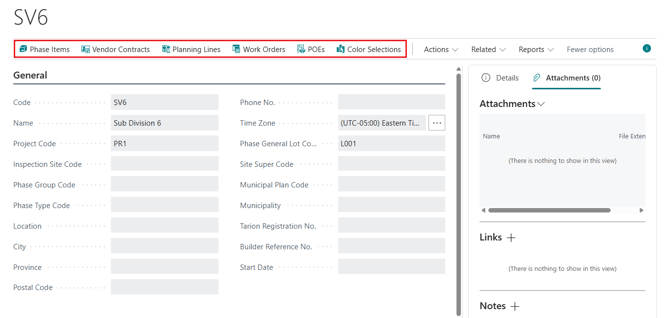
- Sync Code to Dimensions
- This action creates or updates the Dimension Values that correspond to the selected Phases, so Phase codes can be used as an analysis dimension in the General Ledger.
- Dimension Values for Phases are maintained automatically. Even though the action is available, do not run it unless you know exactly why you need to.
- Phase Items
- Opens the page "Phase Items" for the selected Phase, which defines which Items apply to the Phase, their Phase-specific costs and prices, and the Vendors installing them.
- Documented in full in Phase Items.
- Vendor Contracts
- Opens the Vendor Contracts for the selected Phase. Vendor Contracts must be set up for each Phase, and are described in Vendor Contracts.
- Planning Lines
- Opens the page "Phase Planning Lines", showing all Lot Planning Lines belonging to the Phase in one list. Use it to review the planned installation work and budget across the whole Phase, rather than Lot by Lot.
- See Planning: Phase Planning Lines.
- Work Orders
- Opens the Work Orders raised for the Phase. A Work Order is created for selected Planning Lines where a Vendor Contract is in place, and moves through the statuses 'New', 'Issued', and 'Completed'.
- See Vendor Work Orders.
- POEs
- The purpose of POE (Purchase Orders for Extras) is to inform a Vendor with upcoming work for selected options, upgrades and extras in advance.
- Opens the POEs for the Phase. A POE covers extra work arising from the Color Chart selections made by the home purchaser.
- POEs are not required to be completed within the system: a POE may remain open and unreconciled while purchase invoices are processed as they are received.
- See Purchase Orders for Extras.
- Color Selections
- Opens the page that allows for setting up default items and variants used in Color Charts (also called Lot Selections, or Upgrades and Extras) for the Phase.
- See Color Selections.
Actions Menu
- Copy Content To
- This action copies setup data from the current Phase to one or more destination Phases, so a new Phase can be built from an existing one instead of being set up from scratch.
- The action opens the page "Copy Data to other Phases: <Phase Code>".
- On FastTab "General", switch on each set of data to be copied:
- Models, Model House Areas, Model Lot Types, Model Budgets, Model WF and Key Dates, Model Items
- Vendor Contracts, Vendor Contract Prices, Phase Items, Color Selections
- In the grid "Phases to Copy Data", select the destination Phases. More than one Phase may be selected in a single run.
- To complete the action, click "Copy to Selected Phases".
Related Menu
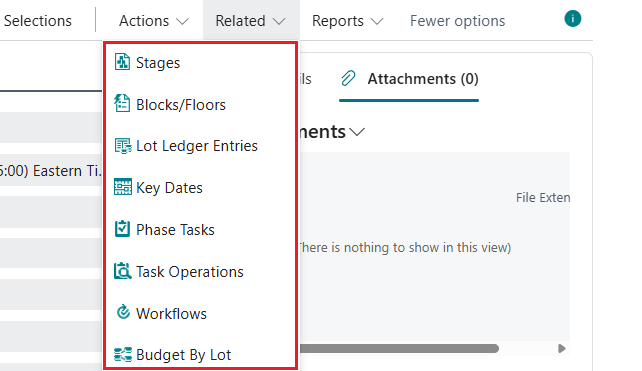
- Stages
- Opens the page "Stages - <Phase Code>", which defines the construction stages available for the Phase. Each line holds "Phase Code", "Code", and "Name".
- Stages are maintained with the standard "New", "Edit List", and "Delete" actions.
- Confirm where Stage codes are consumed downstream — reporting, draw schedules, or the "Key Date Category Code" on Key Dates.
- Blocks/Floors
- A Block represents a block of townhouses (or houses) in a low-rise phase, or a floor in a high-rise phase. Page "Blocks/Floors" allows a user to define blocks (floors) for a phase.
- Lot Ledger Entries
- Opens the "Lot Ledger Entries" page for the particular Phase, showing the cost and revenue entries posted against every Lot in the Phase.
- This is the posted history behind budget-to-actual reporting, from which you can also reallocate posted costs across Lots.
- For full detailed information, see Phase Lot Ledger Entries.
- Key Dates
- Opens the page "Phase Key Dates: <Phase Code>", listing the key dates of every Lot in the Phase.
- The grid contains "Phase Code", "Lot Code", "Key Date Code", "Key Date Name", "Key Date Category Code" (for example 'PRE' or 'STAGE 1'), "Sorting Order", "Is Milestone", "Scheduled Date", "Actual Date", and "Comment".
- "Sorting Order" controls the sequence in which the dates are listed.
- "Is Milestone" flags the dates reported as milestones.
- "Scheduled Date" holds the planned date and "Actual Date" the date achieved.
- Phase Tasks
- Opens the page "Phase Tasks: <Phase Code>", listing the Workflow Tasks of every Lot in the Phase. Use it to see what is outstanding across the Phase and to progress Tasks in bulk.
- The grid contains "Workflow Code", "Task No.", "Description", "Phase Code", "Lot Code", "Status", "Scheduled Date Open", "Started", "Date Started", "Completed", "Date Completed", "Scheduled Date Completed", and "Has Planning Lines".
- The page has the following actions:
- Start — marks the selected Tasks as started and stamps "Date Started".
- Complete — marks the selected Tasks as completed and stamps "Date Completed".
- Planning Lines — opens the Planning Lines behind the selected Task. The field "Has Planning Lines" shows whether any exist.
- For more detail, see Task-Item-Purchase Invoice Linking.
- Task Operations
- Opens the page "Task Operations: <Phase Code>" — the scheduling view of the same Tasks. Where "Phase Tasks" answers what is outstanding, "Task Operations" handles duration, sequence, and dispatch to Vendors.
- The upper grid contains "Phase Code", "Job Task No.", "Description", "Lot Code", "Status", "Duration", "Scheduled Date Open", "Scheduled Date Completed", "Manually Scheduled", "Overlap", "Date Open", "Started", "Date Started", "Completed", "Date Completed", "Comments", and "Predecessors".
- The page has the following actions:
- Start and Complete — as in "Phase Tasks".
- Predecessors — maintains the operations that must finish before the selected one can begin.
- Create Work Orders — raises Work Orders for the selected operations.
- Schedule — recalculates the scheduled dates from duration, predecessors, and overlap.
- The lower part of the page shows "Job Planning Lines" for the selected operation, with the actions: "New Line", "Delete Line", and "Work Order Card".
- Workflows
- Opens the page "Lot Workflows" filtered to the Phase, showing the Workflows assigned to each Lot.
- The grid contains "Phase Code", "Lot Code", "Workflow Code", "Workflow Name", "Scheduling" ('Manual' or 'Ends at Closing'), "Construction Workflow", "Décor Workflow", "Status" ('Pending', 'Open', or 'Completed'), "Scheduled Start Date", "Scheduled End Date", "Closing Date", "Date Open", and "Date Completed".
- The page contains the following actions:
- Open Workflows — opens the selected Workflows, moving them from 'Pending' to 'Open'.
- Schedule Workflows — calculates the scheduled start and end dates for the selected Workflows.
- Workflow Tasks — drills into the Tasks belonging to the selected Workflow.
- Budget By Lot
- Opens the page "Budget By Lot: <Phase Code>", which breaks the Phase budget down by Lot so budget-to-actual can be reviewed across the Phase in one view.
- The following filters are available at the top of the page:
- "Include Revenue" — when switched on, revenue is shown alongside cost.
- "Cost Group Code" and "Cost Detail Code" — narrow the figures to a single cost group or cost detail, for example a single trade.
- The grid "Lot Budgets" shows "Phase Code", "Lot Code", "Estimated Amount", "Planned Amount", "Budget Amount", "Actual Amount", and "Amount to Complete", with one line per Lot.
Phase FactBox
- "Details" — summary information for the selected Phase.
- "Attachments" — files stored against the Phase, such as site plans and drawings. The count in the tab caption shows how many are attached.
- "Links" — URLs recorded against the Phase.
- "Notes" — free-text notes recorded against the Phase.